124 • SMP Gateway User Manual
Select the SMP Gateway that will retrieve the files (the master SMP Gateway).
From the Tools menu, select SMP Config.
Configure the system folder that will be used to store the files retrieved from the slave
SMP Gateway. See “Defining System Folders”, above.
Not
e: The Compress setting will have no effect here if the files are already
compressed on the slave SMP Gateway.
Assign the system folder to the Interconnection master instance:
In the left pane of the SMP Config window, select the master instance.
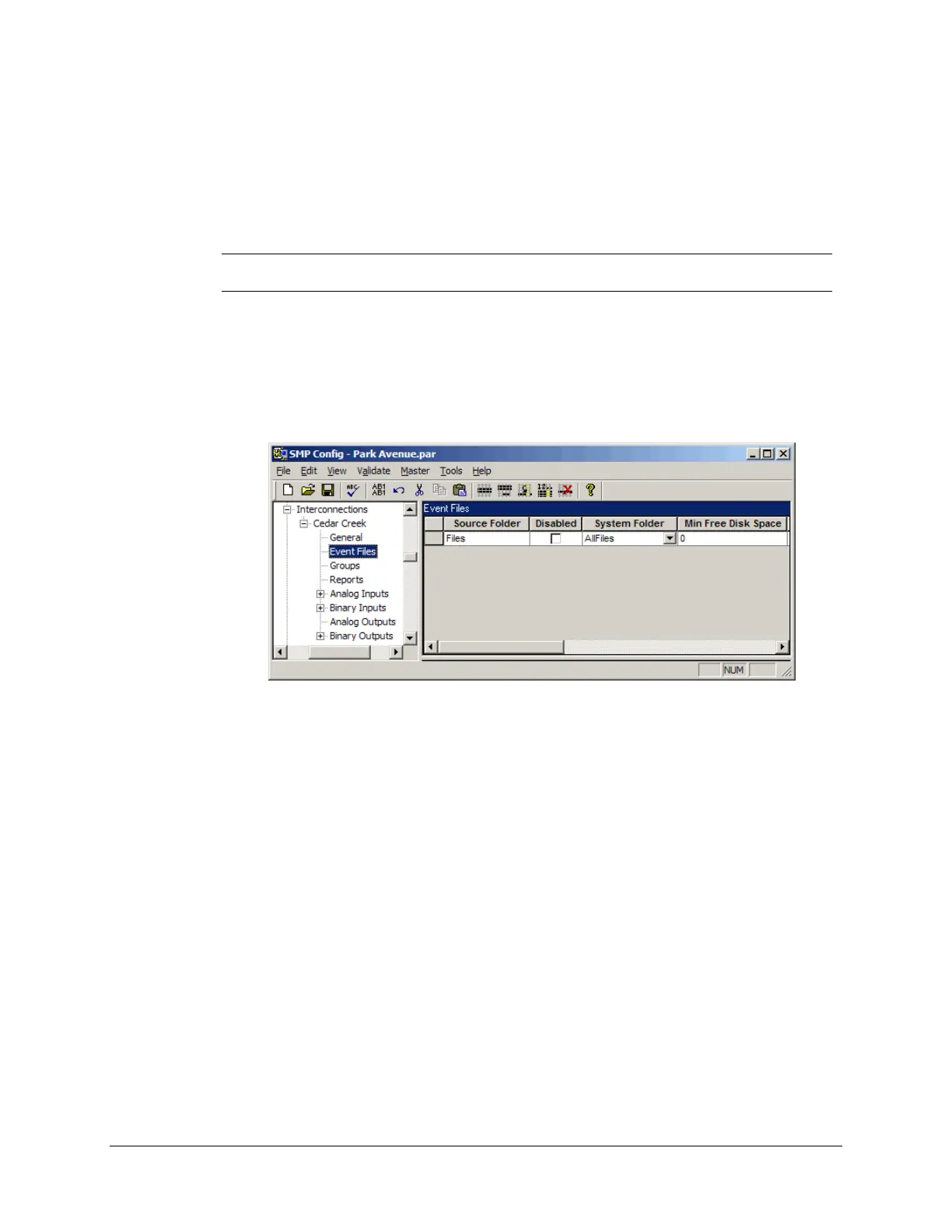
Expand the instance branch and select Event Files.
Type the name of the Source Folder on the slave SMP Gateway. You should type here
the same string you typed for the Share Name setting in the slave gateway’s
Interconnections slave instance.
Select the system folder you just defined for storage.
In the Min Free Disk Space box, specify the amount of disk space that has to be
available in the system folder in order to store an event file. When there is less disk space
available than what you have specified, the event files will no longer be retrieved from
the slave SMP Gateway. The maximum value you can type is 2,147,483,647, and the
default is 0 (event files are always retrieved, regardless of available disk space).
Specify the Scan Interval, in seconds, at which the master gateway will poll the slave
gateway for new files to retrieve.
Save the configuration file and close SMP Config.
Send the configuration file to the SMP Gateway using SMP Manager (see “Updating the
Configuration File” on page 225), and then restart the gateway.



 To Next Page