SMP Gateway User Manual • 141
To select all cells from a given line, click the line header.
To select all cells from a given column, click the column header.
To select multiple cells from different adjacent lines and column, click and drag over the
cells you want to select.
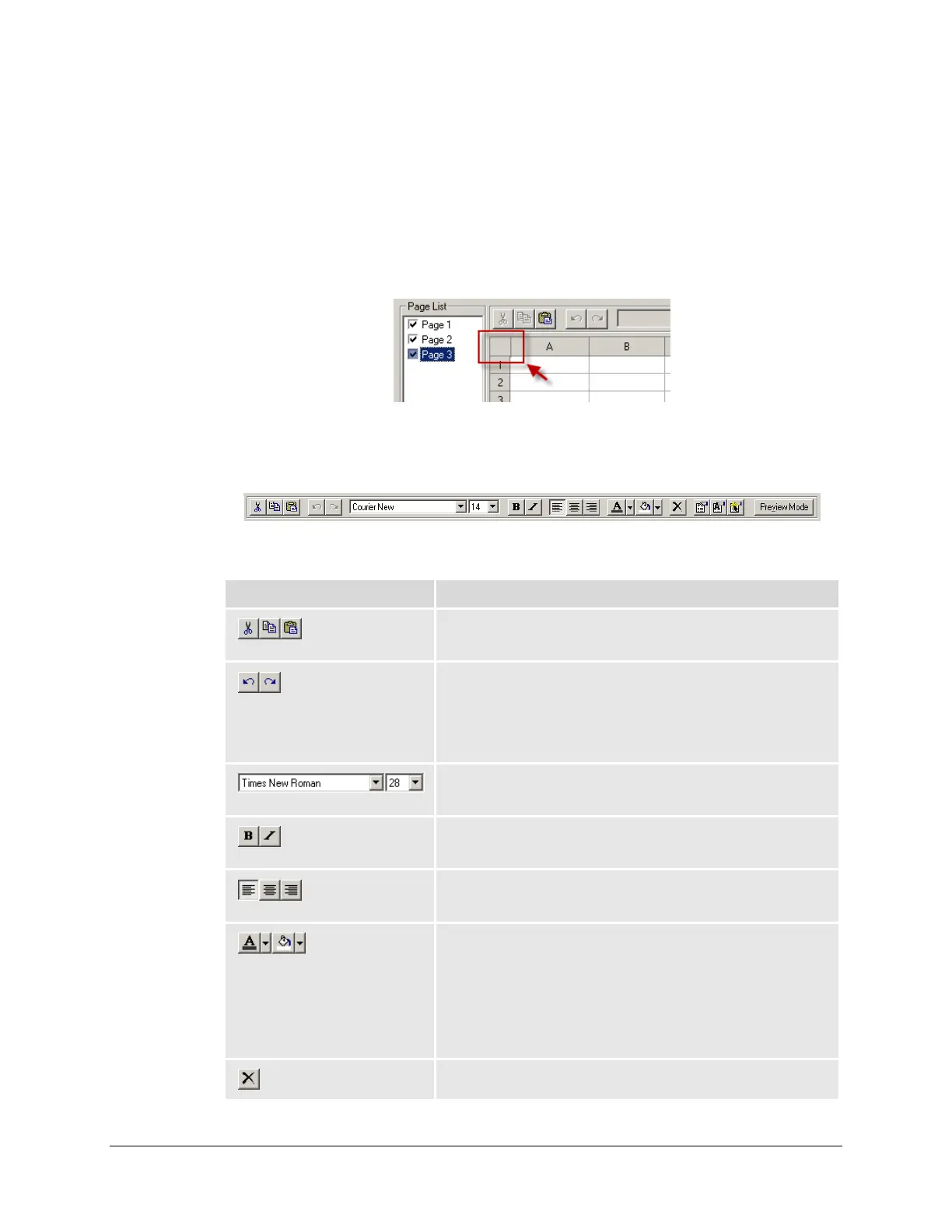
Finally, to select all cells, click the non-editable cell found at the intersection of the line
and column headers.
Select the cell at the right of the line 1’s header and under column A header: let us call it cell
1A. When you click the cell, the grid’s toolbar becomes active.
The toolbar’s various controls are presented in the following table:
Control(s) Description
Allow you to cut, copy and paste cells in the currently edited page
or from this page to another one.
Allow you to undo last edits, one at a time. If you want to revert to
an edit you just undo, you can use the redo button. Note that a list
of edits is preserved for each page, so you can switch back to a
page you left a few minutes ago and undo the last change you did
to this page, for example.
Change the font and font size of cell text. Only a limited number of
font and sizes are available on the SMP Gateway.
Apply the Bold or Italic font style to cell text. You can also apply
both styles at the same time.
Change the text’s alignment. Available choices are: left aligned,
centered and right aligned. Text is left aligned by default.
Change the cell’s font and background colors for normal text. Click
the appropriate button to apply the currently selected color (as
displayed on the button itself) or click the drop-down button to
select the color you like.
Other color options are only accessible through the Cell Properties
dialog box, which is presented later in this section.
Clear the entire content of a cell.



 To Next Page