142 • SMP Gateway User Manual
Open the Cell Properties dialog box. Depending on the shortcut
button clicked, either the General, Font or Click tab will be
selected. The Cell Properties dialog box is presented later in this
section.
Enter preview mode. This functionality is described more later in
this section.
Note: If you click on any button while multiple cells are selected, the resulting
modifications will be applied to all cells, if possible.
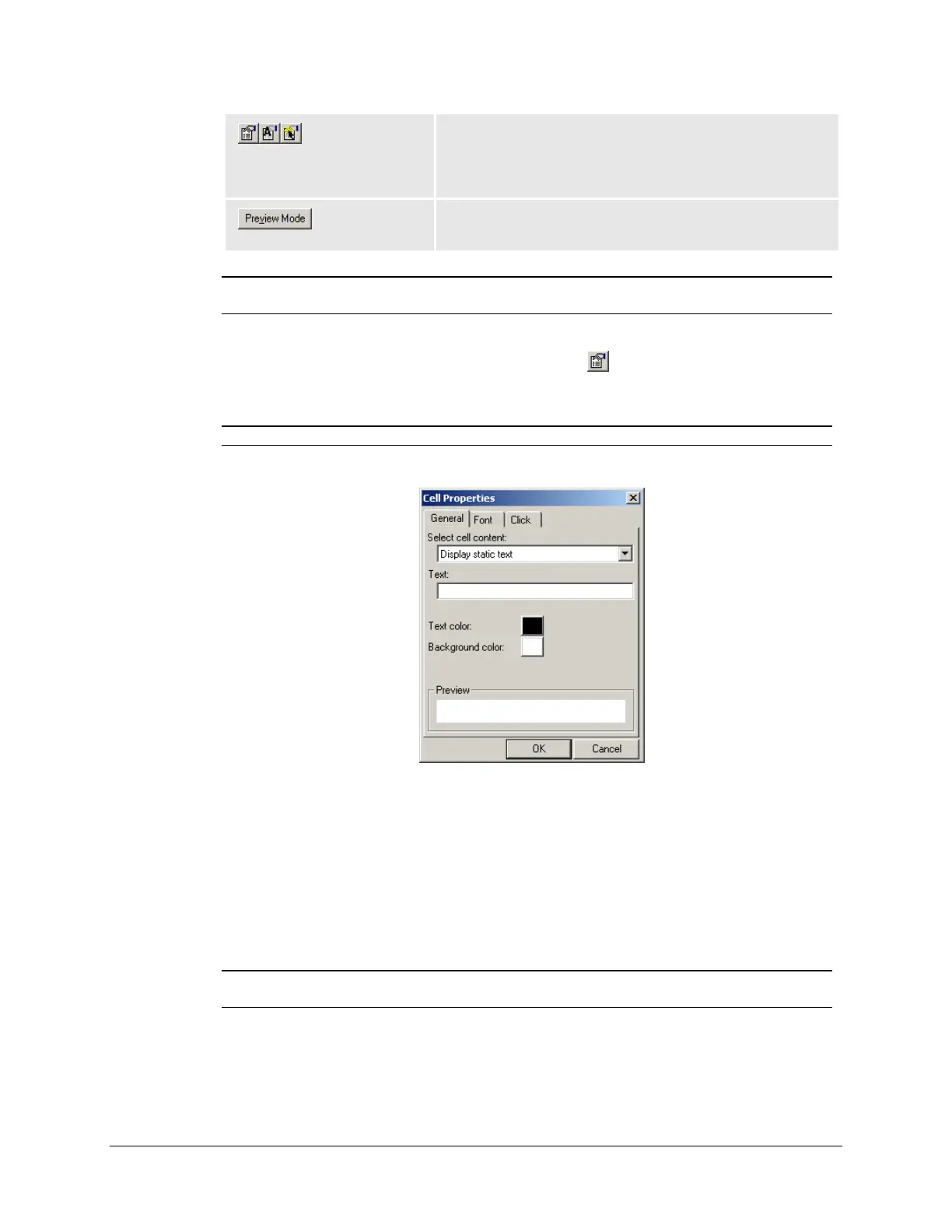
Still in cell 1A, click the General Properties button ( ).
The Cell Properties dialog box opens, with the General tab selected.
Note: You can also open the Cell Properties dialog box by double-clicking a cell.
The General tab is used to select the type of content that will be displayed in the cell: static text or
the current reading of an input point (analog or binary). Text and background colors can also be
set here. The resulting display is previewed at the bottom of the tab.
By default, every cell is configured to display static text. For the sake of our example, we will
display the SMP Gateway internal clock’s minute field, which value is available in analog
input _smp___clockMinute. Note that a static text cell can also be used to display a
colored cell with no text at all.
Note: You can also type the text directly in the cell, from the Readings Annunciator
Page pane.
If you like, change the text and background colors.
Click the Font tab to edit the text’s font, style, alignment and size. A preview is also available
in this tab.



 To Next Page