C
HAPTER
5
| Monitoring the Switch
Displaying Basic Information About the System
– 200 –
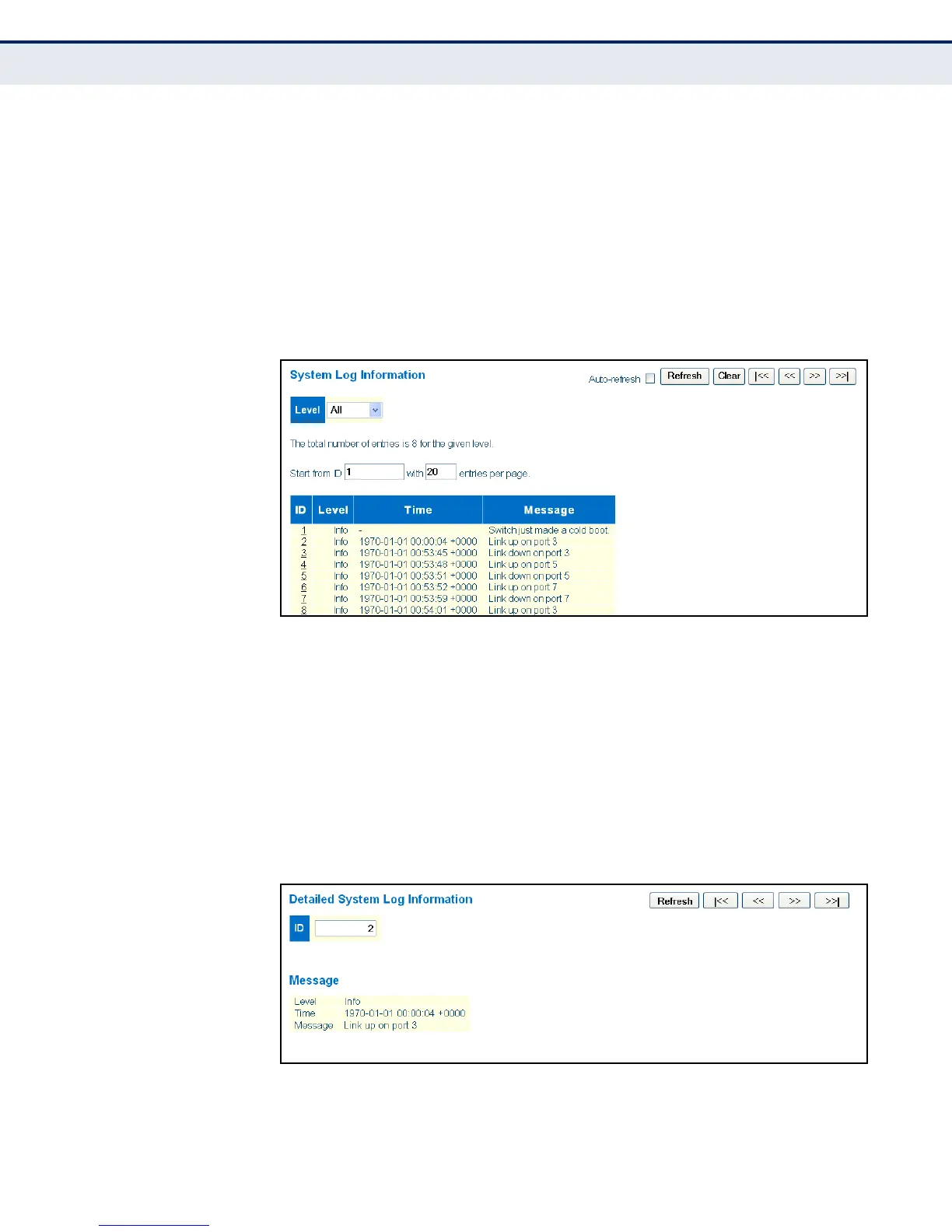
3. Use Auto-refresh to automatically refresh the page at regular intervals,
Refresh to update system log entries starting from the current entry ID,
or Clear to flush all system log entries.
Use the arrow buttons to scroll through the log messages.
|<< updates the system log entries, starting from the first available
entry ID, << updates the system log entries, ending at the last entry
currently displayed, >> updates the system log entries, starting from
the last entry currently displayed, and >>| updates the system log
entries, ending at the last available entry ID.
Figure 71: System Log Information
DISPLAYING LOG
DETAILS
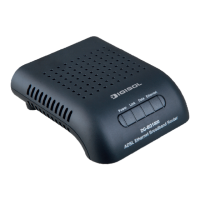
Use the Detailed Log page to view the full text of specific log messages.
CLI REFERENCES
◆ "system log" on page 269
WEB INTERFACE
To display the text of a specific log message, click Monitor, System,
Detailed Log.
Figure 72: Detailed System Log Information


 To Next Page