396 Eos Apex, Eos Ti, Gio, Gio @5, Ion Xe, Ion Xe 20, and Element 2 User Manual
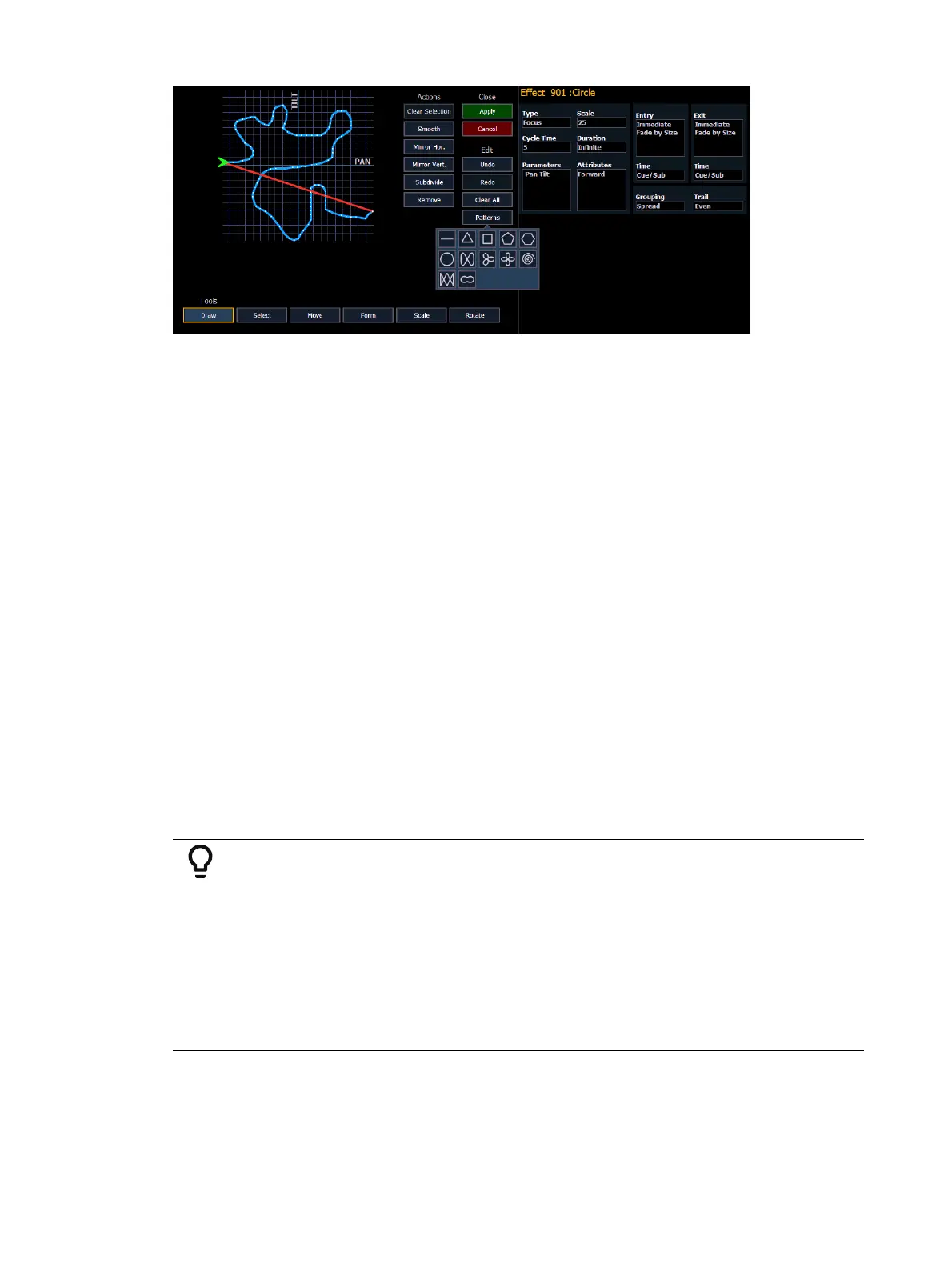
The following tools are also available to edit the curve with the mouse or touchscreen:
Draw - draw a new line for linear effects or append points to focus effects
Select - select points of the curve (if no points are selected, all are changed)
Move - move selected points, can also phase-shift the curve of linear effects in steps of
30 degree (only if no partial selection was made)
Form - freehand scale the curve horizontally and / or vertically
Scale - proportionally scale the curve (focus effects only)
Gamma - apply a log function to the curve (linear effects only)
Size - scale focus effects on both axis
Rotate - rotate focus effects around the center of the selected points
The following actions are available when editing the curve:
Clear Selection - selects all points at once
Smooth - smooths the selected points
Mirror Hor. / Vert. - mirrors the curve
Subdivide - adds one point on each selected segment (useful to move that point or
change the behavior of smooth)
Remove - removes the selected points
Undo - undoes the last operation
Redo - redoes the last operation
Programming a New Relative Effect
Below is the process used to program a new relative effect.
Example:
To open the effects list press:
[Effect] [Effect]
Establish the number of the effect by pressing:
[Effect] [4] {Type} {Linear/Focus/Color} [Enter]
The effect will appear in the effect list and the CIA will repaint with the effect
details visible. Manipulate the effect using the encoders, effect graph, and / or
property fields so that the effect meets your needs (see
Effects Editor (on
page379)
for details on effect properties and encoders).



 To Next Page