Single Cue Lists 319
[Update]
Update is a powerful feature, and also very versatile. Using a combination of [Q Only], [Track],
[Trace], and {Make Absolute}, the number of ways you can update specific information and
manual data is virtually endless. Data can be updated to various record targets either at once,
or individually.
Update Dialogue Box
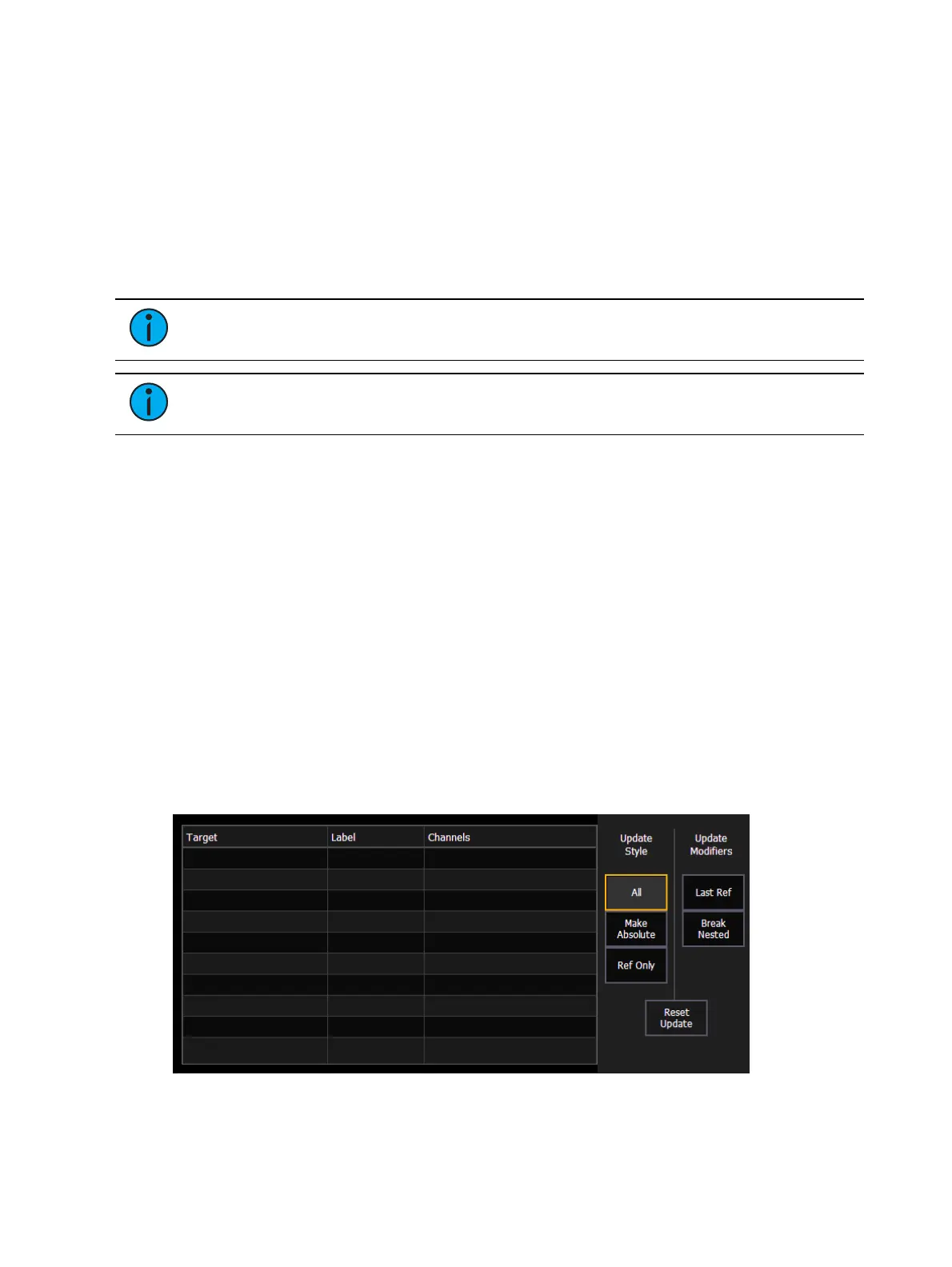
When you press [Update], a dialogue box will open in the CIA. Update styles and modifiers for
those styles will be divided in the Update Dialogue Box.
Note:
Default Update Modes are set in Setup>User>Record Defaults. See Record
Defaults (on page213) for more information.
Note:
{By Type} is available as a softkey. See Updating By Type Presets (on
page295) for more information.
Update Styles
{All} - this button will update the target cue and all references stored to that cue (nested
and otherwise).
{Make Absolute} - this button will update the target cue and convert all levels to
absolute values, thereby removing any references.
{Ref Only} - this button will only update the palettes or presets used in the cue, but will
not update the cue itself. If a manual reference was used before using {Ref Only}, the
last manual reference will be updated.
Update Modifiers
{Last Ref} - this button will update using the last reference that was applied.
{Break Nested} - this button will update the target cue and any presets used, but breaks
the reference to any palettes nested in a preset. For example, if cue 1 channel 1
references preset 3, and preset 3 was built using color palette 5. When updated with this
option, preset 3 would be updated, color palette 5 would not, and the reference to CP5
would be broken in preset 3.
{Reset Update} - this button will clear any commands after the [Update] command to
quickly undo pending changes before [Enter] is pressed.



 To Next Page