470 Eos Apex, Eos Ti, Gio, Gio @5, Ion Xe, Ion Xe 20, and Element 2 User Manual
While in this mode, the monitor with the magic sheet will not display a tab number, command
line, or status bar. If there were other tabs open on that monitor, they will close when the
magic sheet goes into limited expand mode. If tabs 1 or 2 are open, they will move to a
different monitor.
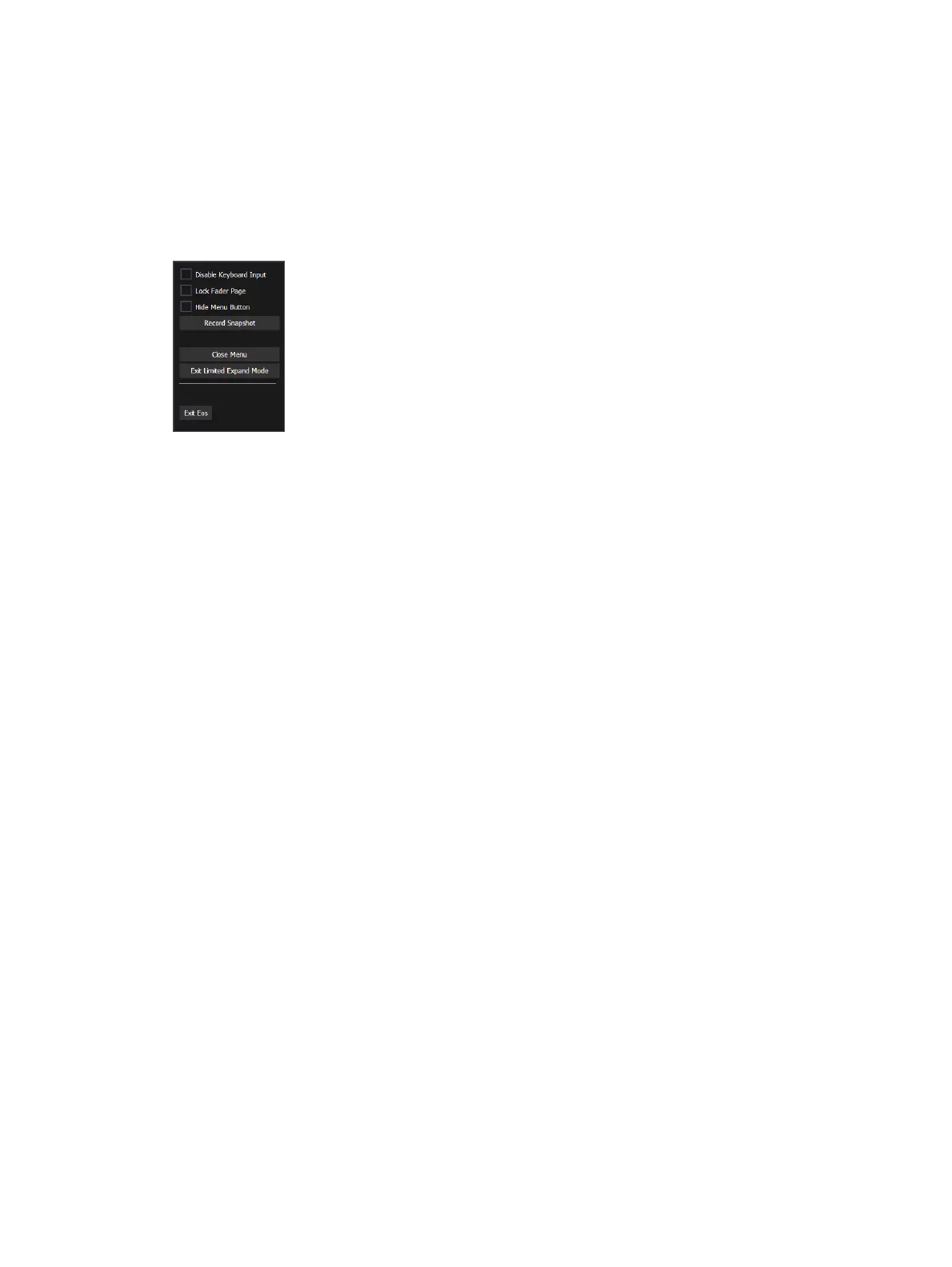
Limited Expand Menu
Magic sheets are not editable in this mode, but certain options are available from the gear
menu in the lower-left.
The following options are available in this menu:
Disable Keyboard Input - disables input from the face panel and an external keyboard.
Fader and macro buttons will still work.
Lock Fader Page - locks the fader page to the currently displayed one.
Hide Menu Button - hides the gear menu. When the icon is hidden, [Shift] [Displays] is
the only way to exit Limited Expand Mode.
Record Snapshot
Close Menu
Exit Limited Expand Mode
Exit Eos
Limited Expand
The monitor will display a three dot heartbeat indicator in the top right hand corner. The
indicator will move between three dots to show that your console is operating as expected.
The following indicator colors will be used for multi-console activity:
Yellow - system is operating as expected.
Red - master or backup has gone offline.
Green - master or backup has reconnected.
Examples of Magic Sheets
The following are examples of magic sheets created using the magic sheets feature. These
examples use a variety of objects provided in the software along with user-generated images.



 To Next Page