Issue 4.5 August 2005 Europlex Universal Interface Card (EUIC) 11-6
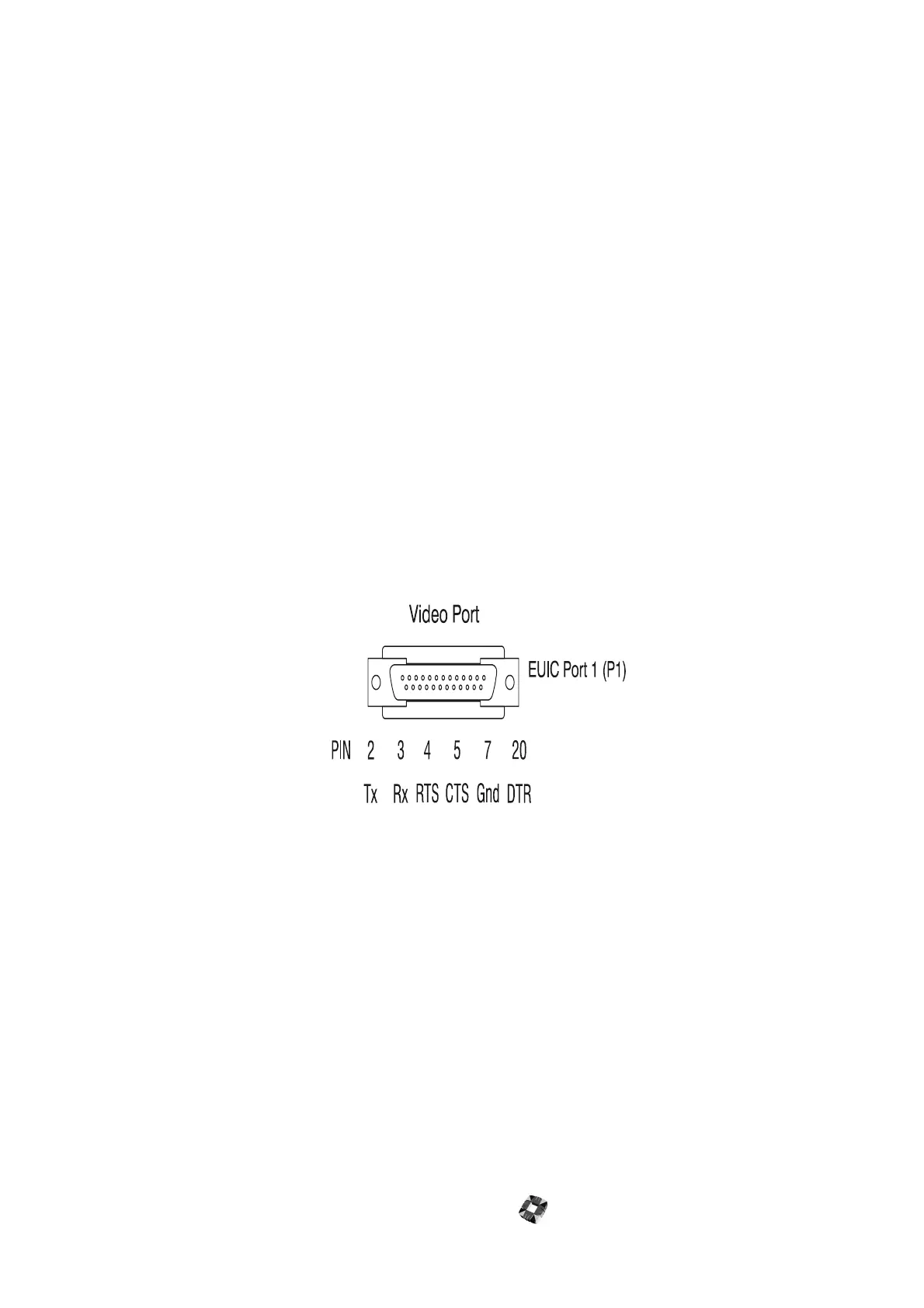
CONNECTING THE EUIC TO THE VIDEO MULTIPLEXER
To connect the EUIC to the video multiplexer
1 Use a cable as specified in the video multiplexer manual with a 25-way female termination on the EUIC end.
2 Insert the female end into port 1(P1) on the EUIC.
3 Start the EUIC programming software package.
4 Open the comms port on the PC.
5 Ensure that the communications settings of the EUIC host port match the settings specified for the video multiplexer
– otherwise no communications will take place between the EUIC and the video multiplexer. Remember to change
the PC settings to match these.
6 Select Video Options in the Communications menu and choose the option for the multiplexer connected to port 1.
7 Press Reset on the EUIC as requested, to save the video selection to the battery backed memory.
8 The EUIC software version and current settings are displayed on the PC if communications are properly setup.
9 When an alarm command is executed by the EUIC, it will transmit the set alarm channel command using the
appropriate protocol to port 1. This can be observed by a brief flash on LED 2.
10 When the event is false and the alarm has to be cleared again, the EUIC will transmit the clear alarm channel. These
transmissions will activate and clear the alarm channels on the video multiplexer. If this is not the case, then it is
likely that either the comms port is not correctly connected or the settings are incorrect. Check the connections and
retry.
11 If this does not resolve the problem, then you can connect the Default Link to reset the EUIC comms settings for all
the ports to the default settings. For further information, see “Default Setup” on page 11-9.
Alternately try all the different PC communications settings until the correct setting for the EUIC is chosen.



 To Next Page