17 - 12
PANELMAN OPERATION
Upload/Download Window
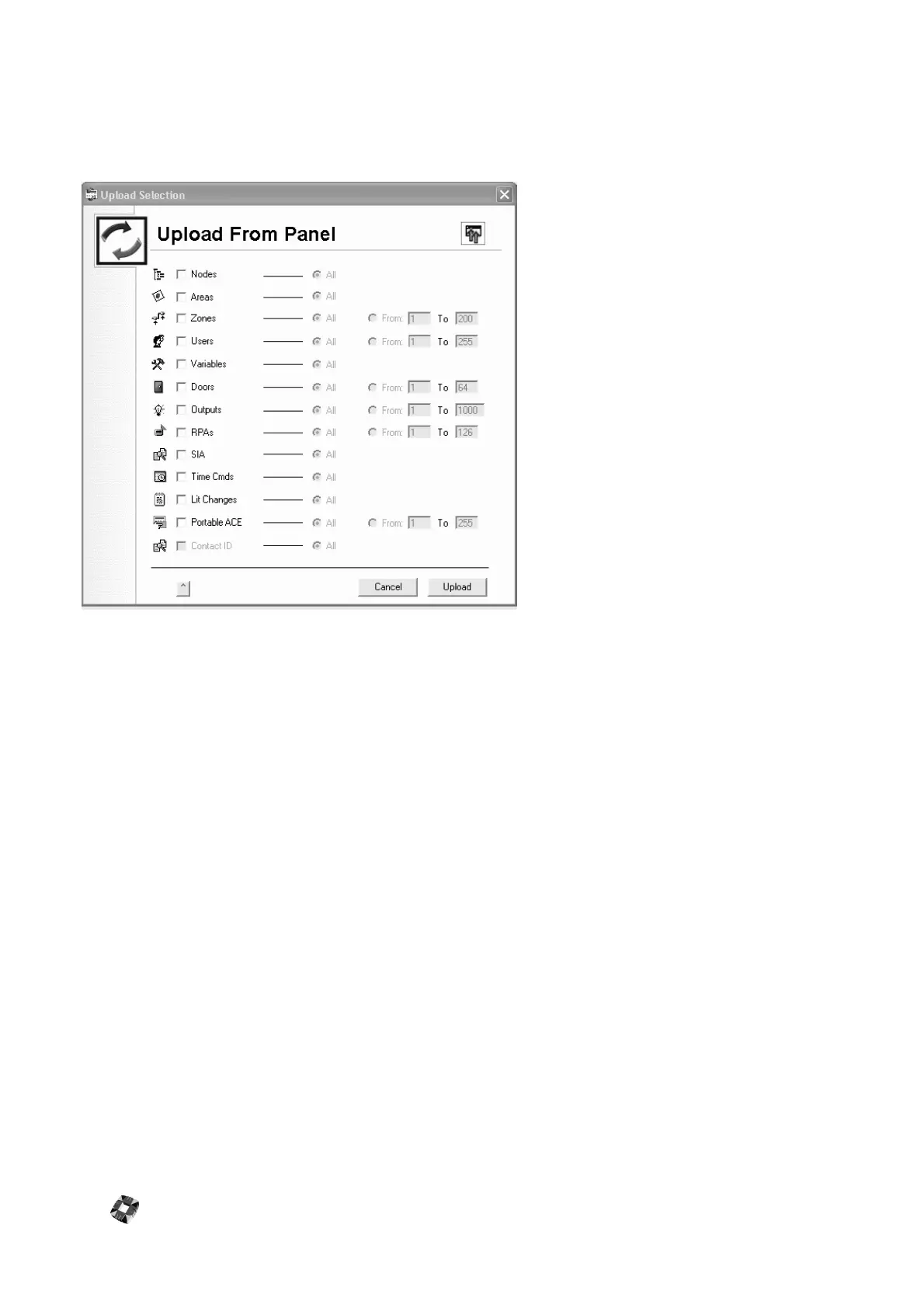
Once connected to Panel/Installation,
Upload and Download Functions can be
performed, either by choosing Tools –
Upload or Tools – Download from the File
Menu, or by clicking the Upload or the
Download icon from the Main Toolbar. For
Upload, the following window will be
displayed.
A similar window will be displayed for the
Download function. These Windows allow
for a full Upload/Download, or a Range
Upload/Download. Simply check the box(es)
of the values that you wish to Upload/
Download and the click the Upload/
Download button.
To perform an Upload/Download Range,
check the "From" option and select From/To
range (see above example window).
Upload/Download of Portable ACE Users from/to the Panel
You can upload programmed Portable ACE cards from the 3GS Controller, and also use Panelman to configure cards
for Portable ACE.
Configured ACE cards are displayed in the Panel Components tree. The card format and status are displayed, while the
card number and site code are hidden.
To program a card for PORTABLE ACE using Panelman:
1 ) Select an empty card slot.
2 ) Double-click on the slot. The Portable ACE Config. popup window is displayed.
3 ) Enter the card format, card number, site code and then select Enabled.
4 ) Select "SAVE".
5 ) Download the card to the 3GS controller.
This card can then be used to set and unset the system by simply presenting it to an RKD node with a Portable ACE
installed.
NOTE: The options available to the ACE card user are only valid if they have already been assigned to the specific user
through the user setup menu.



 To Next Page