17 - 11
Assigning Literal Files to Installation
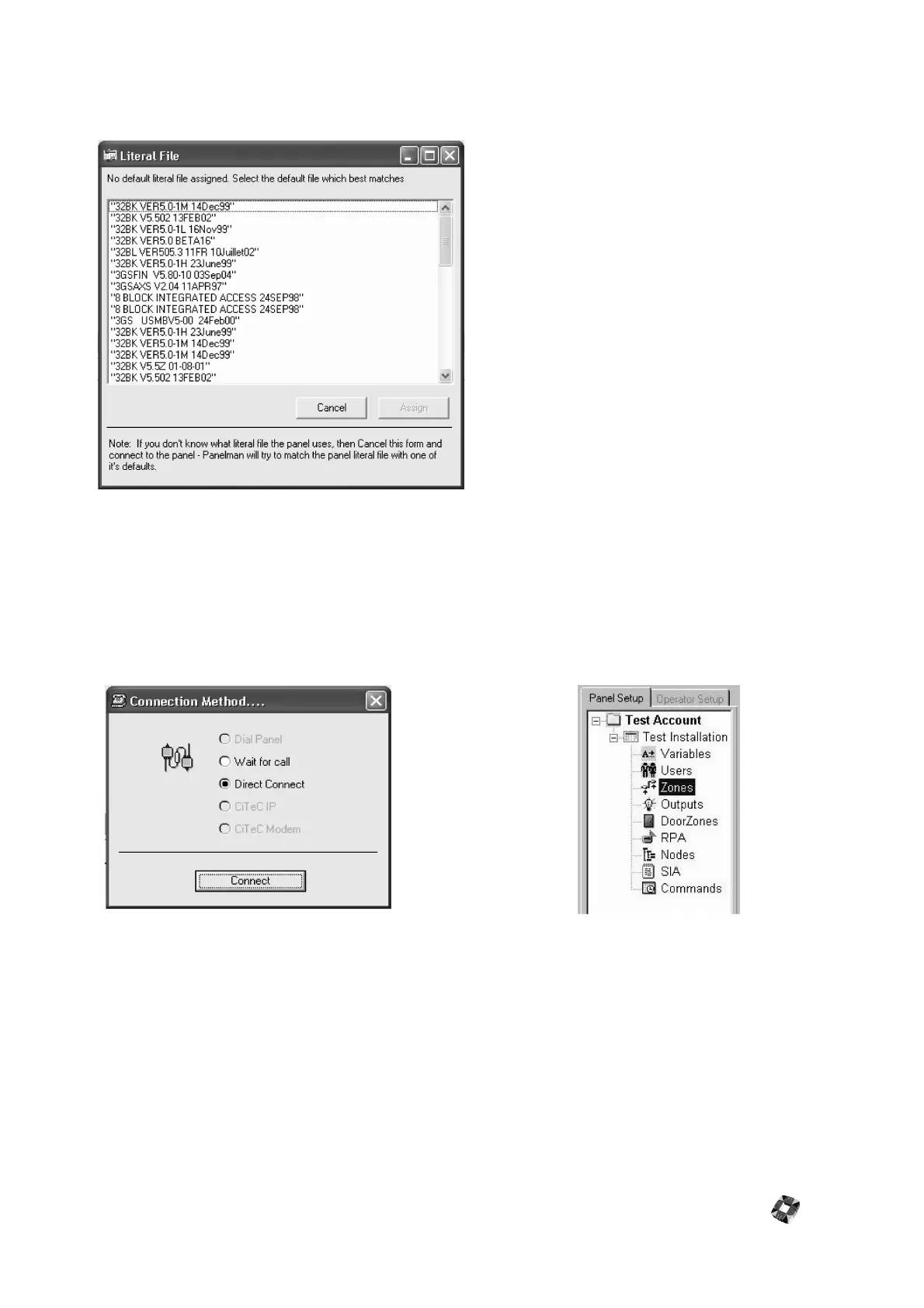
Once the installation has been loaded into Treeview, double-clicking it will bring up the following window:
Choose the default file that best matches the Panel
Software, highlight it by left clicking it, and Assign it by
clicking the "Assign" button.
Once this step has been completed successfully,
connection to the panel can now take place.
Alternatively, if you are unsure which default file best
matches the panel file, click "Cancel" on above form and
Connect to Panel. Panelman will then try to match the
panel literal file with one of it's defaults.
Connecting to the Panel
To connect to panel, highlight installation to be connected to by left-clicking it, then click the Connect icon in the
Toolbar. The connection method window (below left) will be displayed. Choose the Connection Method and then click
"Connect".
The Treeview can now be extended by double clicking the installation, or by clicking the "+" symbol beside the
installation name. The tree view will appear as shown above (right). Clicking now on Variables, Users, Zones etc. will
bring up the corresponding work windows. These are detailed in the Operation Windows section.
Working Offline
It is not necessary to connect to panel in order to configure an installation. The installation can be set up offline once a
default literal file has been assigned, and this information can be downloaded to the panel at a later time.
Note however that Node and SIA information cannot be altered offline. Connection must take place first and this
information must be uploaded from Panel.



 To Next Page