17 - 10
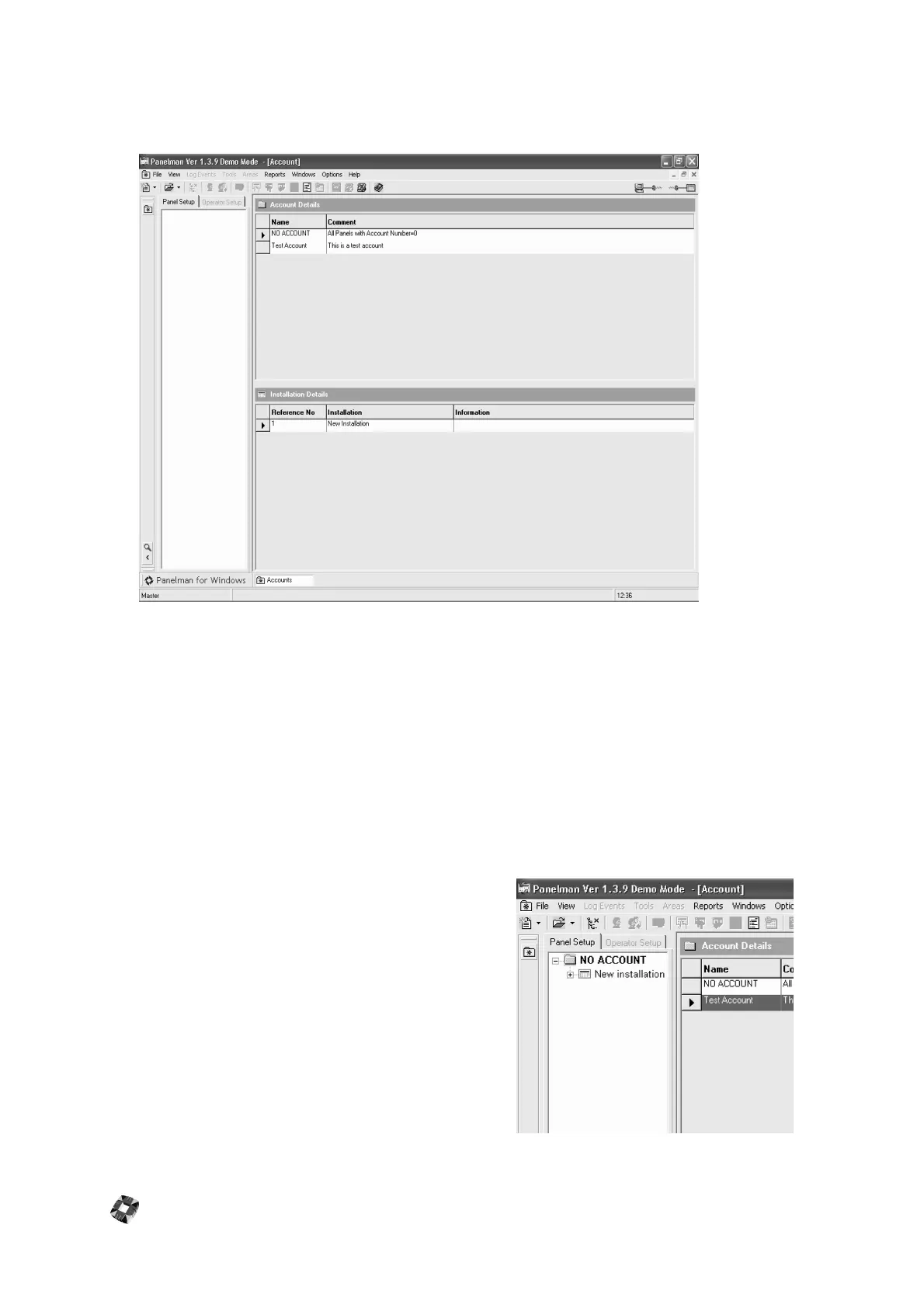
Account/Installation Window
Once the Account and Installation have been set up, the Account Details window will appear as follows:
Opening Existing Accounts/Installations
Existing accounts and installations can be opened by clicking on File on the Menu Bar, choosing Open from the drop
down list then choosing Account, or alternatively by clicking on the Open Account/Installation icon on the Toolbar. The
user can then select from a list of existing accounts or installations.
Note: Once Accounts Details Window is already open it will not be necessary to use the Open Function, as this will have
no effect.
Editing Existing Accounts/Installations:
Existing accounts and installations can be edited by highlighting the Account/Installation to be edited by left-clicking them
then right-clicking and Choosing "Edit". This will then bring up the Account and Installations Details windows that were
filled in before.
Loading Installations into Treeview
To load an installation into Treeview, in Installation Details Window
highlight the Installation by left-clicking its Reference No. once,
then double-clicking the Installations Reference No. will load it into
the Treeview.
Treeview will now appear as shown opposite:



 To Next Page