17 - 9
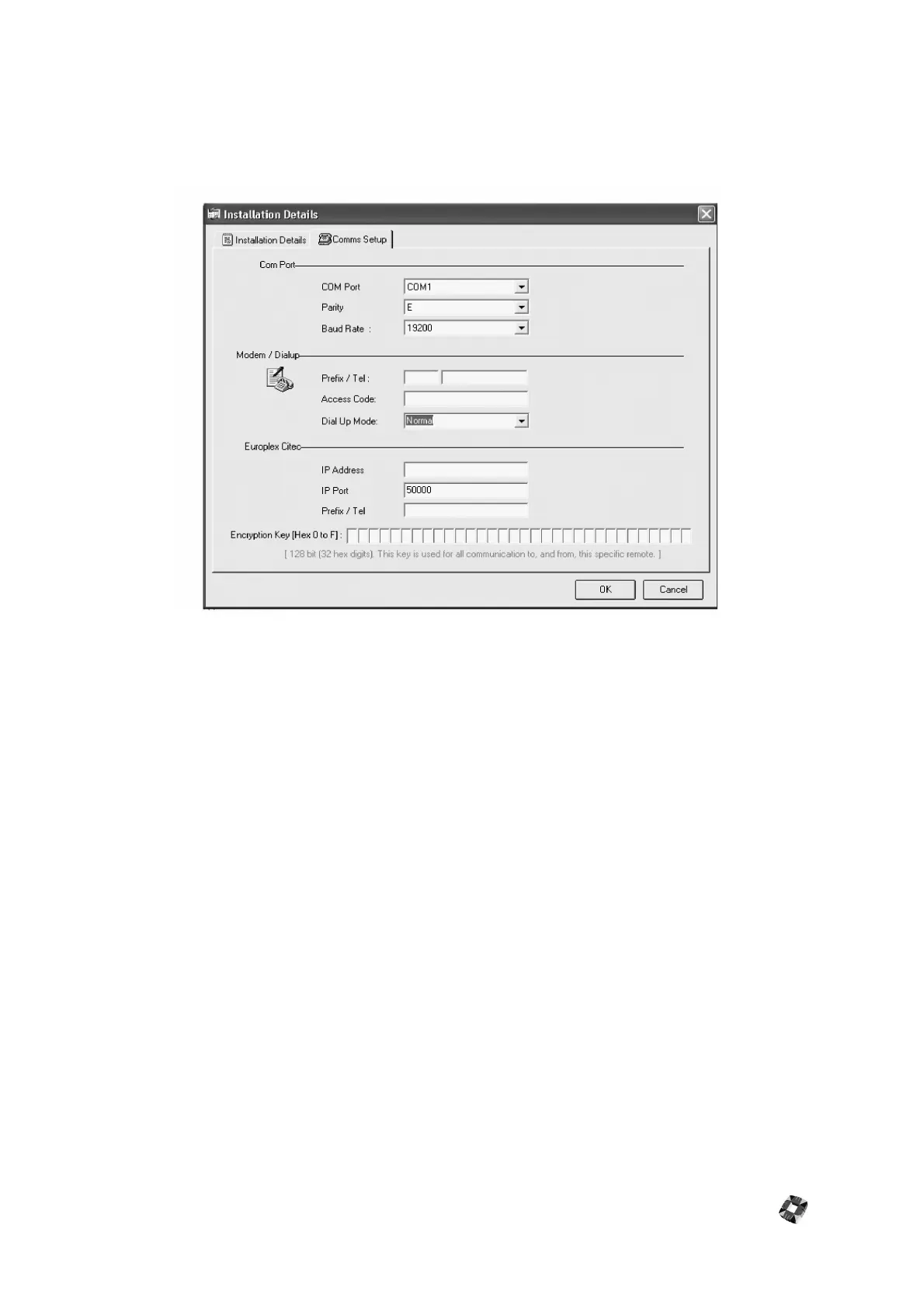
Comms Setup
Once you have completed the installation details, click on the Comms Setup tab to complete the communications
details for the panel.
COM Port
This indicates the PC COM port the installation is to be connected to. Select from available PC COM Ports by clicking
down-arrow.
Parity – This indicates the parity the installation is setup for. Even parity (E), No parity (N) or odd parity (O).
Baud rate – This indicates the baud rate the installation is set to. You can set it up for baud rates ranging from 150 to
19200 bps.
Modem Setup
Prefix/ Tel number - Enter the complete modem dialup number at the remote site.
Access code – This is the password used when communicating with the panel remotely. This Code must match the Panel
Access Code (if applicable) in order to connect to Panel. This code is not required if operating in Call Back Mode.
Dial Up Mode – Set to "Call Back" if Call Back required from Panel, otherwise leave as "Normal".
Europlex Citec
Enter details for the Europlex CiteC Card
IP Address - Enter the CiteC IP address if you are connecting to the panel over a LAN.
IP Port - Enter the port number of the CiteC, ensuring that this matches the number assigned to the Citec on the LAN.
Prefix/Tel.- Enter the CiteC telephone number for connecting over PSTN.
Encryption Key: Hex 0 to F.



 To Next Page