17 - 13
Set Panel Date and Time
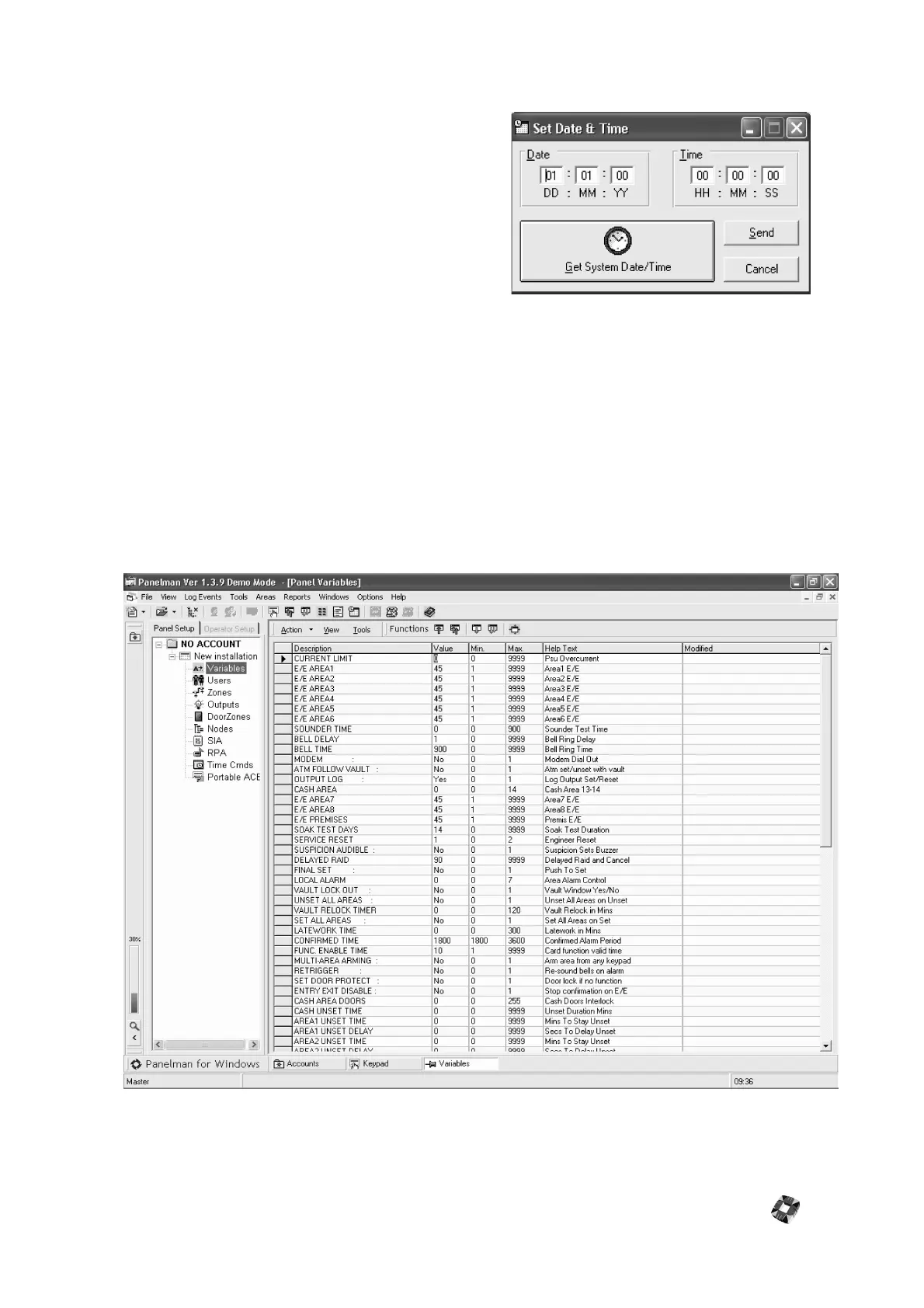
Panel Date and time can be set by clicking the icon on the main
toolbar. The following window will be displayed:
Date and time may be entered manually, or System (PC) Date and
time can be gotten by clicking the "Get System Date/Time" Button.
Click "Send" to send Date and Time to Panel.
Operation Windows
Each of the Operation Windows available for each Panel are listed under the corresponding Panel in the Treeview. To
activate these windows, simply left-click them in the Treeview. For more information on each of these operation windows
consult the 3GS Panelman for windows Help button.
Panel Variables Window
his Window allows you to view or adjust the system variables (which control timers etc.).
The figure shown in the "Value" box is the default value for this Panel. This is the only text that can be changed on this form.
Set these values to required settings, e.g. to set Current Limit to 2A, type 2000 in Value box.
Upload and Download Individual or All Variables can be performed by using the Functions Buttons.



 To Next Page