FARO Edge
September 2012
109
Chapter 7: Software
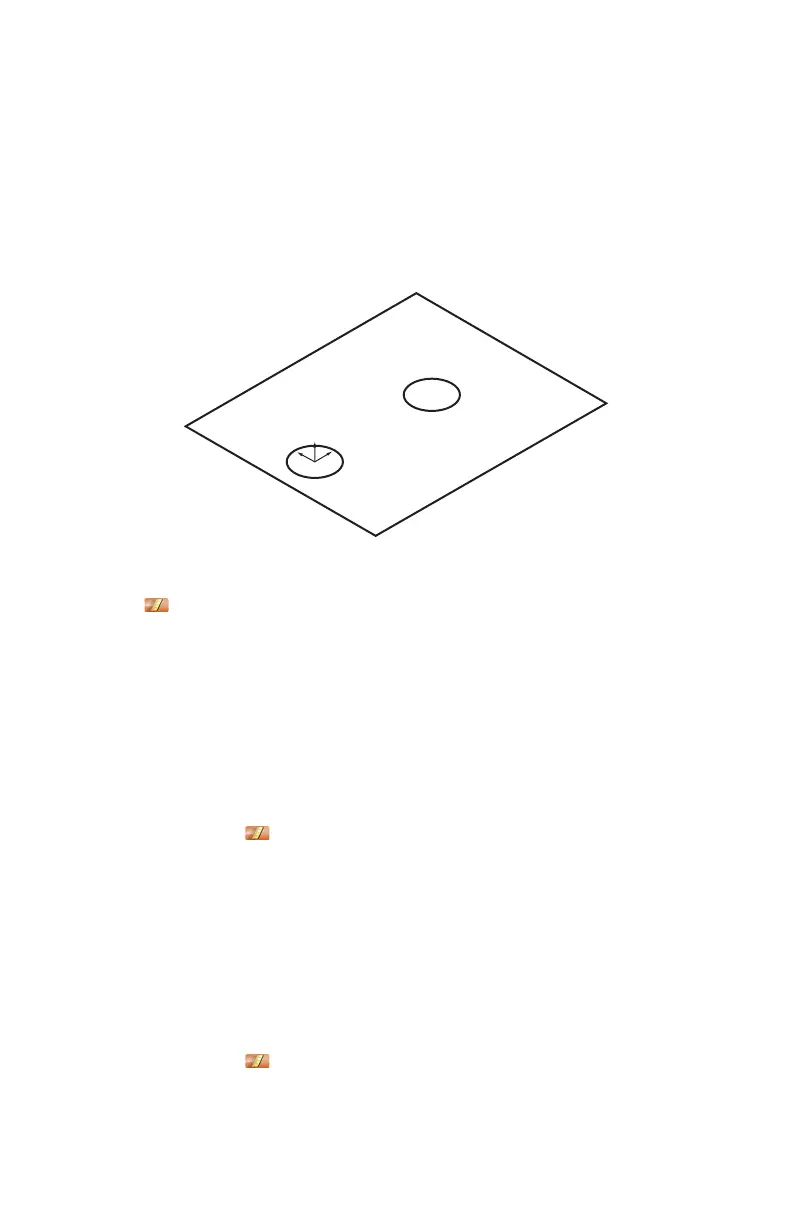
Plane Circle Circle
From the MAIN menu, touch CONSTRUCT > PART SETUP > PLANE
CIRCLE CIRCLE. Use this command to create a coordinate system on your part.
The plane defines the XY plane, the line from the first circle to the second circle
defines the X-Axis, and the center point of the first circle defines the origin of the
coordinate system.
1 Choose an existing plane in the P
LANE drop-down list or touch the MEASURE
NOW icon to measure the plane:
• Place the ball probe on the part and digitize points by pressing the GREEN
button. You must digitize at least three points for a plane. Hold the RED
button to remove any unwanted points.
• Pull away from the face, and press the RED button to define probe
compensation and complete the measurement.
• Look at the plane results. Press the GREEN button to accept, or the RED
button to reject and remeasure.
2 Choose an existing circle in the C
IRCLE drop-down list or touch the
MEASURE NOW icon to measure the first circle:
• Place the ball probe on the part and digitize points by pressing the GREEN
button. You must digitize at least three points for a circle. Hold the RED
button to remove any unwanted readings.
• Pull away from the hole, or post, and press the RED button to define probe
compensation and complete the measurement.
• Look at the circle results. Press the GREEN button to accept, or the RED
button to reject and remeasure.
3 Choose an existing circle in the C
IRCLE drop-down list or touch the
MEASURE NOW icon to measure the second circle:
Figure 7-10 Plane Circle Circle part setup
X
Z
Y
08M52E00_FaroArm_Edge.book Page 109 Thursday, October 4, 2012 9:31 AM


 To Next Page