FARO Edge
September 2012
59
Chapter 4: Probes
Range Finder
The FARO Laser Line Probe software has a R
ANGE FINDER dialog box. This
dialog box graphically displays the laser to part distance and the area of the laser
line that the camera is processing.
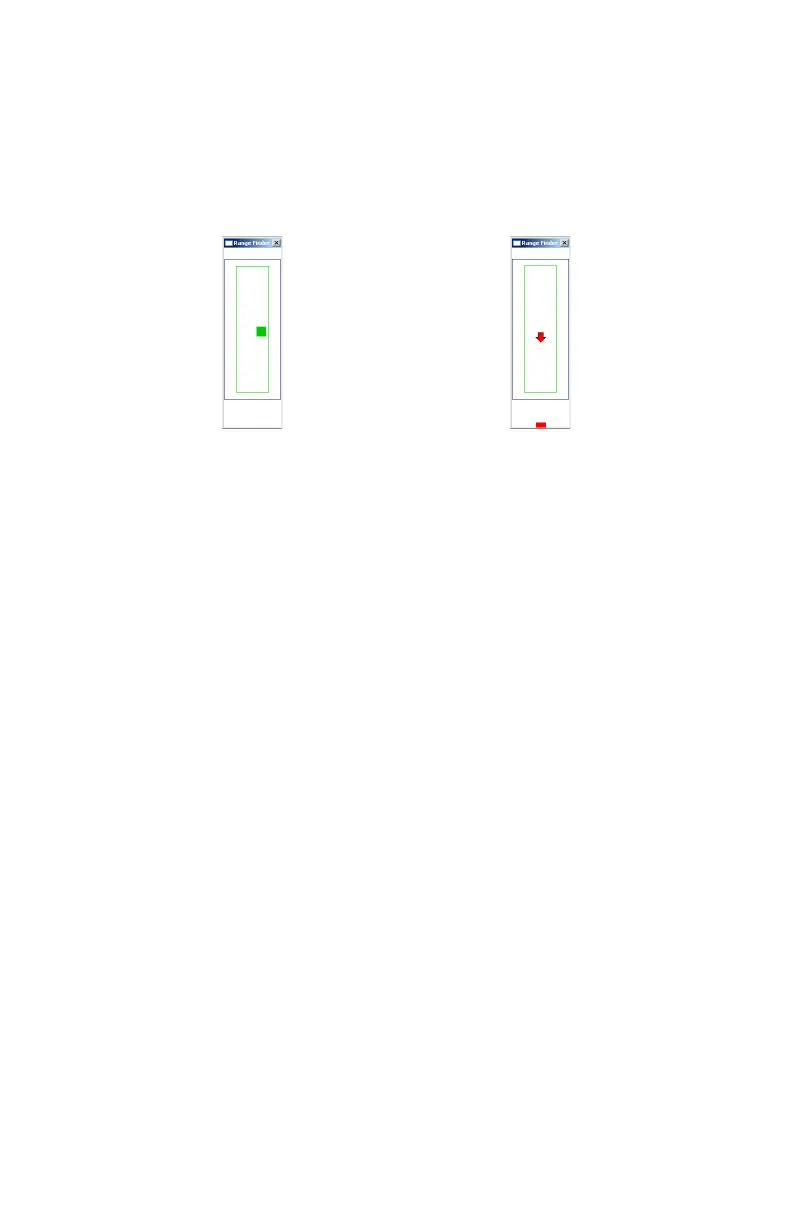
When the FARO Laser Line Probe is within the operating range, the center of the
target displays as a small box in the R
ANGE FINDER dialog box, see Figure 4-7.
The box moves as the FARO Laser Line Probe moves:
• Up - as you move the Laser Line Probe closer to your part
• Down - as you move the Laser Line Probe farther from your part
• Left - the right side of the line is in range
• Right - the left side of the line is in range
The target box changes color:
• Green - all of the laser is in range
• Blue - some of the laser is in range
• Red - none of the laser is in range
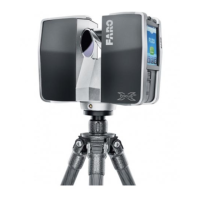
When the FARO Laser Line Probe is outside of the operating range, the target
box moves to a side of the R
ANGE FINDER dialog box and an arrow in the center
of the dialog box points to the target box, see Figure 4-8.
If the FARO Laser Line Probe is set to automatic exposure, there is an additional
symbol in the upper left corner of the R
ANGE FINDER dialog box. The symbol
changes describes the exposure:
• Red Minus Sign (-) - low exposure
• Green Circle (O) - good exposure
• Red Plus Sign (+) - high exposure
For more information, see “FARO Laser Line Probe Settings” on page 64.
Figure 4-7 Laser Line Probe in range Figure 4-8 Laser Line Probe not in range
08M52E00_FaroArm_Edge.book Page 59 Thursday, October 4, 2012 9:31 AM


 To Next Page