FARO Edge
September 2012
141
Chapter 7: Software
Check Feature
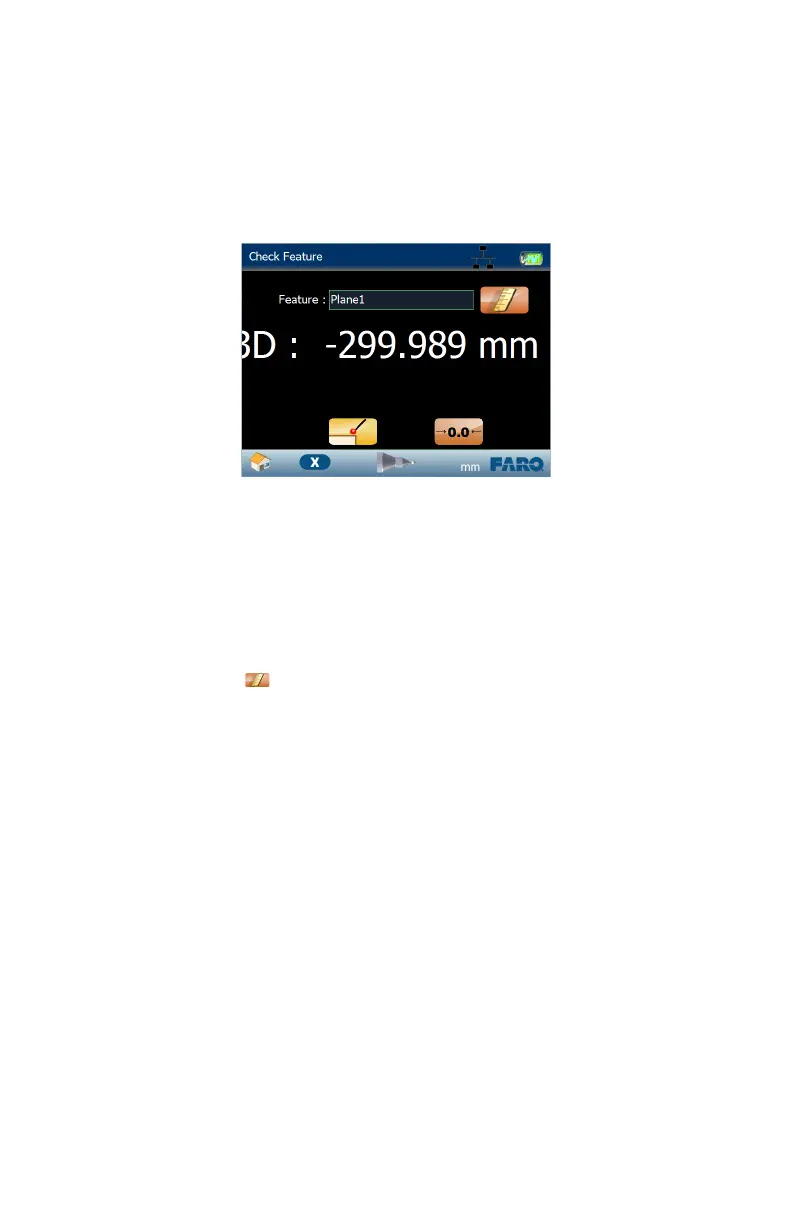
From the MAIN menu, touch MEASURE > FEATURES > CHECK FEATURE.
Use this command to view a live deviation of a feature at any location on the
feature.
You can also use this command as a 3D Height Gage and view the distance of the
probe to a plane feature.
N
OTE: The live view coordinates are automatically compensated for the probe
diameter, and in some situations you may need to choose a Manual
Compensation mode. See “Manual Compensation” on page 142.
1 Choose an existing feature in the F
EATURE drop-down list or touch the
MEASURE NOW icon to measure a plane:
• Place the ball probe on the part and digitize points by pressing the GREEN
button. You must digitize at least three points for a plane. Hold the RED
button to remove any unwanted points.
• Pull away from the face, and press the RED button to define probe
compensation and complete the measurement.
• Look at the plane results. Press the GREEN button to accept, or the RED
button to reject and remeasure.
2 Touch the surface of the feature and view the deviation of the probe location to
the feature.
3 Touch the BACK button to return to the MEASURE menu, or the HOME
button to return to the MAIN menu.
See measuring “Plane” on page 138.
Temporary Zero
You can set a temporary zero location. This adds a second deviation value to the
screen.
Figure 7-20 Check Feature
08M52E00_FaroArm_Edge.book Page 141 Thursday, October 4, 2012 9:31 AM


 To Next Page