FARO Edge
September 2012
43
Chapter 3: Operation
NOTE: If you choose not to connect the Edge to your computer using the
wireless connection, deselect the icon check box in the FARO Bluetooth
Connection Setup utility to deactivate the pairing and connect using the USB
cable.
Once you start measuring, there is no difference in data transfer between using
the Bluetooth connection or the USB cable.
Using Bluetooth - Windows 7
Create the wireless connection between the host computer and the Edge using:
• The Devices and Printers category of the Windows Control Panel.
• FARO Bluetooth Connection Setup utility software.
Edge to the Computer Connection
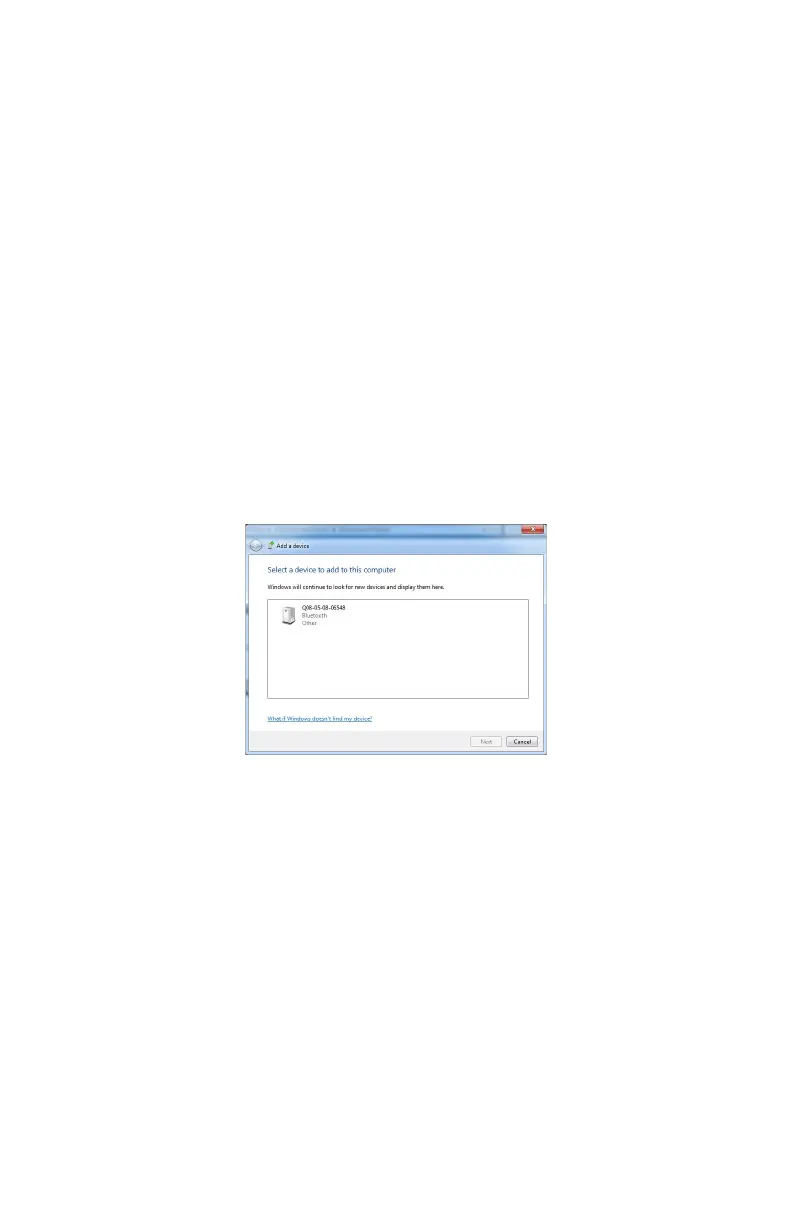
1 Click START < DEVICES AND PRINTERS. Choose ADD A DEVICE from
the menu in the upper left corner of the window.
2 All Edges are identified by their serial number. Double-click your Edge.
3 Choose the E
NTER THE DEVICE’S PAIRING CODE option.
4 Enter the Edge pairing code, faro, and click the NEXT button to create the
SPP connection. Look at the status bar in the lower right corner of the screen to
see what COM port is assigned to your Edge. This is usually COM3.
Write down your SPP connection COM port ________________________
This number is important and will be used later.
Computer to the FaroArm Driver Connection
The FaroArm driver connects to the SPP connection using the FARO Bluetooth
Connection Setup utility software.
• Start FARO Bluetooth Connection Setup utility software program.
Figure 3-13 Connecting the Edge to the Computer
08M52E00_FaroArm_Edge.book Page 43 Thursday, October 4, 2012 9:31 AM


 To Next Page