FARO Edge
September 2012
42
Chapter 3: Operation
• Type a name for your connection
•In the P
ORT list select the proper COM from the platform specific Bluetooth
Wizard (e.g. COM10). This is the port that you previously wrote down.
• Click the OK button.
A test is automatically run to verify that the COM port is connected to the
Edge.
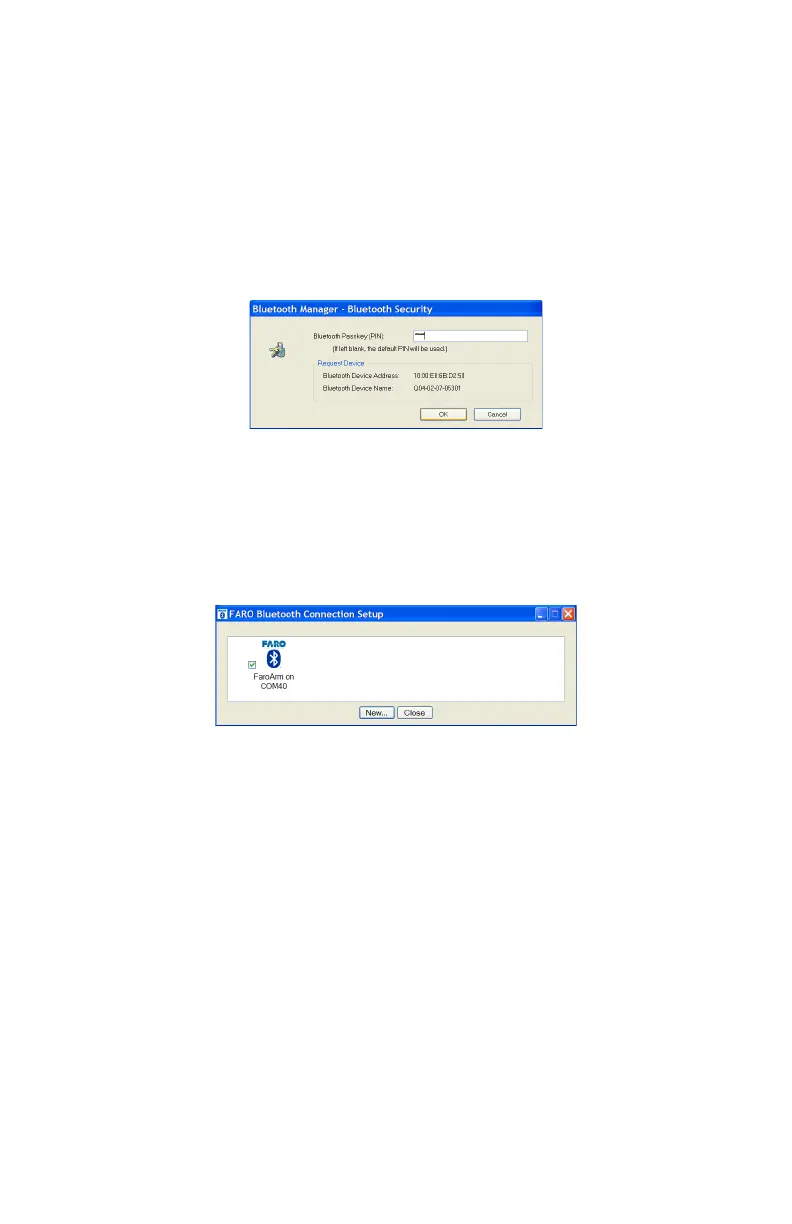
• Enter the Edge PIN security code, faro.
• Click OK to save the connection.
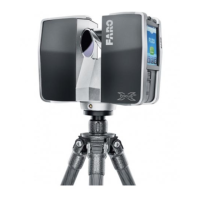
An icon will be created for each Bluetooth pairing. The icon with the check box
selected is an active connection. The icon without a check box selected is an
inactive connection.
N
OTE: No more than two (2) Edge pairings can be active at any one time, but
any number can be defined.
Editing a Pairing
Right-click any Bluetooth pairing icon to edit. You can:
• Edit the name and the COM port.
• Test the pairing connection.
• Delete the pairing.
Using the Edge Bluetooth Pairing
When the measuring software is launched (CAM2 Q, CAM2 Measure, CAM2
Measure X, Geomagic, Polyworks, etc.) the FaroArm driver attempts to use any
Edge connection - USB cable and any active Bluetooth pairings. It takes slightly
longer, 8 or 10 seconds, for an Edge to connect and initialize via Bluetooth.
Figure 3-11 Edge Bluetooth PIN
Figure 3-12 Connecting the Edge to the Computer
08M52E00_FaroArm_Edge.book Page 42 Thursday, October 4, 2012 9:31 AM


 To Next Page