Chapter 4 Element Management System (EMS) Element Properties Configuration
© 2011 Harmonic Inc. 103 ProView 7000 v.2.4, Rev. A
4.5.2.4 CAM Slot Properties
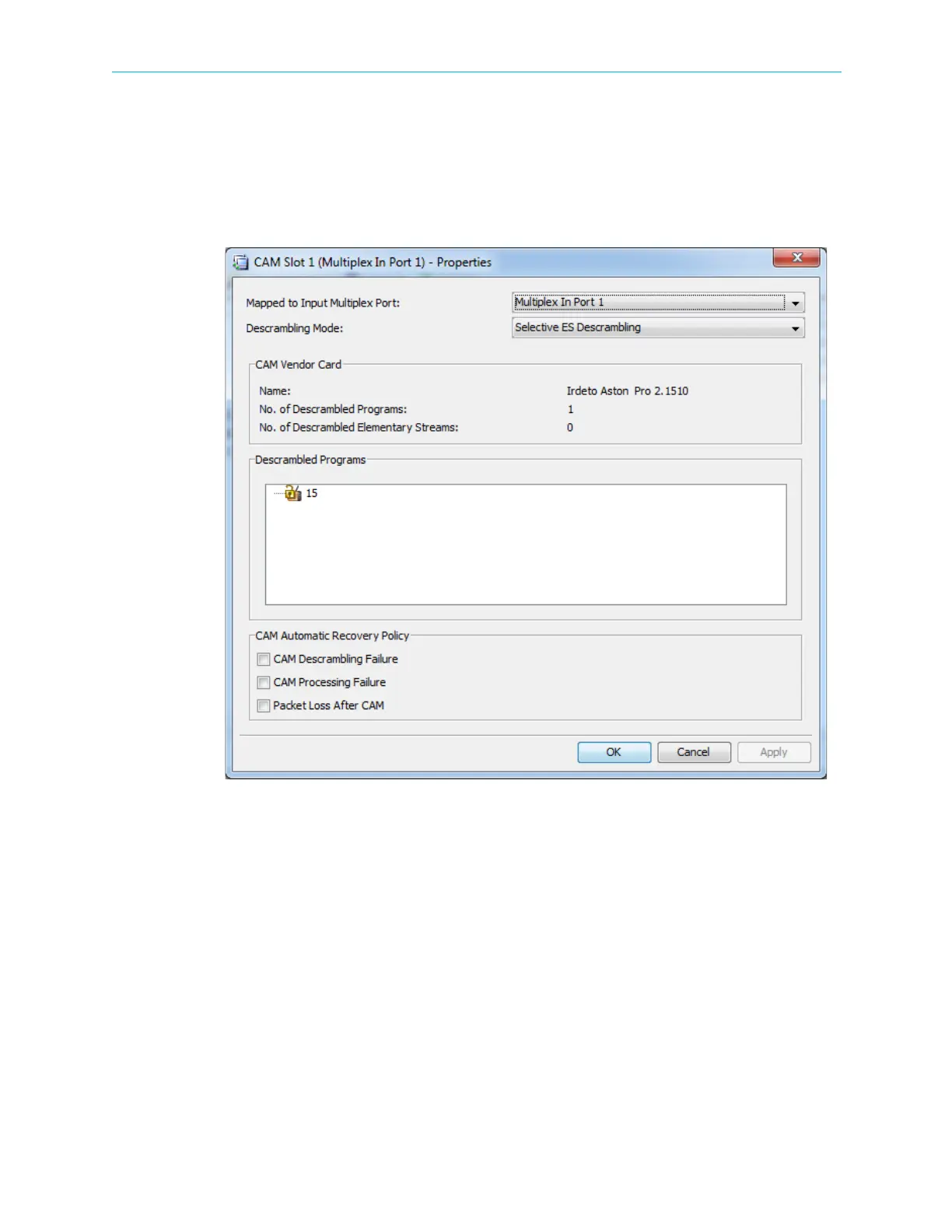
Use the CAM Slot properties dialog to monitor and manage individual CAM slots.
To display the properties dialog for a CAM slot:
1. Select a CAM slot in the Physical Input box on the Device Explorer tab.
2. Click Properties on the EMS toolbar.
Figure 4–29: CAM Slot Properties dialog
The CAM Slot Properties dialog includes the following:
■ Mapped to Input Multiplex Port – Displays the current association status of the CAM slot
and enables you to re-associate the CAM slot to an available multiplex input. You can only
re-associate the CAM when no services are configured for the CAM.
■ Descrambling Mode – There are two modes:
❑ Selective ES Descrambling – A filter is applied to the program elements based on the
CAS ID of the CAM.
❑ Full Descrambling – No filter is applied.
■ CAM Vendor Card – Provides the following information for the CAM card in the slot:
❑ Vendor name
❑ Number of descrambled programs
❑ Number of descrambled elementary streams



 To Next Page