Chapter 4 Element Management System (EMS) Element Properties Configuration
© 2011 Harmonic Inc. 104 ProView 7000 v.2.4, Rev. A
■ Descrambled Programs – Displays the program PIDs descrambled by the CAM.
■ CAM Automatic Recovery Policy – You can configure the ProView 7000 to reset the CAM
when one of the following alarms is raised:
❑ CAM Descrambling Failure – Enabled by default.
❑ CAM Processing Failure – Enabled by default.
❑ Packet Loss after CAM – Disabled by default.
4.5.2.5 CAM Card Properties
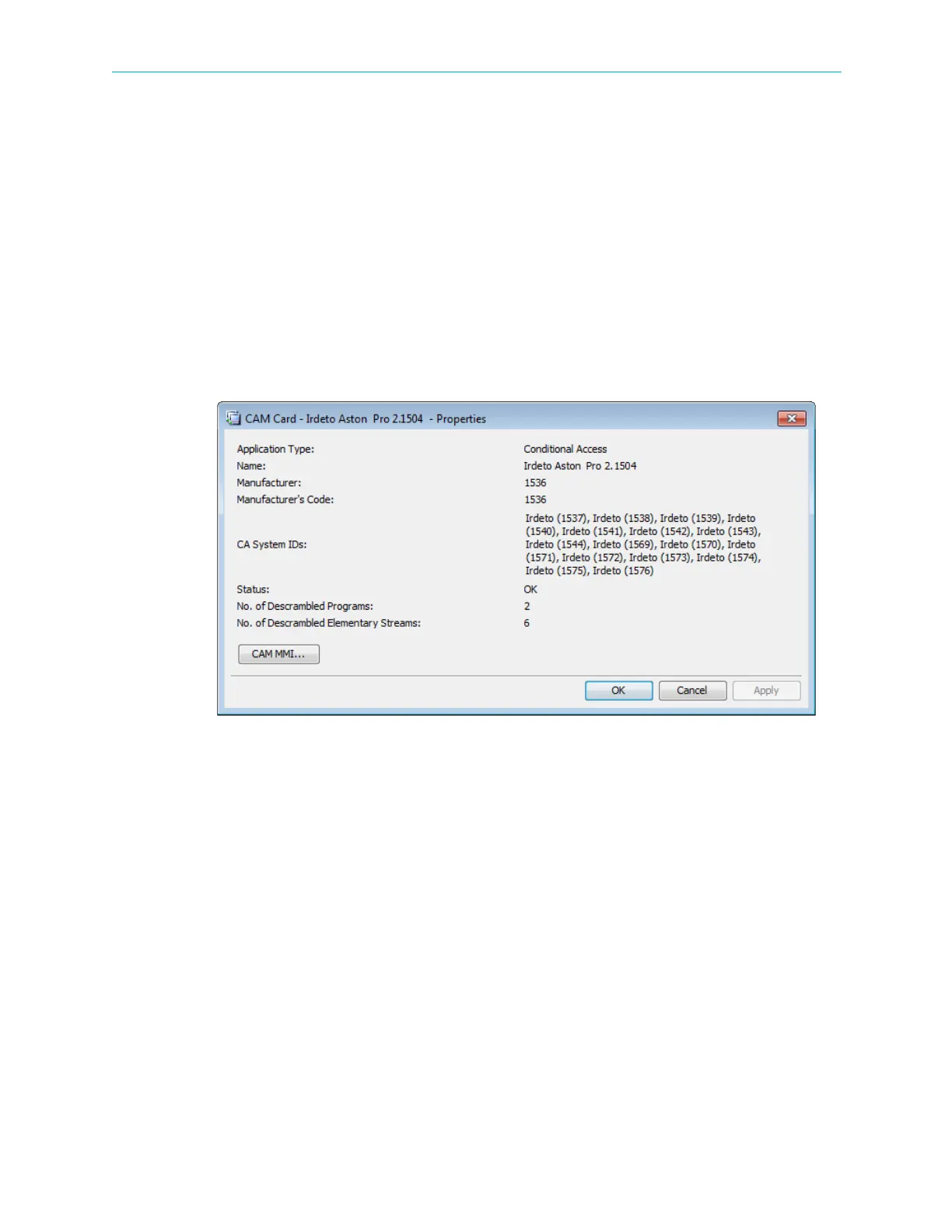
The CAM Card Properties dialog displays the properties of the selected CAM Card element.
To display the CAM Card properties information:
1. Select the required CAM Card icon in the Input Physical box on the Device Explorer tab.
2. Click Properties on the EMS toolbar.
Figure 4–30: CAM Card properties dialog
The information displayed by the CAM Card Properties dialog includes the following:
■ CAM card application type
■ Card manufacturer name, number and code
■ Conditional Access System ID
■ Card operational status
■ Number of descrambled programs and elementary streams



 To Next Page