Chapter 3 Configuration and Monitoring The ProView 7000 EMS
© 2011 Harmonic Inc. 26 ProView 7000 v.2.4, Rev. A
3.2.3 Launching the ProView 7000 EMS
To launch the ProView 7000 EMS:
1. Double-click the Harmonic ProView 7000 EMS launch icon to launch EMS.
The EMS GUI displays.
2. Click Add Device on the EMS toolbar.
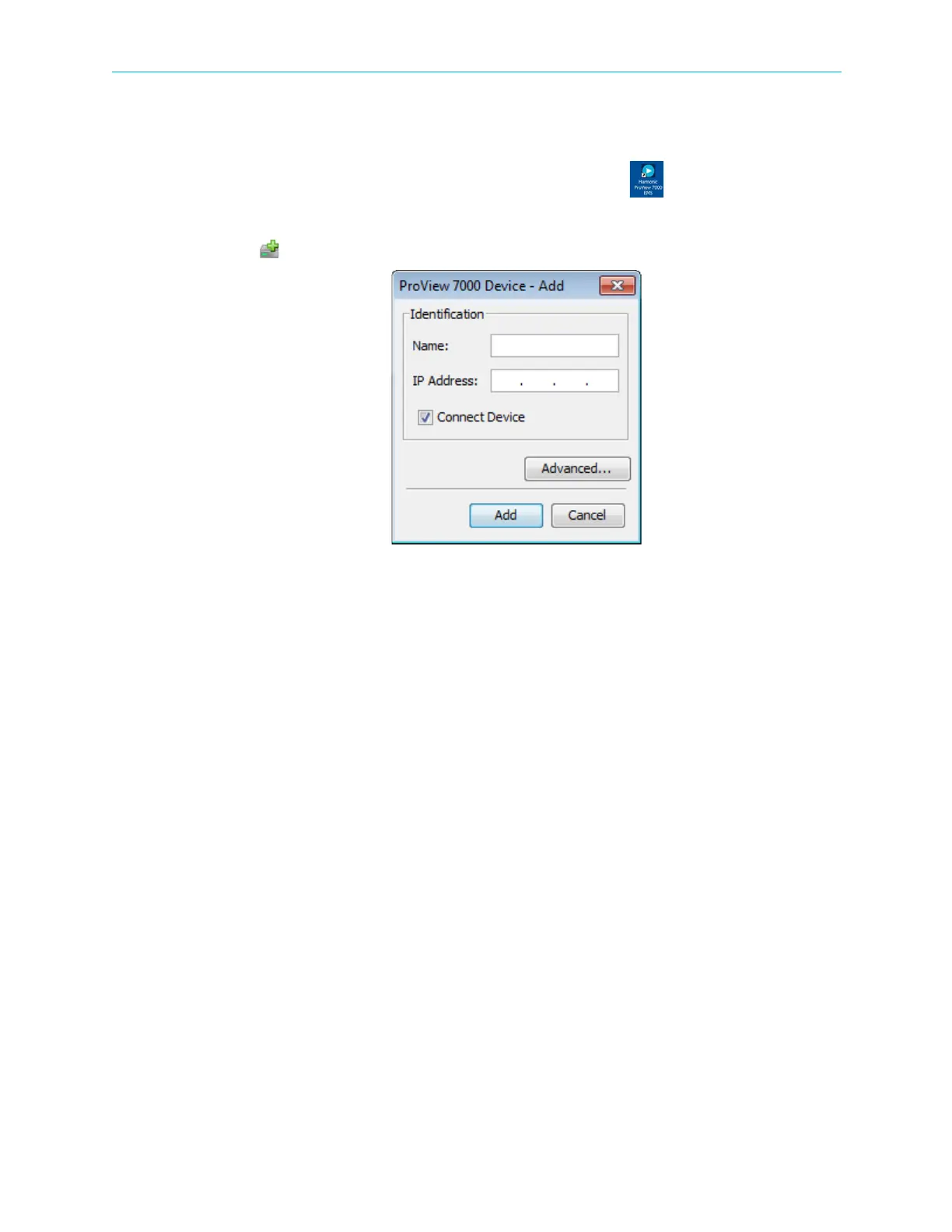
3. The EMS displays the ProView 7000 Device – Add dialog.
4. Enter a name for the new ProView 7000 device.
5. Enter the IP Address of the new ProView 7000 device.
6. For automatic connection when launching the EMS, mark the Connect Device
checkbox.
7. Click Add.
8. Select the device in the Devices box of the EMS window.
9. Click Device Explorer in the EMS toolbar to display input and output stream trees.
10. If the device fails to connect:
a Right-click the device icon in the Device box and select Ping in the device context
menu.
bClick
Ping in the Ping dialog box.
c Right-click the device icon in the Device box and select
Connect in the device context
menu.
If the ping fails and the device fails to connect, check your network connections and
settings.
dClick
Device Explorer in the EMS toolbar to display input and output stream trees.
See Figure 3–1 for EMS stream management callouts.



 To Next Page