Appendix E Software Management Software Upgrade Manager
© 2011 Harmonic Inc. 192 ProView 7000 v.2.4, Rev. A
E.2 Software Upgrade Manager
Use the EMS Software Upgrade Manager to perform a software version upgrade for all
selected devices.
CAUTION: The BOOTP software upgrade option should be turned off when using the EMS to upgrade
the ProView 7000 device. See 4.5.1.5 Device Software Upgrade Properties.
To open the Software Upgrade Manager:
❖ Select Tools > Firmware Software Upgrade Manager.
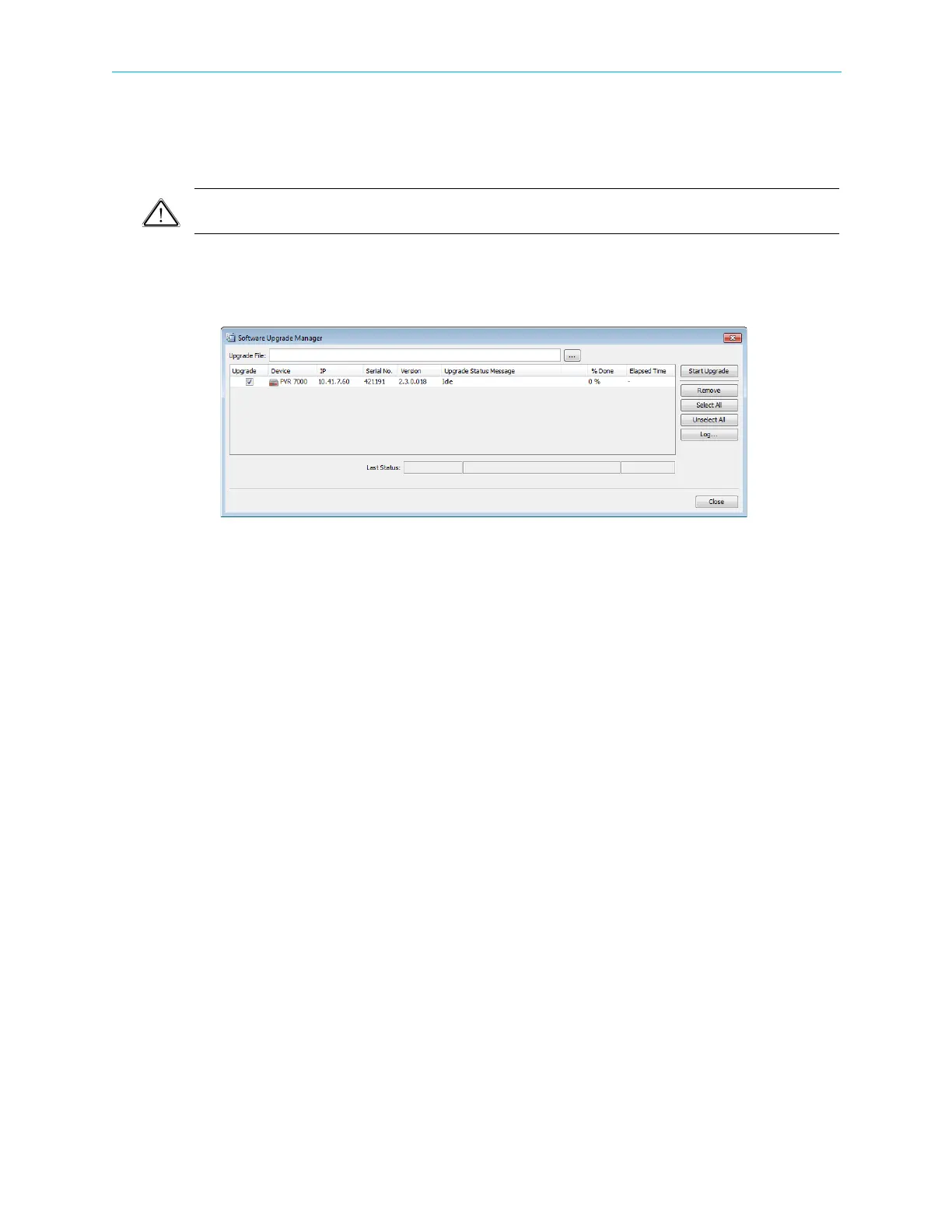
The Software Upgrade manager enables you to select the update file source.
The manager lists all ProView 7000 devices currently managed by the EMS and provides a
checkbox to the left of each device name for you to select which devices to upgrade.
The manager lists the following information for each device:
■ Device communication status (color coded):
❑ Disconnected (gray)
❑ No communication (red marked)
❑ Not logged-in (half red marked)
❑ Communicating (full colours)
■ Device IP, Serial number and Version number.
■ Upgrade status (idle or active), % of upgrade done and upgrade time.
At the right of the Software Upgrade manger dialog, a group of buttons are provided to
manage the upgrade operation:
■ [Start Upgrade] button – starts the upgrade session.
■ [Remove] button – remove a device from the displayed list.
■ [Select all] button – selects all devices for upgrade.
■ [Unselect all] – clear all devices from upgrade.
■ [Log…] button – displays the upgrade log.
■ [Close] button – closes the upgrade dialog.



 To Next Page