Chapter 5 Front Panel Interface Front Panel Root Menu
© 2011 Harmonic Inc. 172 ProView 7000 v.2.4, Rev. A
5.2.7.4 Configuring Only Relevant Elementary Streams
The descrambling mode default is Selective.
To set the CAM to Selective mode to configure only relevant elementary streams:
1. Navigate Root > CAM > CAM (1 or 2) > 2 Descrambling Mode.
2. Select Full.
5.2.7.5 Accessing the CAM MMI Menu
To access the CAM MMI menu:
❖ Navigate Root > CAM > CAM (1 or 2) > 3 CAM MMI.
5.2.8 Unit Menu
The Unit main menu enables monitoring and setting-up ProView 7000 device features.
To access the Unit main menu:
❖ Navigate Root > Unit.
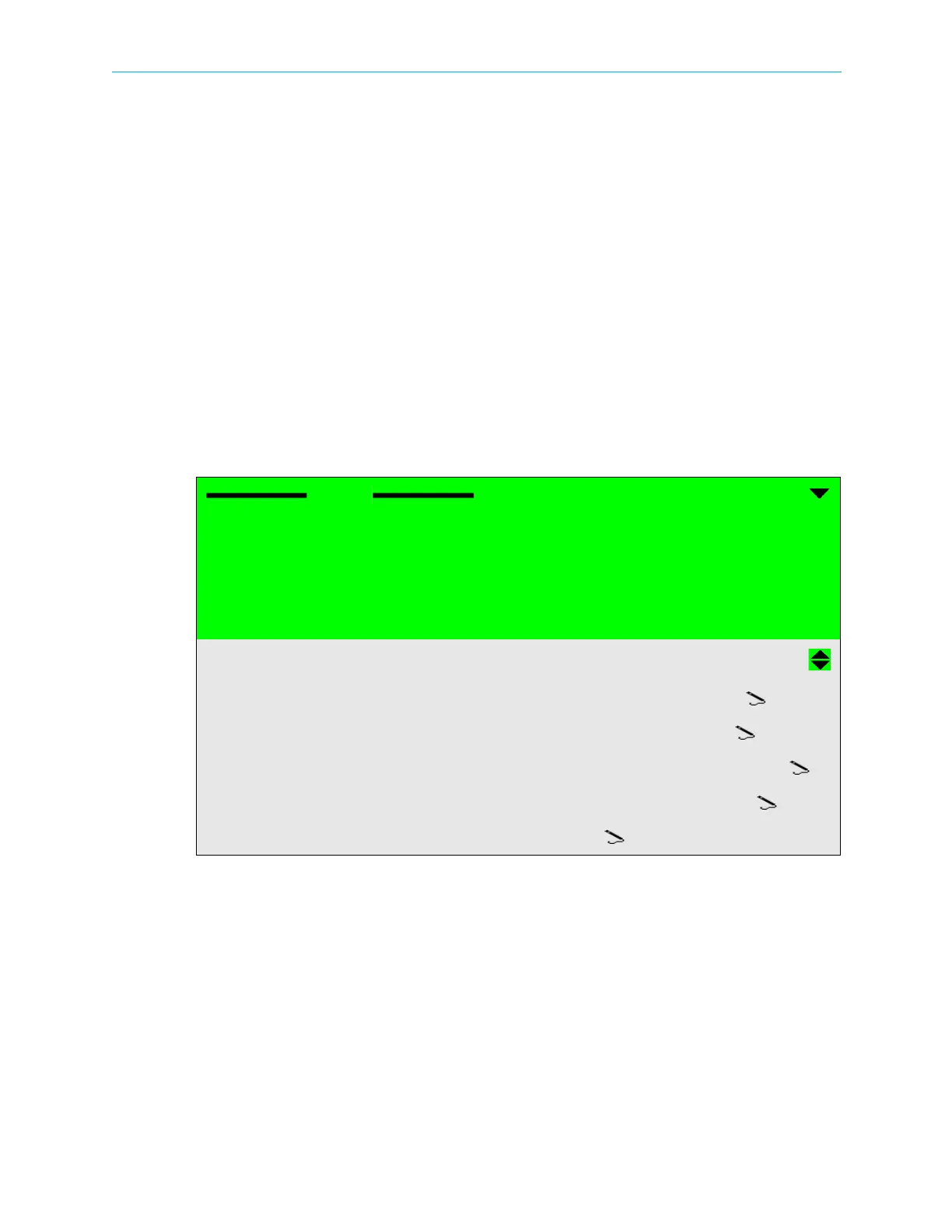
The ProView 7000 Unit menu provides access to the following sub-menus and set-up options:
■ Management Port sub-menu – sets the device management port parameters (for details,
see 5.2.8.1 Management Port Configuration).
■ SW Version sub-menu – displays the current version of the ProView 7000 software.
■ HW Inventory sub-menu – displays the parameters of the hardware modules installed in
the ProView 7000 (for details, see 5.2.8.2 Hardware Inventory Display Menu).
■ Date/Time – You can set the current date and time using the front panel. See 5.2.8.3 Date/
Time Menu.
■ GbE Mode (In/Out) – Set the GbE mode, see 5.2.8.4 GbE Mode (In/Out).
■ BOOTP – enables running BOOTP software updating on the unit.
Unit
1 Management Port
2 SW Version
3 HW Inventory
4 Date/Time
5 GbE Mode (In/Out)
IP Out
6 BOOTP
Disable
7 LCD Contrast
31
8 Reset Unit
Reset
9 Restore to Defaults
Restore to Defaults



 To Next Page