Chapter 3 Configuration and Monitoring How to Configure and Monitor the ProView 7000
© 2011 Harmonic Inc. 31 ProView 7000 v.2.4, Rev. A
14. Navigate Root > Decoding > Configuration> Descrambling > CAM Selection.
15. Select the CAM slot.
3.3.2 Monitoring the ProView 7000 using the Front Panel
How to monitor the correct operation of the ProView 7000 device.
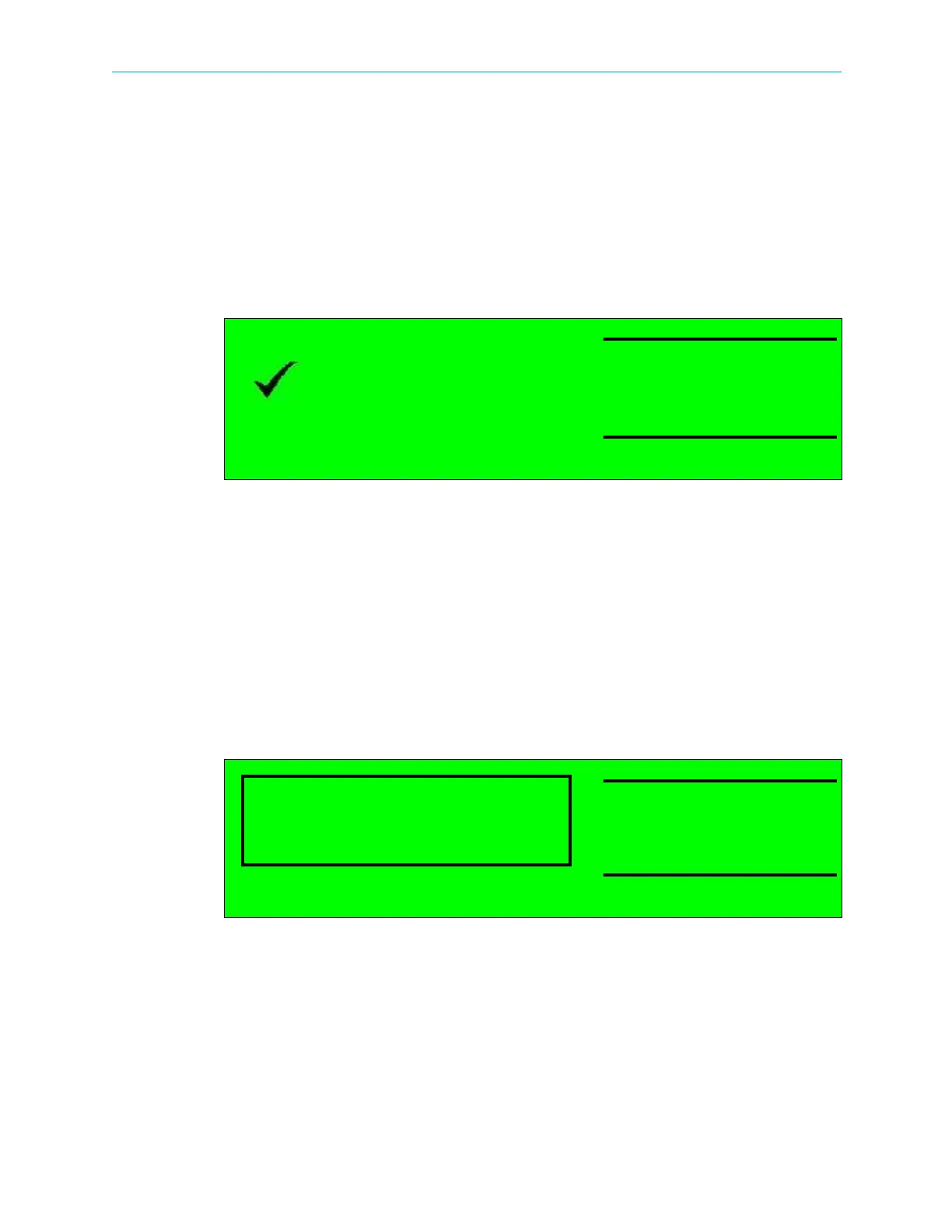
Status OK
When there are no errors the message STATUS OK displays on the LCD and the two
ProView
7000 front panel LEDs are lit green.
The following program information displays on the LCD:
■ The DVB program selected when SDT is received with the following, name, ID, type and
scrambling status.
■ The MPEG service selected with the ID and scrambling status.
Video picture displays on the monitor.
Audio channels left and right give correct sound, synchronized to the picture that is displayed.
Alarms
If a failure is detected in the ProView 7000 operation, the Status OK message changes to
the
Alarm message.
The alarm message displays the total number of alarms and the number of alarms at the
highest severity level raised (not the highest severity available).
In addition to the alarm message, the Warning LED on the front panel changes color
according to alarm severity, red, orange or yellow. Red is the highest severity.
Status OK
BBC
ID: 4301 TV CAS
BBC
ID: 4301 TV CAS
Active Alarms (1)
Major (1)



 To Next Page