Chapter 4 Element Management System (EMS) ProView 7000 Device Management
© 2011 Harmonic Inc. 61 ProView 7000 v.2.4, Rev. A
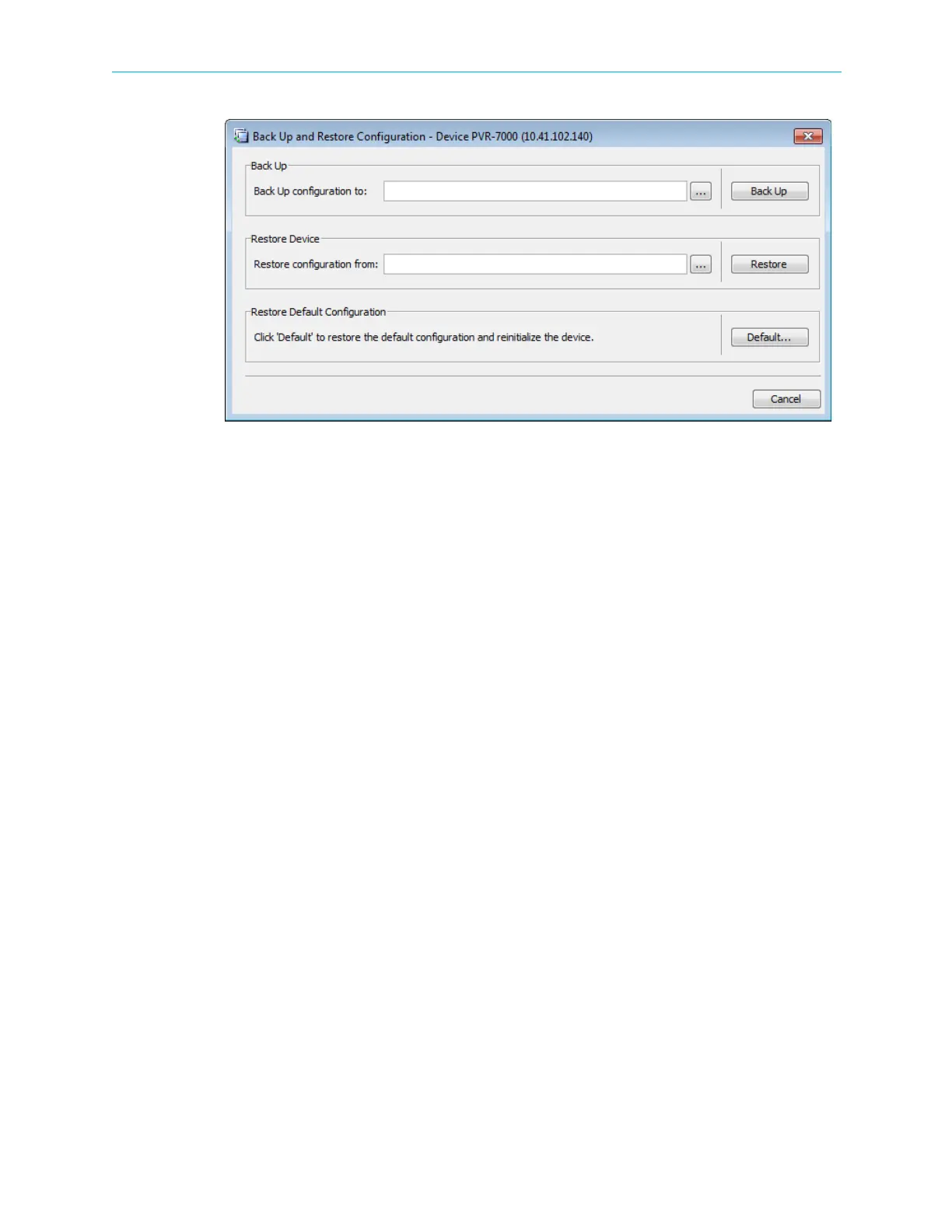
Figure 4–9: Backup and Restore Configuration dialog
Backing Up the Current Configuration
To back up the current configuration:
1. Select the device in the Devices box.
2. Select Tools > Back Up / Restore Configuration… in the ProView 7000 EMS menu bar.
The Back Up and Restore Configuration dialog displays, see Figure 4–9.
3. Enter a configuration identification name in the Backup Device section of the dialog.
4. Select the path where to backup the configuration.
5. Click Back Up.
A message reports successful save of the configuration.
Restoring a Backed-Up Configuration
To restore a backed-up configuration:
1. Select the device in the Devices box.
2. Select Tools > Backup/Restore Configuration… in the ProView 7000 EMS menu bar.
The Backup and Restore Configuration dialog displays, see Figure 4–9.
3. Browse the path and select the saved configuration name in the Restore Device section of
the dialog.
4. Click Restore.
After confirming the retrieval, the EMS retrieves the configuration file and the
ProView
7000 is reconfigured according to the saved set-up.



 To Next Page