Chapter 4 Element Management System (EMS) ProView 7000 EMS Menu Bar
© 2011 Harmonic Inc. 49 ProView 7000 v.2.4, Rev. A
4.2.4 Tools Menu
The Tools menu allows the user to directly access tools in the system.
The Tools menu consists of the following items:
Table 4–4: Tools Menu Items
Item Description
Ping…
Opens the device connectivity status (by pinging the device). For details,
refer to 4.3.3.6 Checking Device Connectivity (Pinging the Device).
Reboot Device
Performs a soft-reset for the selected device.
Reset CAM Slot
Resets the marked CAM Slot in the Physical Input Port box.
NOTE: Active only when a CAM Slot is selected.
Manage Presets…
Use this menu to manage several configurations, see 4.3.3.7 Manage
Presets.
Back Up / Restore
Configuration…
Displays the ProView 7000 Back Up / Restore Configuration dialog. For
details, refer to 4.3.3.8 Backing Up/Restoring the Device Configuration.
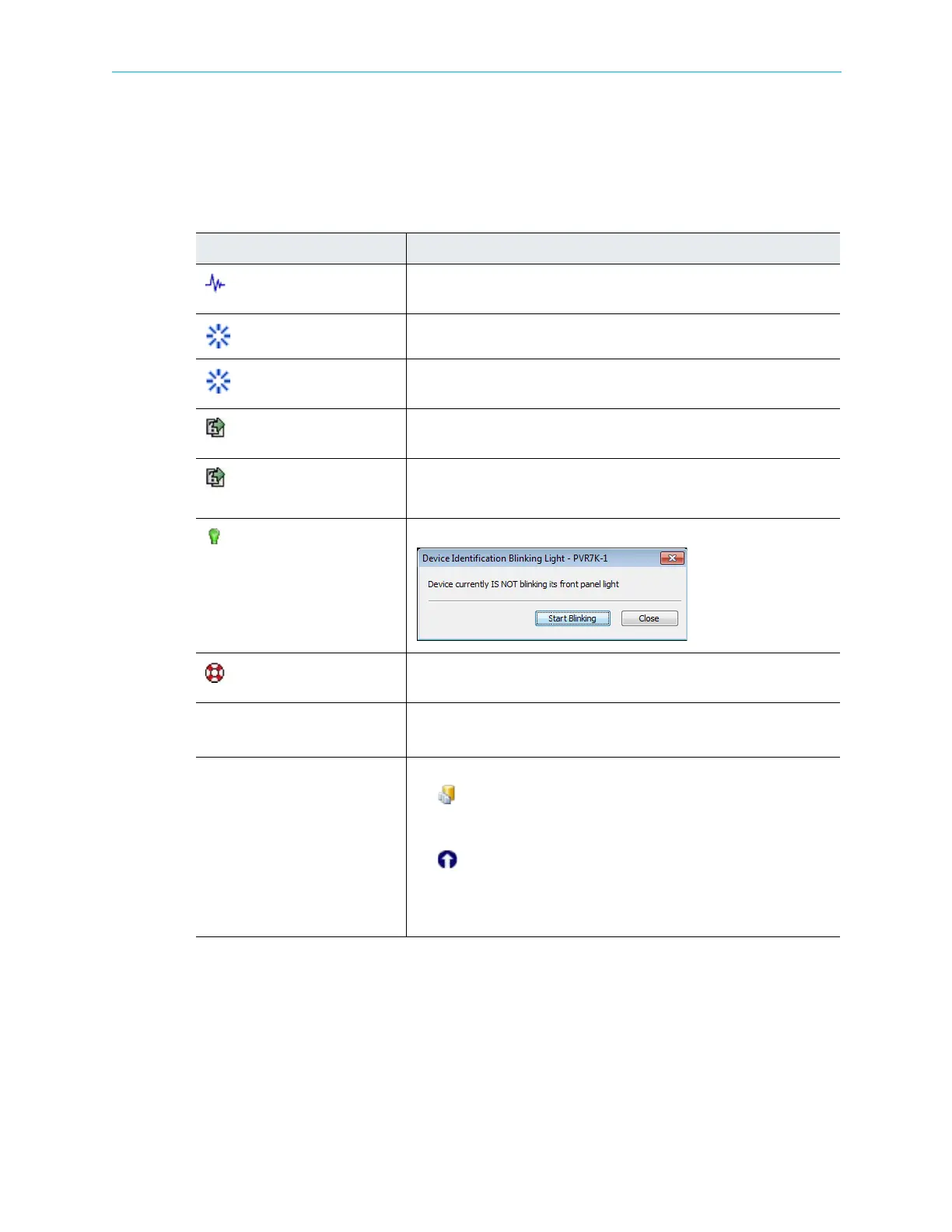
Device Identification Blinking
Light…
Enables you to turn the device front panel light on/off.
Restore Default Passwords…
Displays the ProView 7000 Password manager dialog. For details, refer to
4.3.3.9 Restoring the Factory/Default Device Access Passwords.
GbE Mode… Displays the Set GbE Mode dialog. Use this dialog to set the GbE mode to
In
1
or Out. See 4.3.3.10 GbE Mode on page 63 for details.
1. Data IP in requires a license.
Firmware Displays sub-menu items:
■ Set Active Software Version… – Displays the Set Active Software
Version dialog to select the active software for the device. For details,
see E.1 Active Version Management.
■ Software Upgrade Manager… – Displays the Software Upgrade
Manager dialog to perform software upgrading on the devices
managed by the EMS. For details, see E.2 Software Upgrade
Manager.



 To Next Page