Chapter 4 Element Management System (EMS) ProView 7000 Device Management
© 2011 Harmonic Inc. 63 ProView 7000 v.2.4, Rev. A
4.3.3.10 GbE Mode
Use the Set GbE Mode dialog to set the GbE mode to In
1
or Out. When you change the GbE
mode, the device reboots. The default is Out.
NOTE: If you have upgraded from version 2.3 to 2.4 and you wish to use GbE mode In for the first time,
you must enter the GbE Mode In license and then upgrade to version 2.4 again.
To change the GbE mode:
1. Select a device in the Devices box.
2. Select Tools > GbE Mode.
The Set GbE Mode dialog displays.
3. Select a mode.
4. Click OK.
5. Confirm.
The device reboots.
4.3.3.11 Disconnecting a Device
A connected ProView 7000 device is communicating with the ProView 7000 EMS and is
marked in the device list by a fully colored device icon. The icon is displayed in the Device box,
and, if activated, it is also displayed in the Physical Input and Physical Output boxes.
Disconnecting a device closes the tab and all relevant information displayed on the Device
Explorer tab for the device.
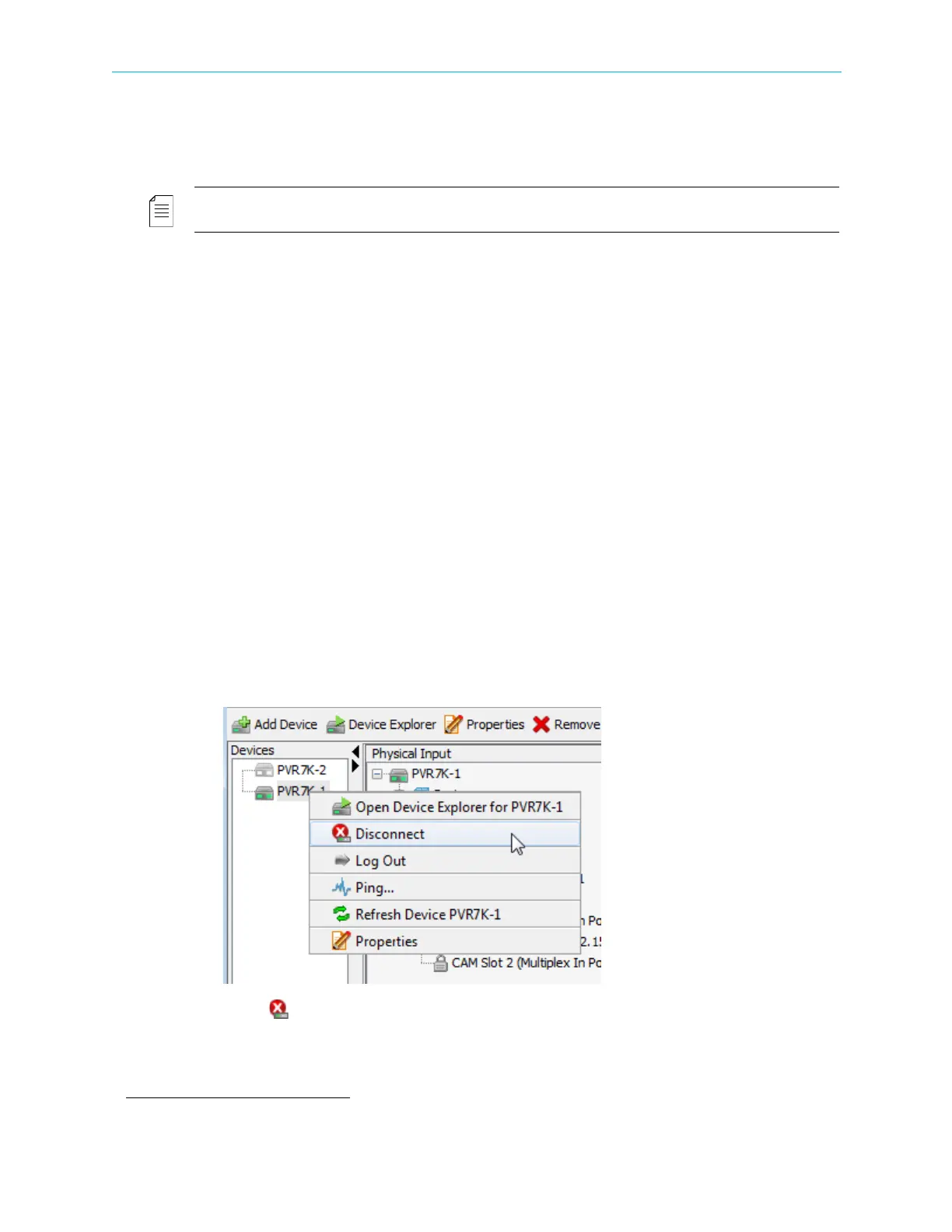
To disconnect a connected ProView 7000 device from the EMS:
1. Right-click the icon of the connected ProView 7000 device in the Device box.
A device context menu displays.
2. Select Disconnect in the menu.
The ProView 7000 device disconnects.
The colors of the ProView 7000 device icon fade to the disconnected shades (gray).
1. Data IP in requires a license.



 To Next Page