Chapter 5: Console Operation
Monitoring
212/ 526 2.0 Eclipse User Guide
CUE Modes
Input Channels
On input channels, the CUE button may operate as PFL, AFL or
SIP (Solo-In-Place). Here we will deal with PFL and AFL.
1. Press SEL on any input channel.
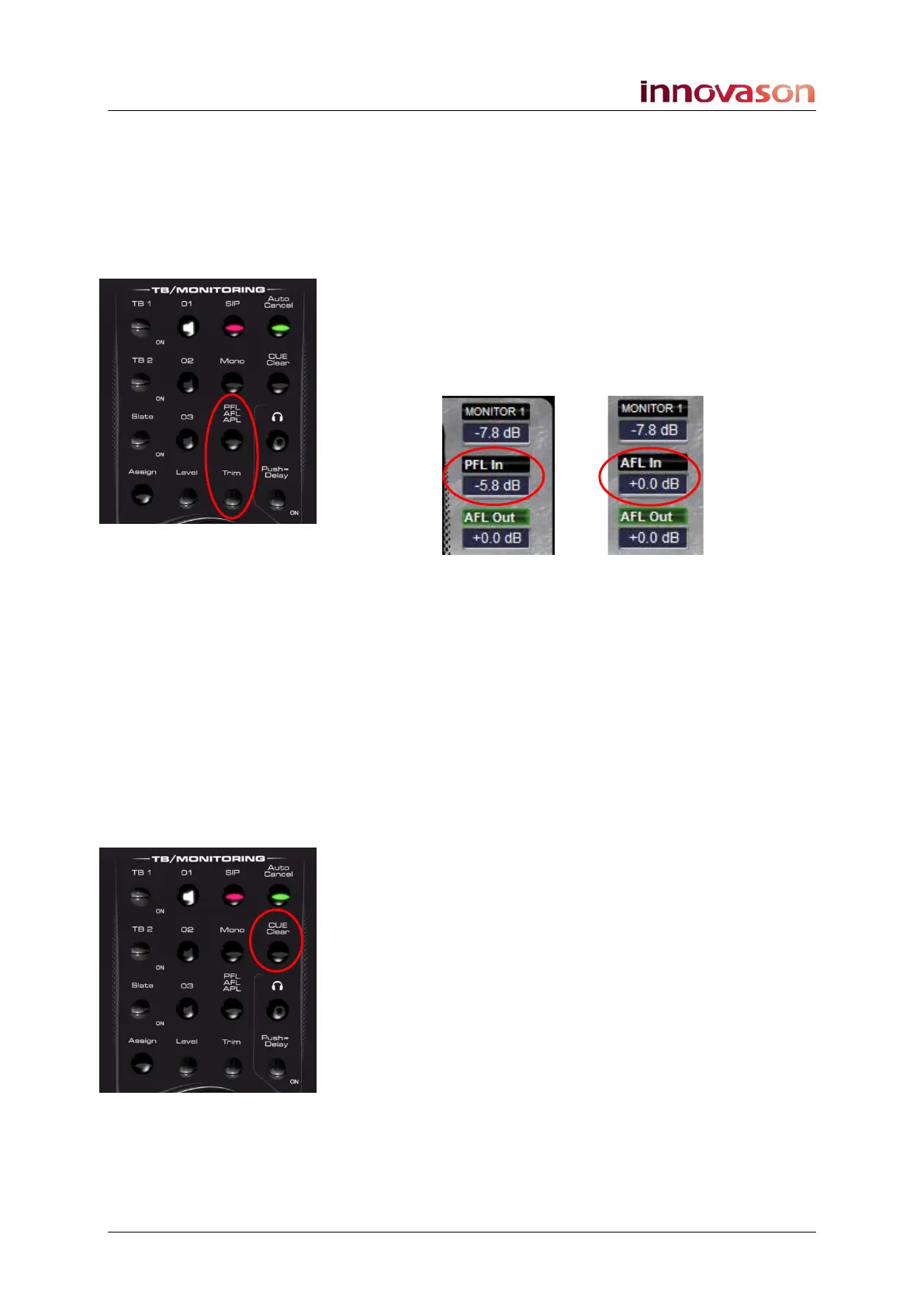
2. Then press the PFL/AFL/APL button on the
TB/MONITORING panel to toggle between the options.
You will see the input listen mode update on the Main Mix
display:
Note that if the Listen mode is green, then this indicates that
there are active CUEs. In both our examples above, CUE is
active on an output channel (AFL Out is green).
3. When PFL In is selected, adjust the Trim control to set
the PFL level for input channels.
4. When AFL In is selected, adjust the Trim control to set
the AFL level for input channels.
The two levels are stored so that when you switch between cue
modes, they are automatically recalled.
5. By default, CUE buttons on input channels are additive.
To make them intercancel, turn on Auto Cancel.
CUE CLEAR
1. Press the CUE Clear button on the TB/MONITORING
panel to quickly clear down any active CUEs.
Note that the Master if no cue option, set from the Monitoring
preferences window, prevents you from clearing the CUE
buttons on Master channels. See Page 217 for details on
Monitoring preferences.



 To Next Page