Chapter 6: Console Configuration
The Patch Input Display
242/ 526 2.0 Eclipse User Guide
Patching Sources to Smart Faders
So far we have patched sources directly to mono or stereo input
faders. However, to create layered control of multiple sources,
we can use the PATCH INPUT display to patch Smart Faders.
Note that you can only use this method of patching if you have
configured Smart Fader slaves (SFADs) on your console. See
Page 223 for details on configuration, and Page 149 for details
on Smart Fader operation.
Let’s take an example where we wish to control the first four
DIO inputs from a single fader (Fader 01):
1. Select the input fader which will become the Smart
Fader VCA – e.g. press SEL on Fader 01:
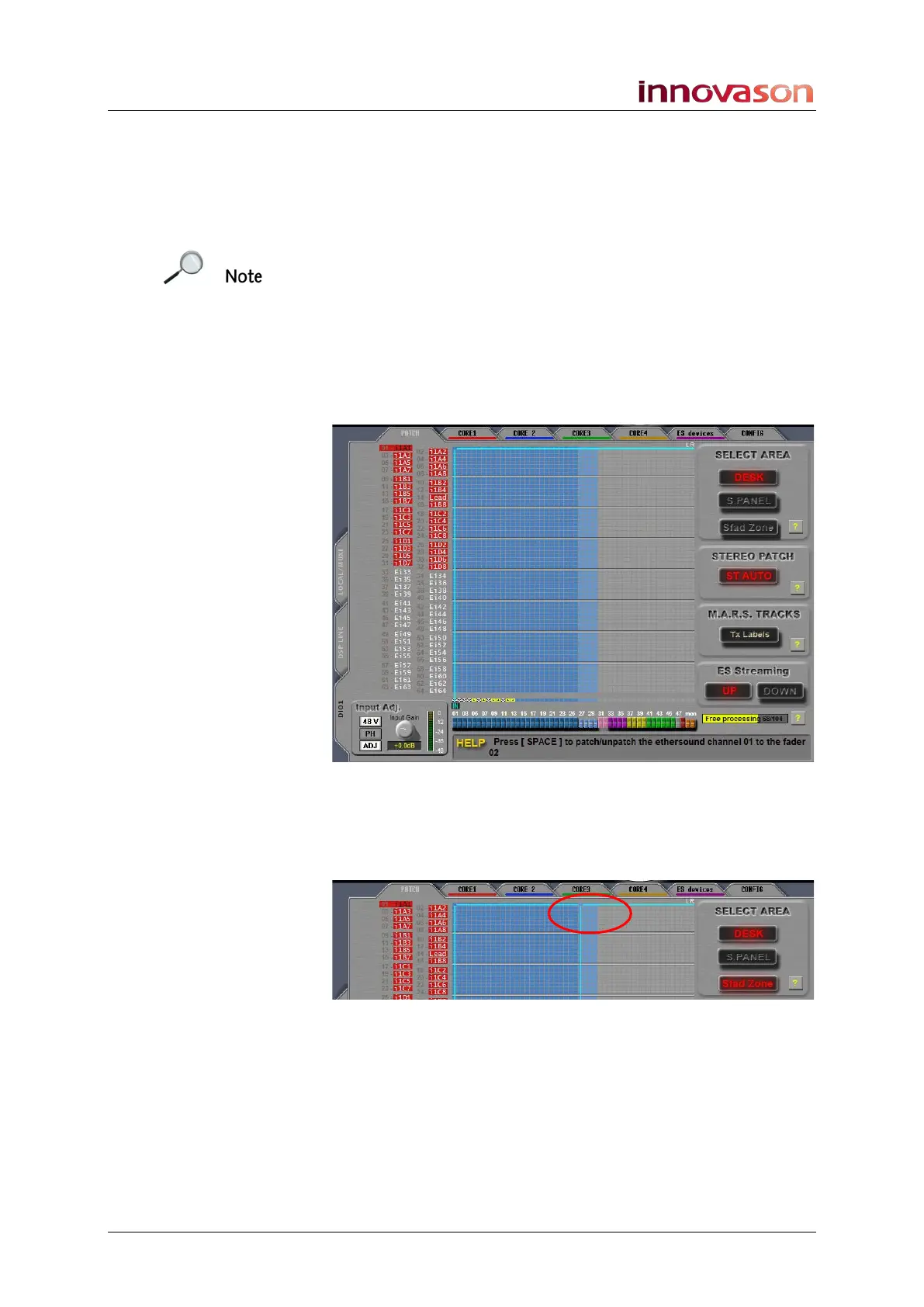
2. Either touch the Sfad Zone button, or press [s] on the
keyboard:
The light blue area of the patch grid moves across to your
Smart Fader slaves (Sfads):
3. Now position the cursor over the first crosspoint you
wish to configure – for example, Ethersound channel 1
to the first Sfad.
4. Press the [SPACE bar] or right-click to patch the input.
A yellow triangle indicates that the patch is made.



 To Next Page