Chapter 10: M.A.R.S.
Project Management in M.A.R.S.
Eclipse User Guide 2.0 485/ 526
Create a New Project using Save As
This allows you to create a new Project from an existing one.
Note that this operation creates a new Project folder for new
recordings, but does not copy existing audio into the new folder. If
you wish to copy audio already recorded into a new folder, then
you should create a new Project and use the Import function as
described on Page 491.
To use Save As:
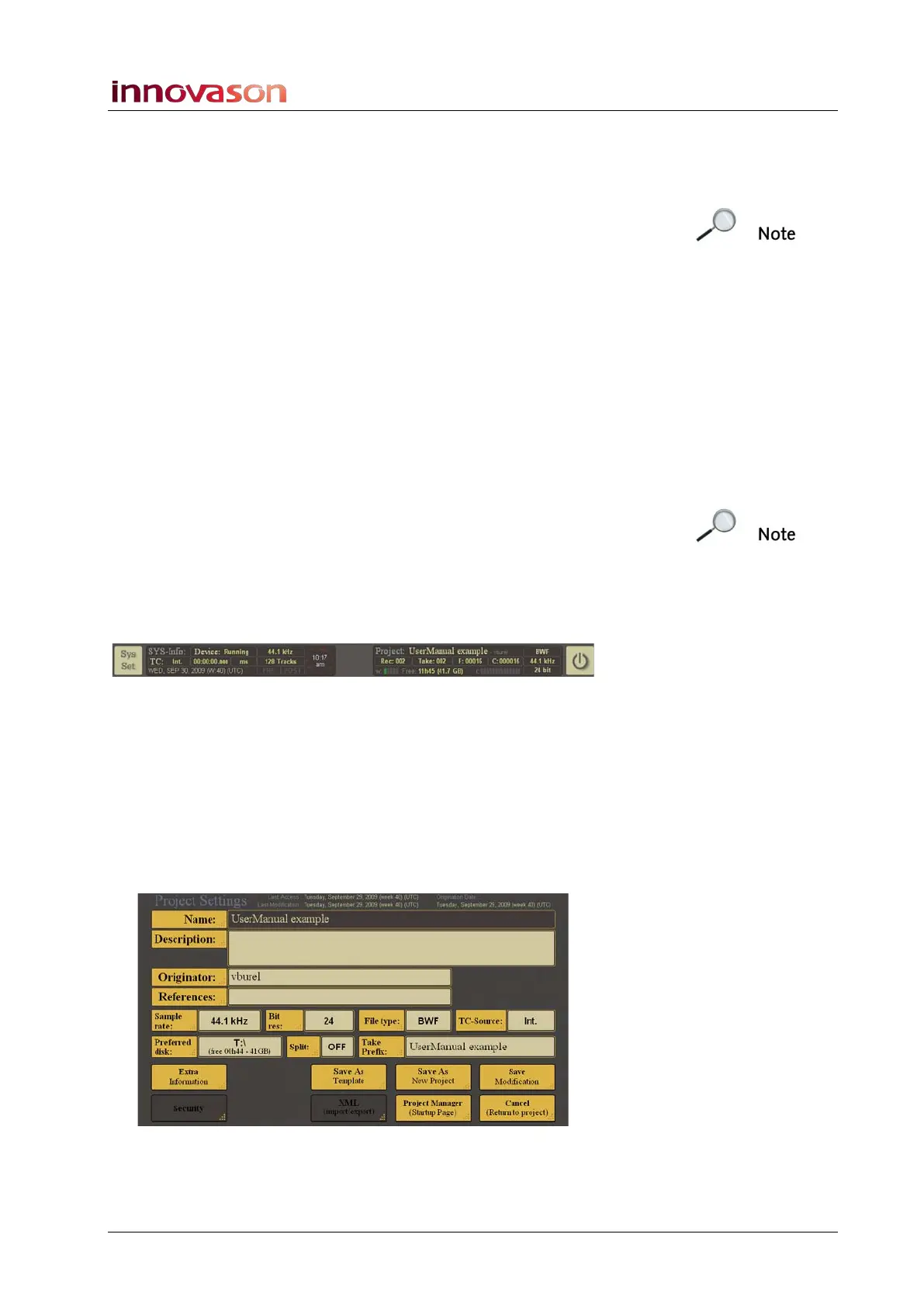
1. Open the Project Settings window for the Project you wish
to copy.
2. Select Save As (New Project).
The Save As (new project) pop-up opens.
3. Select disk E and the current Project name.
4. Enter a new name from the on-screen QWERTY keyboard.
Note that you must change the name. If not, a new Project cannot
be created.
5. Then select Save.
The system saves a new Project which automatically becomes the
current Project – shown in the Project: area at the top right of the
display:
Create a Template
Templates can be used as the starting point for new Projects on
M.A.R.S. For example, you might create a template which has 32
tracks armed.
1. First create a new Project and configure its settings, such
as the track arming.
2. Then open the Project Settings window:



 To Next Page