Chapter 3: Operating Principles
Routing, Sends and the SEL Button
76/ 526 2.0 Eclipse User Guide
Routing to an Aux (Reverse Bus Assign)
Now let’s reverse the thinking and imagine we are mixing
Monitors where each Aux is feeding a different wedge speaker
on the stage. Having set up our main channel levels, it would be
nice to quickly set an Aux send mix to each Aux output:
1. Select an Aux fader (with a green ID).
The SEL button and Label on the Aux fader should be flashing.
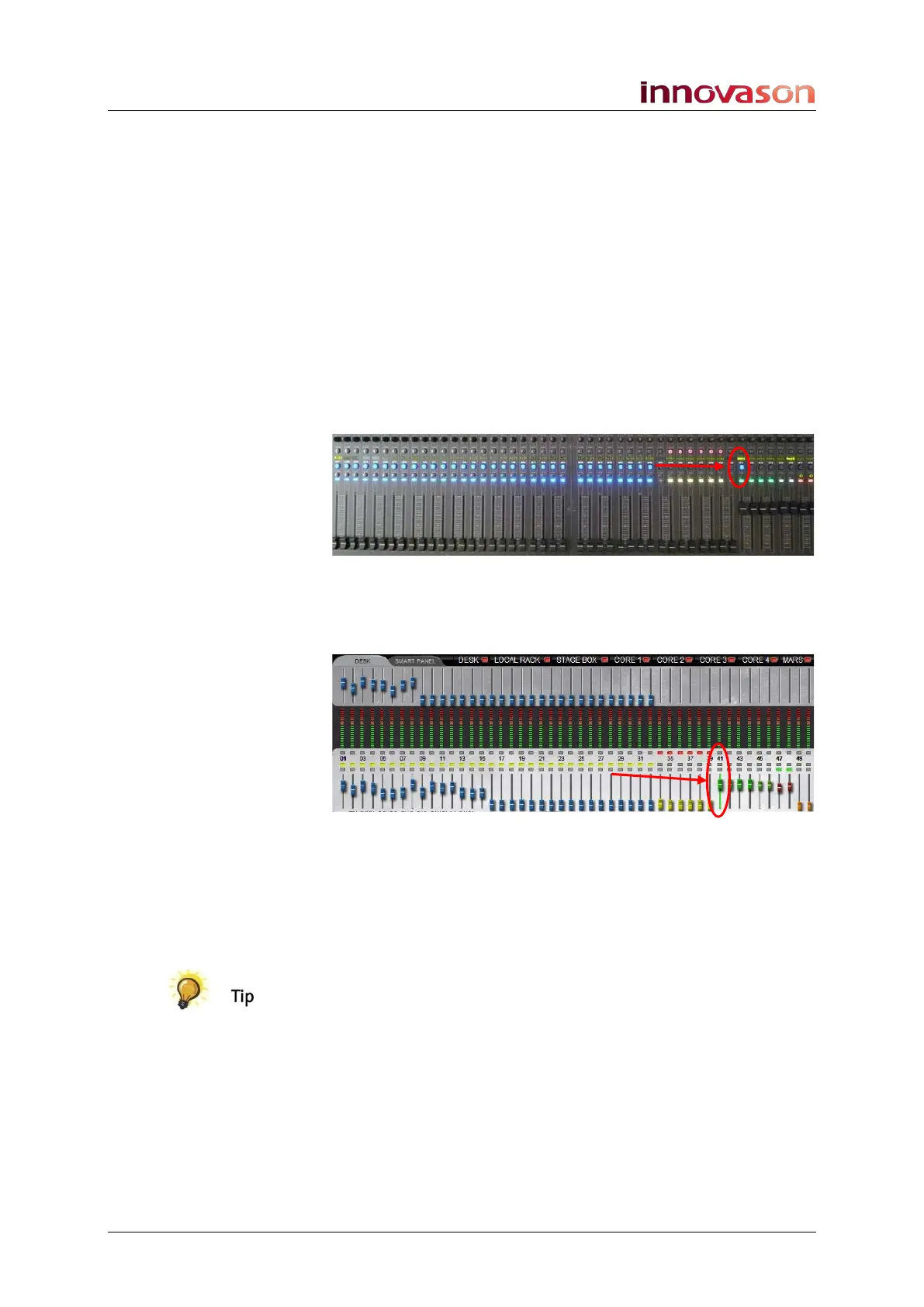
2. Look across the console at the status of the SEL buttons
on your input channels:
Any steady state SEL buttons indicate bus assignments to the
selected Aux - in our example, a range of input channels are
assigned to the Aux:
3. Look at the DESK overview on the Main Mix display.
The selected Aux is highlighted in green, and bus assignments
to it are shown by the yellow routing buttons:
To change the routing:
4. Press and hold the flashing SEL button on the selected
Aux and then press the SEL buttons on the input faders:
• SEL lit steady state = assigned.
• SEL unlit = not assigned.
You can route to multiple outputs in one operation using the
multiple assign method described on Page 78.



 To Next Page