Chapter 8 Macros
Page 124 Rev. 1.30.03.07.r1
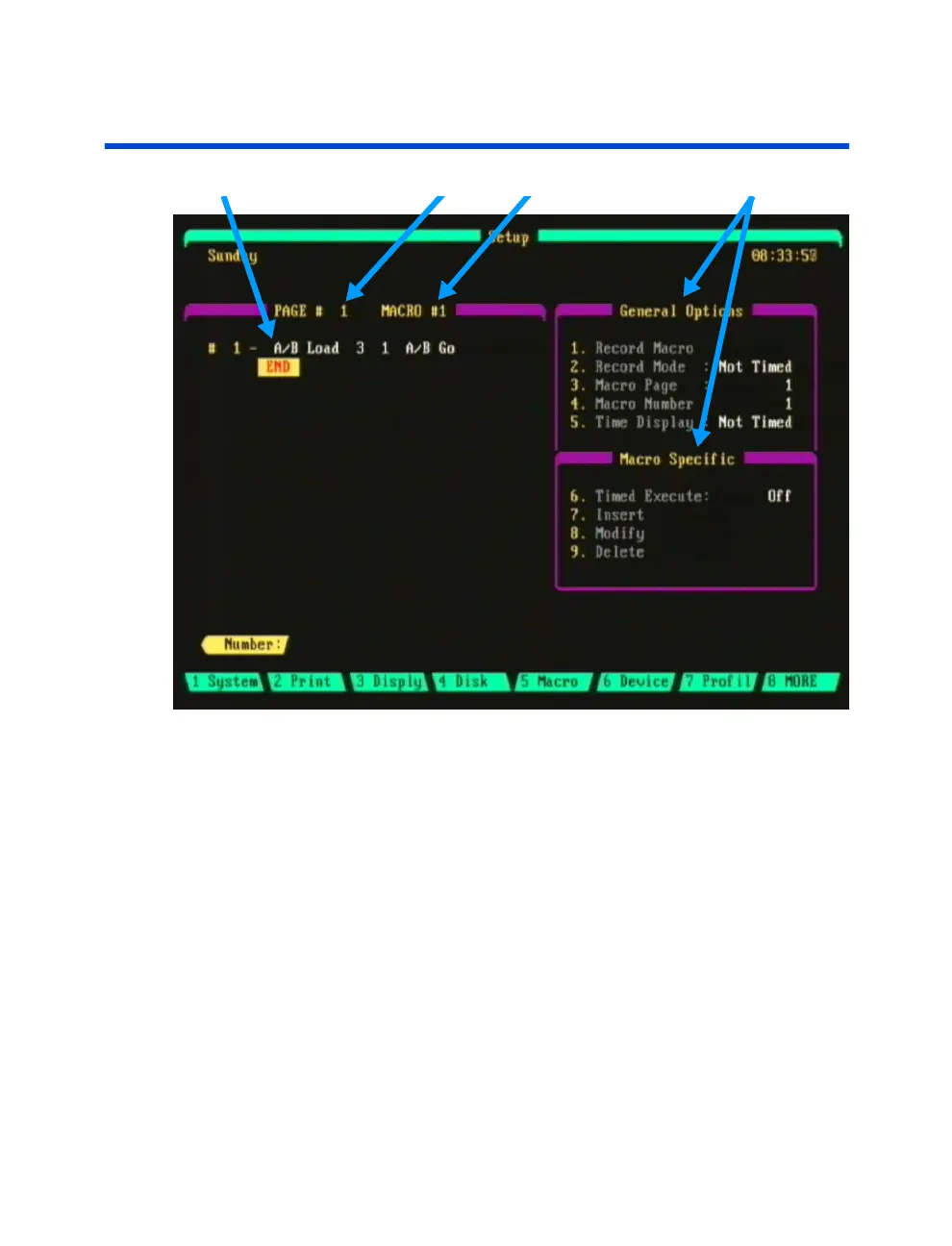
Macro Sub-Display
Keystrokes Active Macro Page # / Macro # Macro Menu Options
Figure 8.0 Macro Sub-Display
To access the Macro sub-display, press [SETUP] (Macro).
Navigating the Macro Sub-Display
Menu selection in the General Options and Macro Specific sections is
performed by entering the menu item on the keypad then either entering
the appropriate value or selecting an option with the up/down arrow keys.
For example, to select a macro to record or edit press [4] followed by the
macro number. To set record mode to "Timed" press [2] then use the up/
down arrow keys to make the selection, then press [ENTER].
Edits to macro keystrokes are performed by first using the arrow keys to
move the cursor to the area to be edited then entering the type of edit
desired from the Macro Specific menu (Insert, Modify, or Delete). Please
see the
Editing
Macros
section further in this chapter.



 To Next Page