Chapter 10 Automated Devices
Page 154 Rev. 1.30.03.07.r1
Using Automated Devices
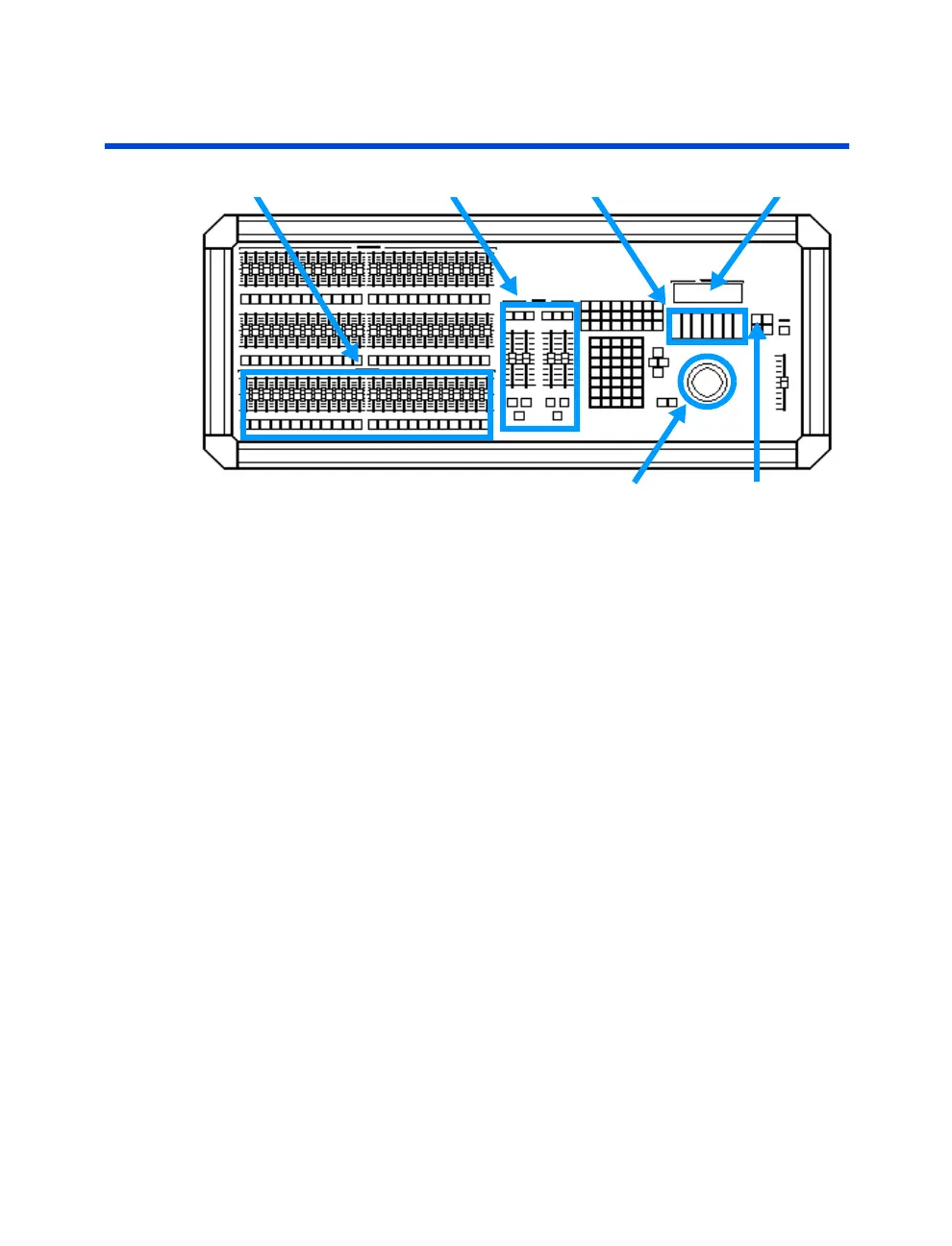
Submasters Playback Faders Encoder Wheels LCD display
Figure 10.3 Device Console Controls
Trackball Device Default Key
After the automated devices have been properly assigned in the console
you can start controlling your devices by using the console’s encoder
wheels and trackball. The encoder wheels are used to control device traits
such as color or gobo while the trackball is usually used to control pan and
tilt traits (other traits can also be assigned to the trackball, this is done via
the Device Definition Language which is explained later in this chapter).
In order to control a device you first have to select the device that you wish
to use. It is possible to select either a single device or a group of similar
devices, see the following procedure:
Procedure: Notes:
1. Press the [DEVICE] display key Devices must already have
been assigned
2. Press [DEVICE] [#] [THRU] [#] Select similar devices
3. Press [ENTER] LCD opens showing selected
device’s traits
Once you have control of a device(s) you can then start recording cues,
submasters, groups and effects for your show. It is important to note the
power of using groups when programming automated devices. Example
recording procedures are given later in this chapter, see
Recording Cues,
Using Submasters, Using Groups and Using Effects.
Assigned devices also appear in the Device display, which allows you to
view the devices and select or deselect the device’s traits for record. Refer
to the
Device Display
section in this chapter for more information.



 To Next Page