User Guide Chapter 5 Cues
Rev. 1.30.03.07.r1 Page 85
Rate Override
When you are playing back cues on playback faders, you can use the
[RATE] key of a playback fader pair to assign control of the cue fade rate
to the trackball and to the wheels below the LCD display. Pressing the
[RATE] key again releases rate control and the adjusted fade times remain
for the fade.
Using the Trackball
The trackball adjusts both the up and the down fade times simultaneously.
Moving the trackball down
increases
the fade times while moving the
trackball up
decreases
the fade times. The remaining times of the fade in
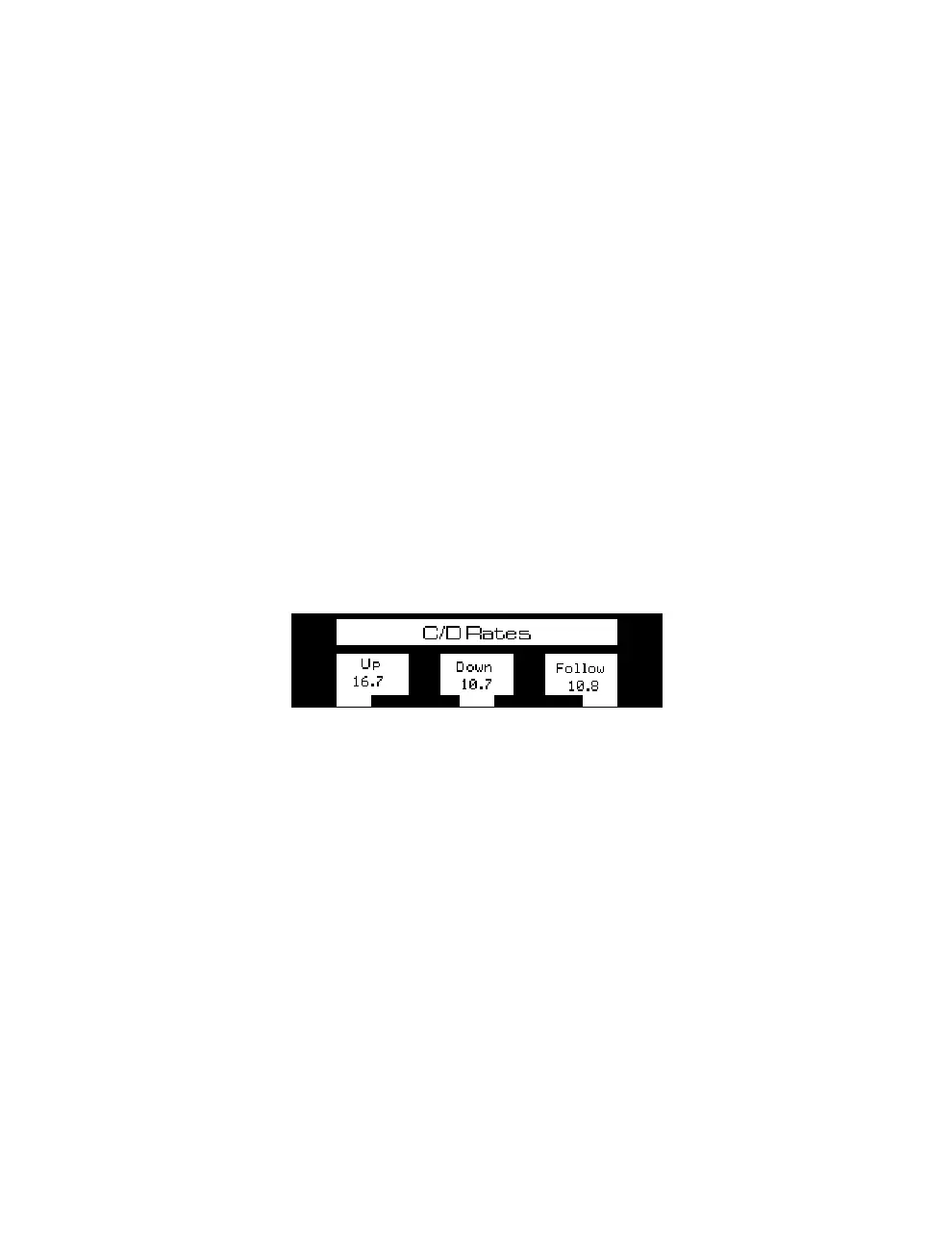
progress is shown in the LCD display.
Using the Encoder Wheels
Using the encoder wheels will allow for individual adjustment of the up and
down fade times. Moving the up wheel increases or decreases the fade time
of the up fade. Moving the down wheel increases or decreases the fade
time of the down fade. The follow time can be adjusted in a similar manner.
Figure 5.4 LCD Display Of Rate Override
Follow the example below to change the fade rate of a cue being played
back:
Procedure: Notes:
1. Press [RATE]
2. Adjust rate with the trackball or wheels
3. Press [RATE] Releases rate control.



 To Next Page