User Guide Chapter 5 Cues
Rev. 1.30.03.07.r1 Page 67
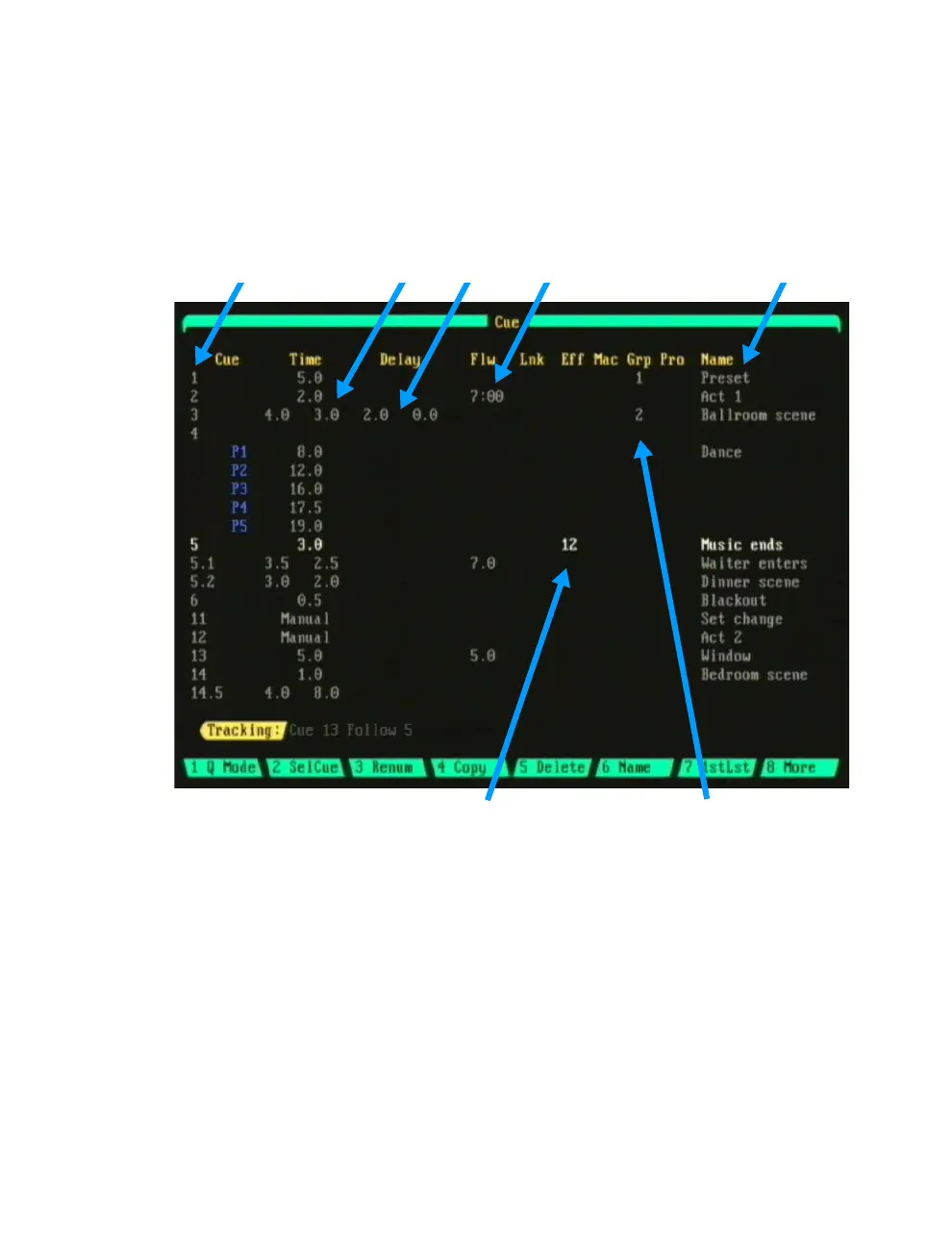
The Cuesheet Display
The Cuesheet display can be accessed by pressing the [CUESHEET] hard-
key on the console. This display is used to view the order of cues and each
cue’s attributes. The features of this display include the ability to edit the
cue attributes, delete, copy or renumber cues and create blank cues.
Cue Number Fade, Delay and Follow Times Cue Name
Figure 5.0 Cuesheet
Assigned Effect Assigned Group
Cues are listed by cue number, sorted from lowest numbered cue to highest
numbered cue. If a cue is playing in one of the playback faders, the
playback fader will be listed adjacent to the cue number. Each cue shows
columns of information showing each available attribute for every cue,
please see Table 5.1 on the next page.
Using the up/down arrow cues will scroll through the display. To quickly go
to a specific cue, press [CUE] [#] [ENTER].
When you press [CUE] [#] [ENTER], a new blank cue is created if the cue
does not already exist. If you are in tracking mode and there is a lower
numbered cue, the levels of that cue will be tracked into the new cue.



 To Next Page