Chapter 4 — Configuring the Library Setting the Camera IP Address
December 2019 User Guide—Spectra T200, T380, and T680 Libraries
149
3. Enter the camera’s current IP address in the browser’s Address field.
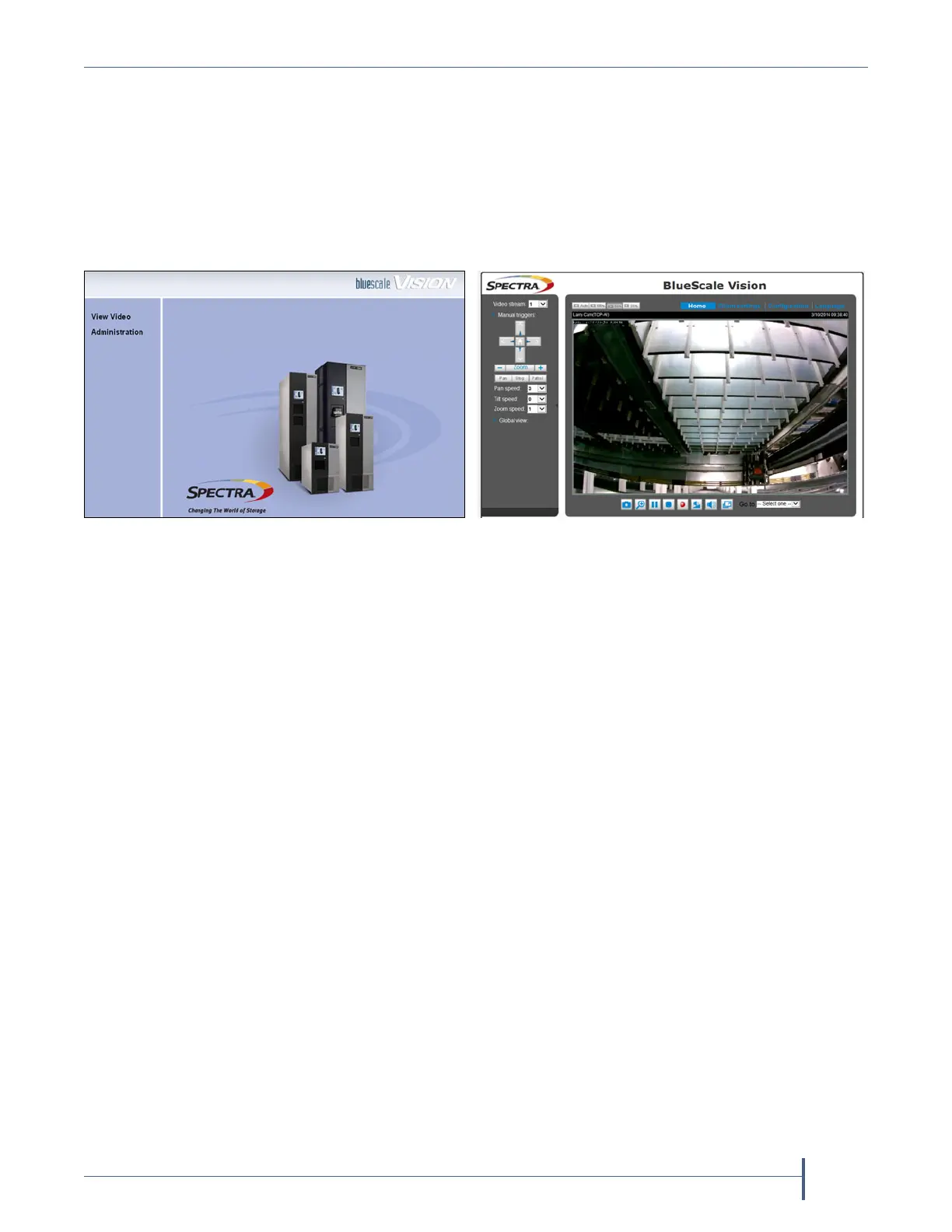
The start page for the BlueScale Vision viewer opens.
Notes: If this is the first time you are connecting to the camera, your
browser may indicate that an add-on is required.
If you do not know the current IP address for the camera and
the default IP address does not work, see Discovering and
Setting the BlueScale Vision Camera IP Address on page 362.
4. Using Figure 74 and Figure 75 on page 149, determine the type of
BlueScale vision camera you have, and use the appropriate section to
configure the camera.
If you have the white BlueScale vision camera, use Edit the Camera
IP Address - White on page 150.
If you have the black BlueScale vision camera, use Edit the Camera
IP Address - Black on page 153.
Figure 74 The white BlueScale Vision camera
viewer start page.
Figure 75 The black BlueScale Vision camera
viewer start page.



 To Next Page