Chapter 7 — Importing and Exporting Cartridges Importing into a Storage or Cleaning Partition
December 2019 User Guide—Spectra T200, T380, and T680 Libraries
230
The alignment guides on each side of the media pack (see
Figure 134 on page 221) slide easily into the grooves on either side
of the TAP opening. If the media pack does not slide into place
easily, remove and reinsert it.
6. Gently raise the TAP door and press it firmly into the latch for
approximately one second.
Note: Close the TAP door firmly, but do not use excessive force.
b. Return to the operator panel and select the appropriate option on
the Feedback Required screen.
Note: If you wait more than 10 minutes to respond, the library times
out and displays a message on the operator panel.
7. If you imported magazines into a storage partition’s entry/exit pool, use
your storage management software to move the cartridges to empty
slots in the partition’s storage pool. The inventory maintained by the
software is updated during this process.
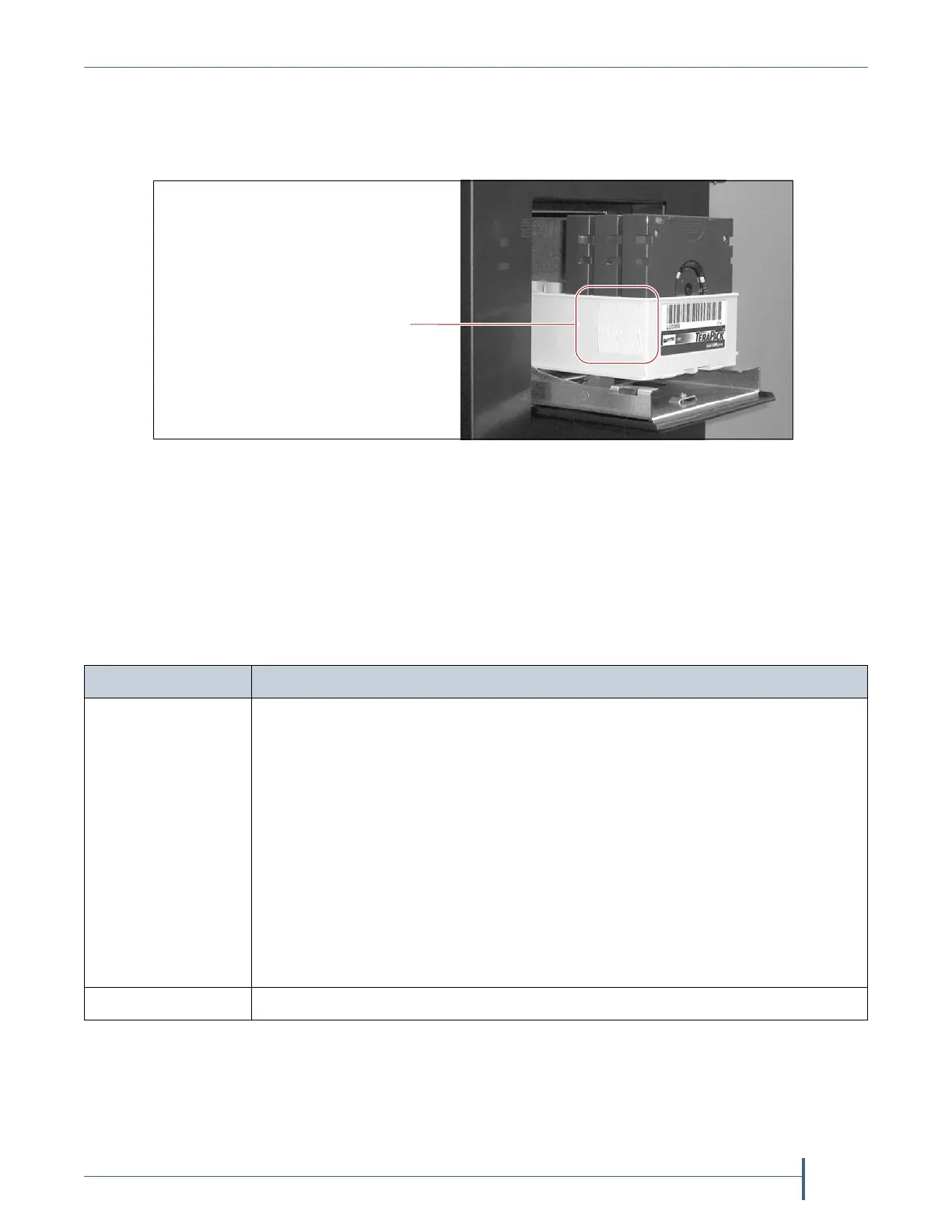
Figure 137 Insert a magazine into the TAP, making sure that it is correctly oriented.
Insert the magazine so that the
textured surface on each side is
toward the outside of the library.
Select... If...
Continue You plan to import another magazine after the one currently in the TAP. The
import process continues as follows:
1. The TAP door closes automatically. The library retrieves the magazine from
the TAP and moves it to a chamber in the selected destination.
2. If there are still empty chambers available in the selected destination, the
second TAP door opens, ready to accept the next magazine. The TAP doors
alternate as you continue to import magazines.
3. The import process continues as long as there are empty chambers available
or until you click Stop Importing on the Feedback Required screen. Continue
to insert magazines into the TAP, clicking Continue after each one. When
there are no empty chambers remaining in the selected destination, the
process stops automatically and the Import/Export TeraPack Cases screen
displays.
Stop Importing The magazine you placed in the TAP is the last one you want to import.



 To Next Page