Chapter 8 — Using the Cartridge Inventory Moving Cartridges Within a Partition
December 2019 User Guide—Spectra T200, T380, and T680 Libraries
262
Upload and Process the Move Queue File After you finish creating the
move queue file, use the following steps to upload and process the file.
1. Log into the library as a user with superuser or administrative
privileges.
2. If you saved the move queue file to a USB device, connect the device to
one of the USB ports on the LCM or operator panel and allow time for
the device to mount before proceeding (see Connect a USB Device to
the Library on page 176).
3. From the library user interface, select General > Inventory. The
Inventory screen displays showing the information for the last partition
that was viewed on either the Inventory screen or the Import/Export
TeraPack Cases screen.
4. If you want to upload the move queue to a storage partition other than
the one currently displayed, select the desired partition from the
Partition drop-down list, then click Go.
Note: Using a move queue file is only supported for storage partitions.
5. Click Advanced to display the options for uploading and processing the
move queue file (see Figure 147 on page 251).
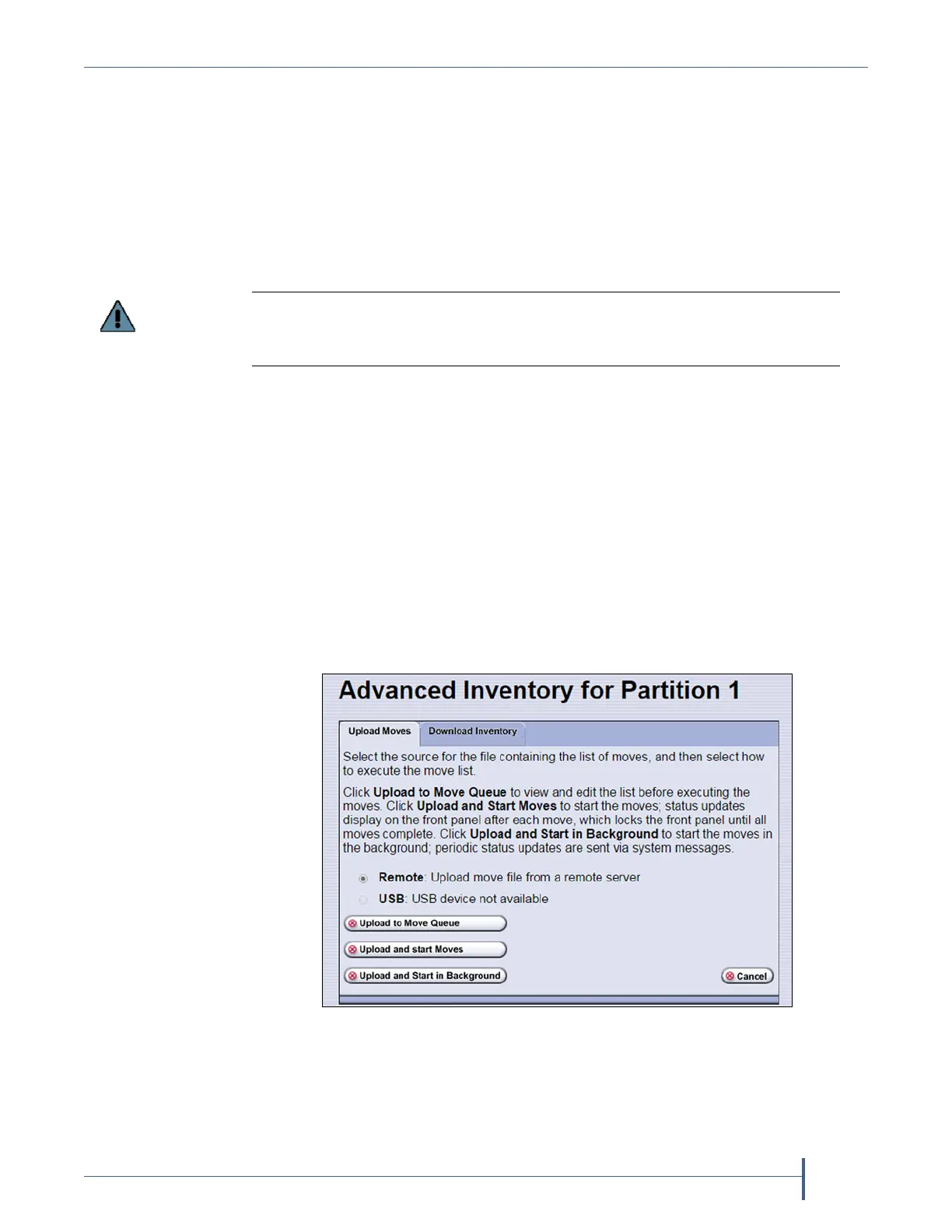
6. On the Advanced Inventory screen, select the Upload Moves tab.
The option to upload the move queue file from a USB device cannot be selected if
the USB device is not connected and mounted before you click Advanced on the
inventory screen.
Figure 154 Select the upload options for the move queue
file.



 To Next Page