Chapter 12 — Library Troubleshooting Discovering and Setting the BlueScale Vision Camera IP Address
December 2019 User Guide—Spectra T200, T380, and T680 Libraries
371
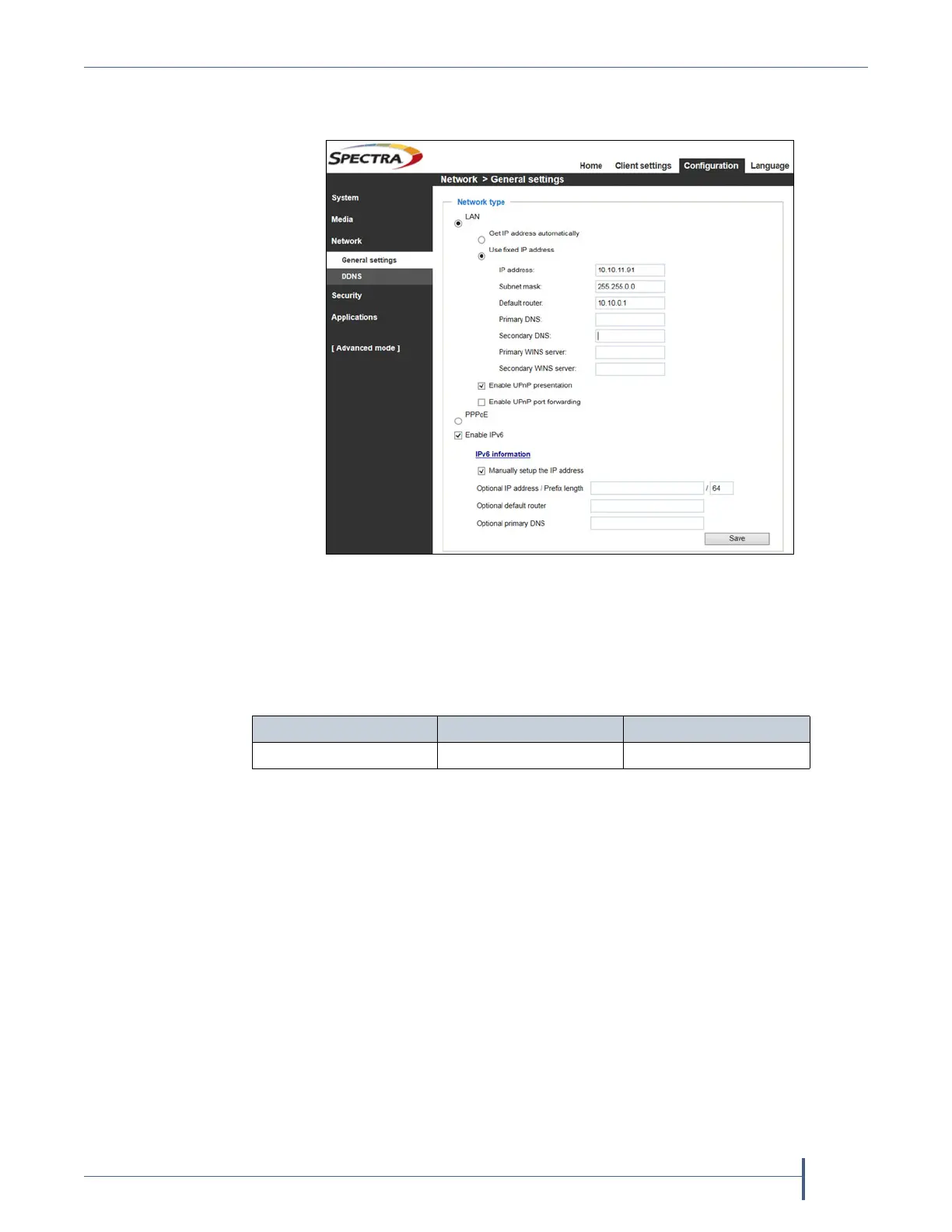
9. Select Network > General settings. The Network General Settings
screen displays.
10. On the Network General Settings screen, select Get IP address
automatically (DHCP) or Use fixed IP address.
If you select Use fixed IP address, configure the IPv4 or IPv6 address for
the camera. The factory defaults are:
Notes: The Primary DNS address is required in order to use the
email alert or dynamic DNS features.
The Secondary DNS is optional. If provided, it is used if the
Primary DNS is unavailable.
11. Click Save.
12. After saving the new camera configuration verify the settings by
attempting to access the camera at the new IP address (see Using a Web
Browser on page 172).
13. Other camera settings can be configured if desired. See the Vivotek
FD8361 Fixed Dome Network Camera User’s Manual for information about
other available settings.
14. When you finish configuring the camera, close your browser to exit the
camera setup software.
Figure 227 The Network General Settings screen.
IP Address Subnet Mask Default Gateway
10.10.10.11 255.255.255.0 10.10.10.1



 To Next Page