Chapter 15 — Maintaining the Drives Updating Drive Firmware
December 2019 User Guide—Spectra T200, T380, and T680 Libraries
482
5. Use your web browser’s download features to save the file to one of the
following locations:
The root directory of a USB device.
Notes: The library only recognizes FAT-formatted, not NTFS-
formatted, USB devices.
Not all USB devices are compatible with the library. If you
are unable to access a USB device from the library, remove it
and use a different one.
Do not unzip the downloaded file.
—OR—
A previously configured package server.
Note: The package server option is only available if you previously
configured a package server. Refer to Configure a Package
Server on page 137 for more information.
Stage the Firmware
1. Log into the library as a user with superuser or administrator
privileges.
2. If you downloaded the drive firmware package to a USB device,
connect the USB device to the LCM’s USB port and allow time for the
device to mount before continuing.
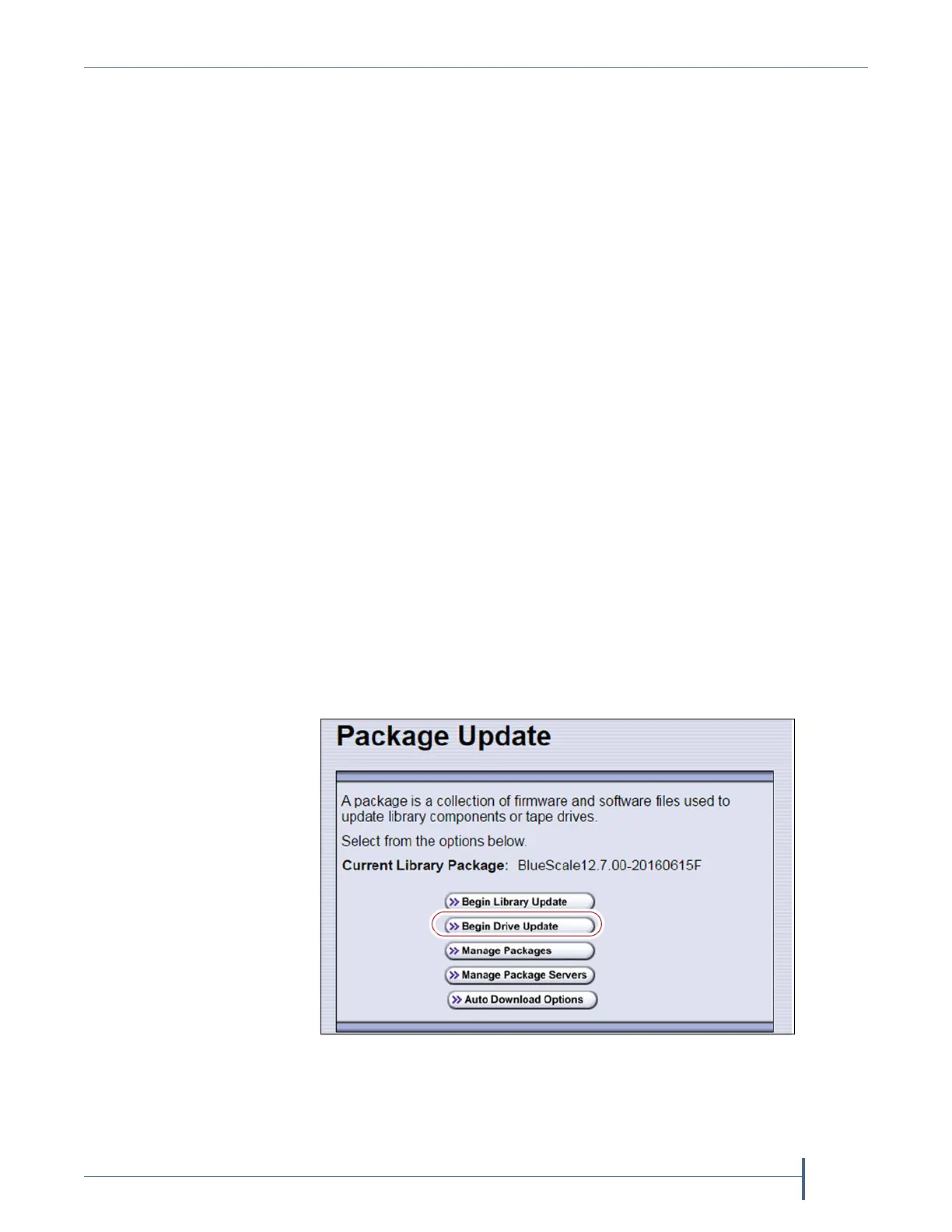
3. Select Maintenance > Package Update to display the Package Update
screen.
4. Click Begin Drive Update.
Figure 297 The Package Update screen.



 To Next Page