Chapter 3 — Introducing the BlueScale User Interface Overview of the BlueScale User Interface
December 2019 User Guide—Spectra T200, T380, and T680 Libraries
83
Last Refresh Time and Date Shows when the displayed information was
last updated. The library refreshes different screens at different rates,
depending on the type of data displayed. The screen refresh rate can be set
for a specific interval or disabled (see Refresh on page 106). The displayed
information can be refreshed manually by clicking the refresh display
button.
BlueScale Version Shows the BlueScale software version currently being
used by the library.
Network Settings Icon or Library Name Shows the Network Settings icon
or name for the library. If you are managing the library from the touch
screen operator panel, the Network Settings icon displays on the status bar.
Click the icon to go to the Network Settings screen. If you are using the
BlueScale web interface, the library’s name is shown instead of the
Network Settings icon.
Note: If you are using the BlueScale web interface and you did not set
the library name, the right-hand side of the status bar is blank.
If you need to view or set the library’s IP address or name, see Configure
Network Settings on page 112 and Library Name on page 106, respectively.
Additional Status Bar Icons
The status bar can also include the following additional icons.
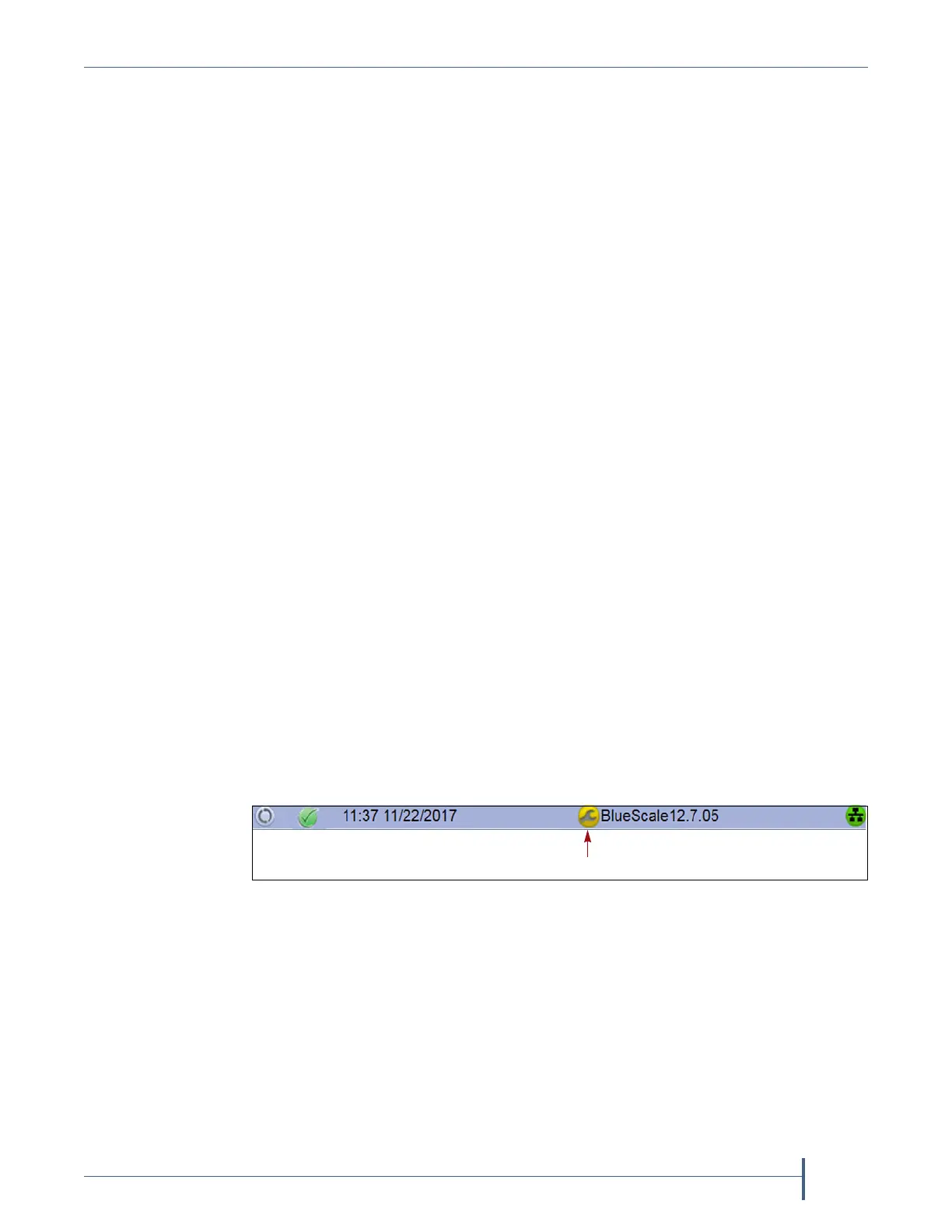
Auto Download Icon If one or more package servers are configured to
automatically download firmware packages (see Configure a Package
Server on page 137) and a new package was downloaded, the Auto
Download icon (a wrench in a yellow circle) displays to indicate that an
update package is ready for installation. See Figure 35 on page 82. Click the
icon to navigate to the Package Update screen. See Updating the BlueScale
Software and Library Firmware on page 441 and Updating Drive Firmware
on page 473 for information on installing the update.
Figure 36 The Auto Download icon in the BlueScale status bar.



 To Next Page