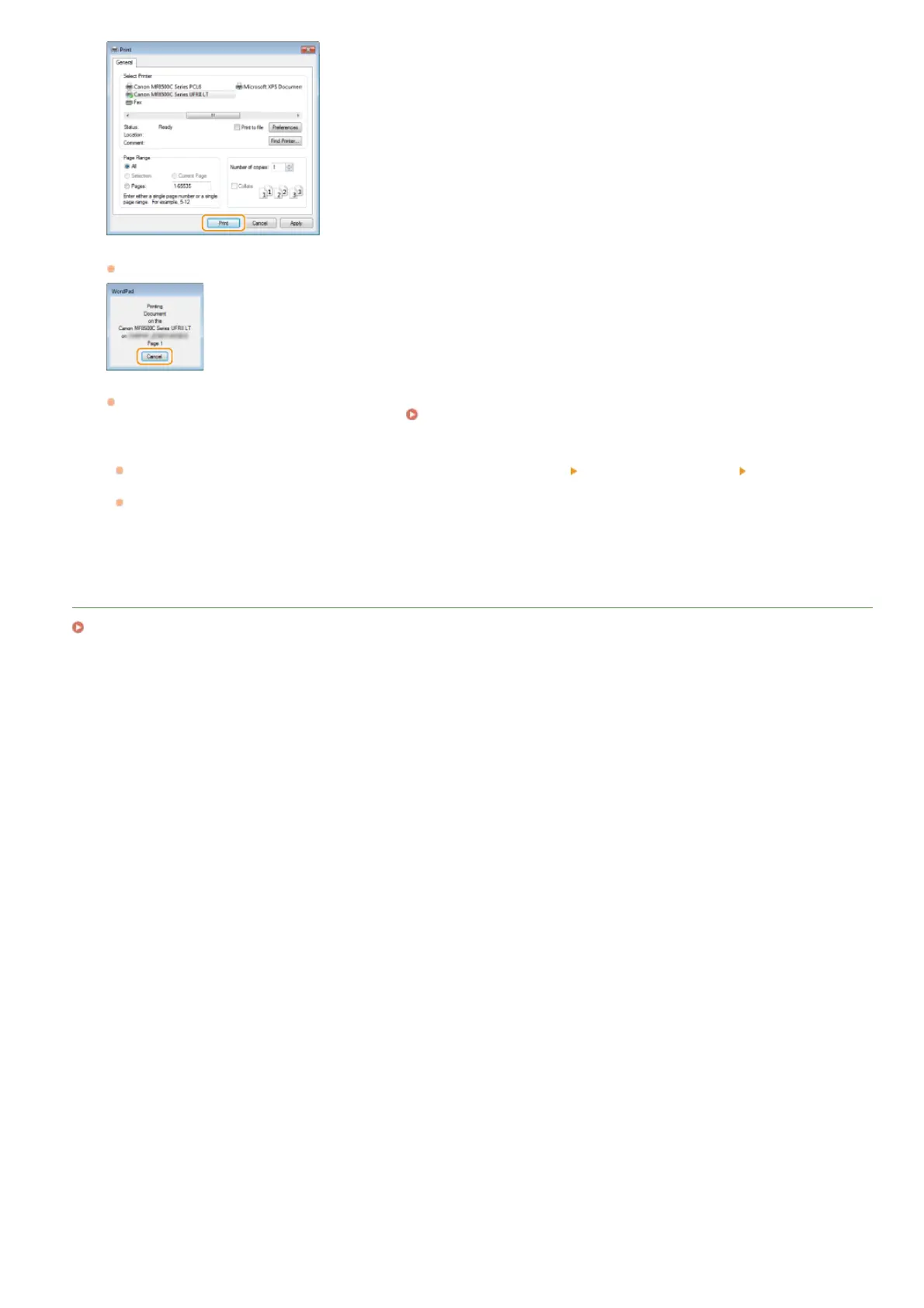
Printing starts. On some applications, a screen like shown below appears.
To cancel printing, click [Cancel] when the screen shown above is displayed. After the screen disappears or if the screen is not
displayed, you can cancel printing in other ways.
Canceling Prints
NOTE:
When printing from the Windows Store app in Windows 8/Server 2012
Display the charm bar to the right of the screen, and tap or click [Devices]
the machine you are using [Print]. When you
print in this way, you can only use some of the print settings.
If the message [The printer requires your attention. Go to the desktop to take care of it.] is displayed, go to the desktop and
follow the instructions in the displayed dialog box. This message appears when printing via Secure Print and other cases.
LINKS
Checking the Printing Status and Log
㻝㻥㻞㻌㻛㻌㻢㻣㻢











 To Next Page