0ALJ-0EK
TX Result Report (MF8580Cdw / MF8550Cdn / MF8540Cdn / MF8280Cw
Only)
You can check the fax or e-mail logs of sent documents as well as documents scanned to a shared folder by printing a TX Result Report.
The report can be printed either every time a transmission is completed or only when a sending error occurs.
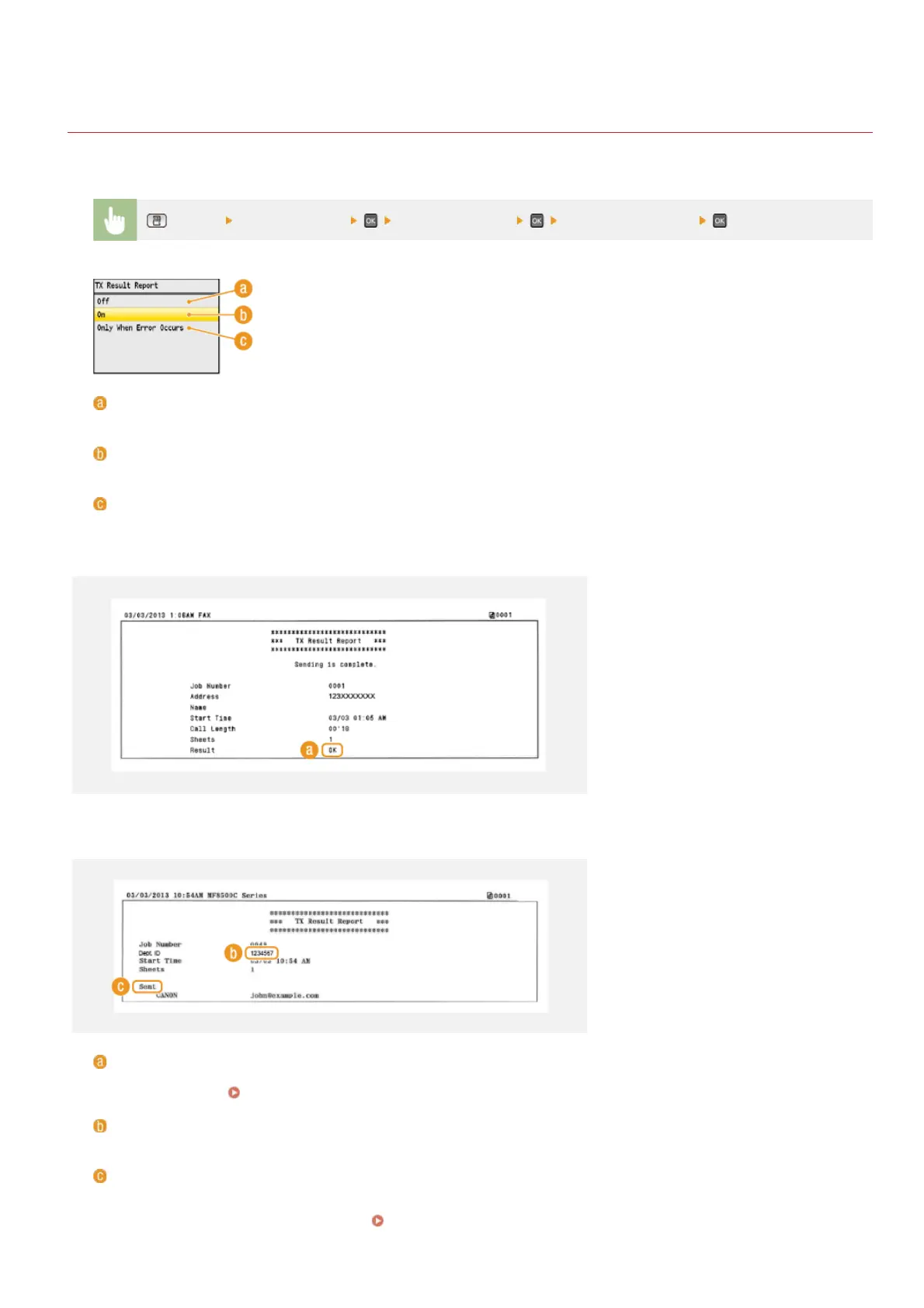
(Report) <Report Settings> <TX Result Report> Select the print setting
<Off>
Select if you do not want to print TX Result Reports.
<On>
Select to print a TX Result Report every time you send a document.
<Only When Error Occurs>
Select to print a TX Result Report only when a sending error occurs.
Example: Fax sending
Example: Scanning to e-mail/shared folder
Result
"OK" indicates that the transmission was completed successfully while "NG" and three digits (an error code) indicates that the
transmission failed (
When an Error Code Appears).
Department ID
The Department ID is shown when Department ID Management is enabled.
Sent/Error
For e-mail, TX Result Reports indicate the transmission result between the machine and the mail server, not between the machine
and the destination address. Even if the transmission fails, a three-digit error code will not be printed. To check the error code,
print a Communication Management Report (
Communication Management Report (MF8580Cdw / MF8550Cdn /
MF8540Cdn / MF8280Cw Only)).
㻢㻜㻣㻌㻛㻌㻢㻣㻢











 To Next Page