0ALJ-04U
Printing Booklet (MF8580Cdw / MF8550Cdn / MF8540Cdn Only)
You can print two pages of a document on both sides of paper and then fold your printed pages in half to
make a booklet. The printer driver controls the print order in such a way that the page numbers are correctly
arranged.
NOTE
Booklet printing may not be available with some sizes and types of paper. The paper that is available for 2-sided printing is also
available for booklet printing. See
Paper.
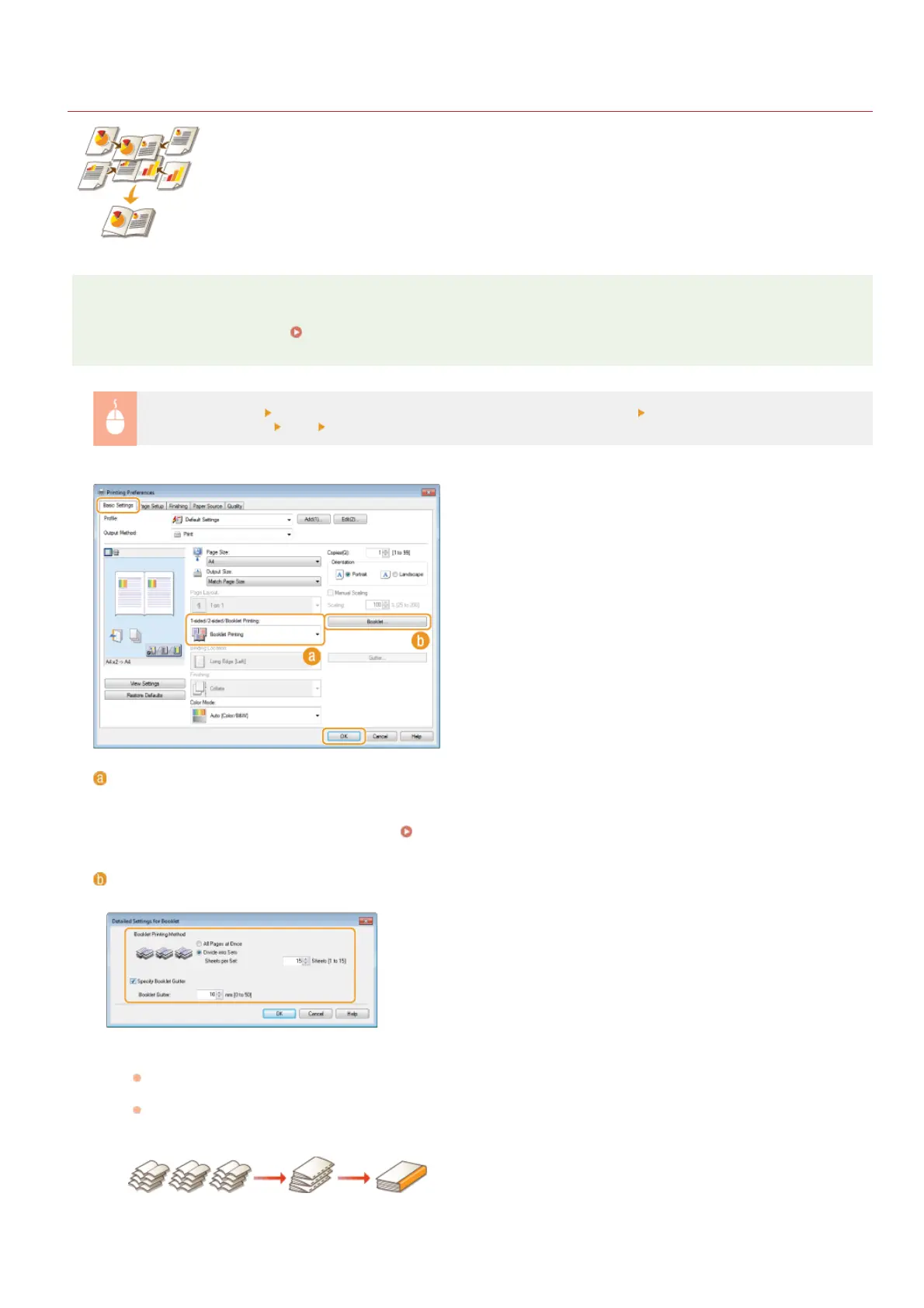
[Basic Settings] tab Select [Booklet Printing] in [1-sided/2-sided/Booklet Printing] Click [Booklet] to specify detailed
settings as necessary
[OK] [OK]
[1-sided/2-sided/Booklet Printing]
Select [Booklet Printing].
NOTE:
For [1-sided Printing] and [2-sided Printing], see
Switching 1-Sided and 2-Sided Printing (MF8580Cdw / MF8550Cdn /
MF8540Cdn Only).
[Booklet]
The screen below is displayed.
[Booklet Printing Method]
[All Pages at Once]: Prints all of the pages at once as a single bundle so that you can make a booklet just by folding the
printed pages in half.
[Divide into Sets]: Prints as multiple bundles divided by the number of the pages specified on [Sheets per Set]. Bind each
bundle, and then combine them as one booklet. Select this option when the document has so many pages that you cannot
bind them all into a single booklet.
[Specify Booklet Gutter]
If you are using a stapler or other binding tools, specify the margin width for binding your booklet. Select the [Specify Booklet
㻞㻜㻡㻌㻛㻌㻢㻣㻢











 To Next Page