0ALJ-084
Setting IPv4 Address
The machine's IPv4 address can be either assigned automatically by a dynamic IP addressing protocol, such as
DHCP, or entered manually. When connecting the machine to a wired LAN, make sure that the connectors of
the LAN cable are firmly inserted into the ports (
Connecting to a Wired LAN). You can test the network
connection if necessary.
Setting IPv4 Address
Testing the Network Connection
Press .
Use / to select <Network Settings>, and press .
If the logon screen appears, enter the correct ID and PIN using the numeric keys, and then press . Logging on to the
Machine
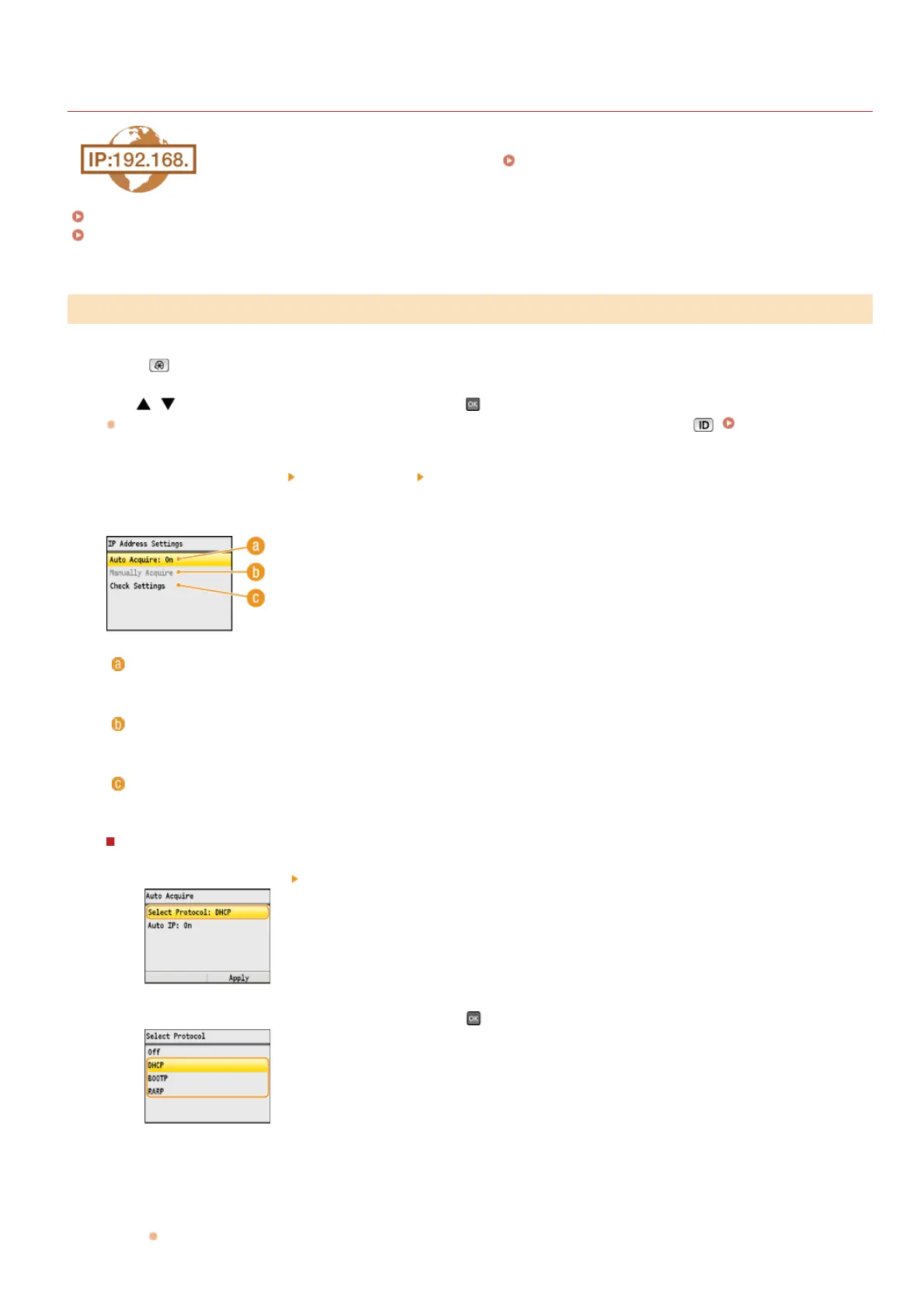
Select <TCP/IP Settings> <IPv4 Settings> <IP Address Settings>.
Configure IP address settings.
<Auto Acquire>
Select to automatically assign an IP address via a protocol such as DHCP. When <Auto Acquire: On> is displayed, automatic
addressing is enabled.
<Manually Acquire>
Select to configure the IP address settings by manually entering an IP address. In order to select this option, <Auto Acquire>
must be set to <Off>.
<Check Settings>
Select when you want to view the current IP address settings.
Automatically assigning an IP address
1
Select <Auto Acquire> <Select Protocol>.
2
Select <DHCP>, <BOOTP>, or <RARP>, and press .
NOTE:
If you do not want to use DHCP/BOOTP/RARP to assign an IP address
Select <Off>. If you select <DHCP>, <BOOTP>, or <RARP> when these services are unavailable, the machine will waste
time and communications resources searching the network for these services.
3
Check that <Auto IP> is set to <On>.
If <Off> is selected, change the setting to <On>.
Setting IPv4 Address
1
2
3
4
㻟㻟㻥㻌㻛㻌㻢㻣㻢











 To Next Page