0ALJ-06K
Selecting a File Format
You can select from four file formats into which documents are converted: <PDF>, <PDF (Compact)>,
<TIFF> , and <JPEG> . Scanned documents are converted into the file format specified here, and then sent
to the specified destination.
Not available when sending e-mails
Specify destinations or connect the USB memory device <File Format> Select a file format
NOTE
<PDF (Compact)> compresses photos and illustrations on documents more than <PDF>. The file will be smaller, but the image
quality of some documents or the number of documents that can be scanned at once may be lower. If you select <PDF
(Compact)>, you can specify the compression level.
For the resolutions of each file format, see
Specifications for Scanning to Shared Folders (MF8580Cdw / MF8550Cdn /
MF8540Cdn Only).
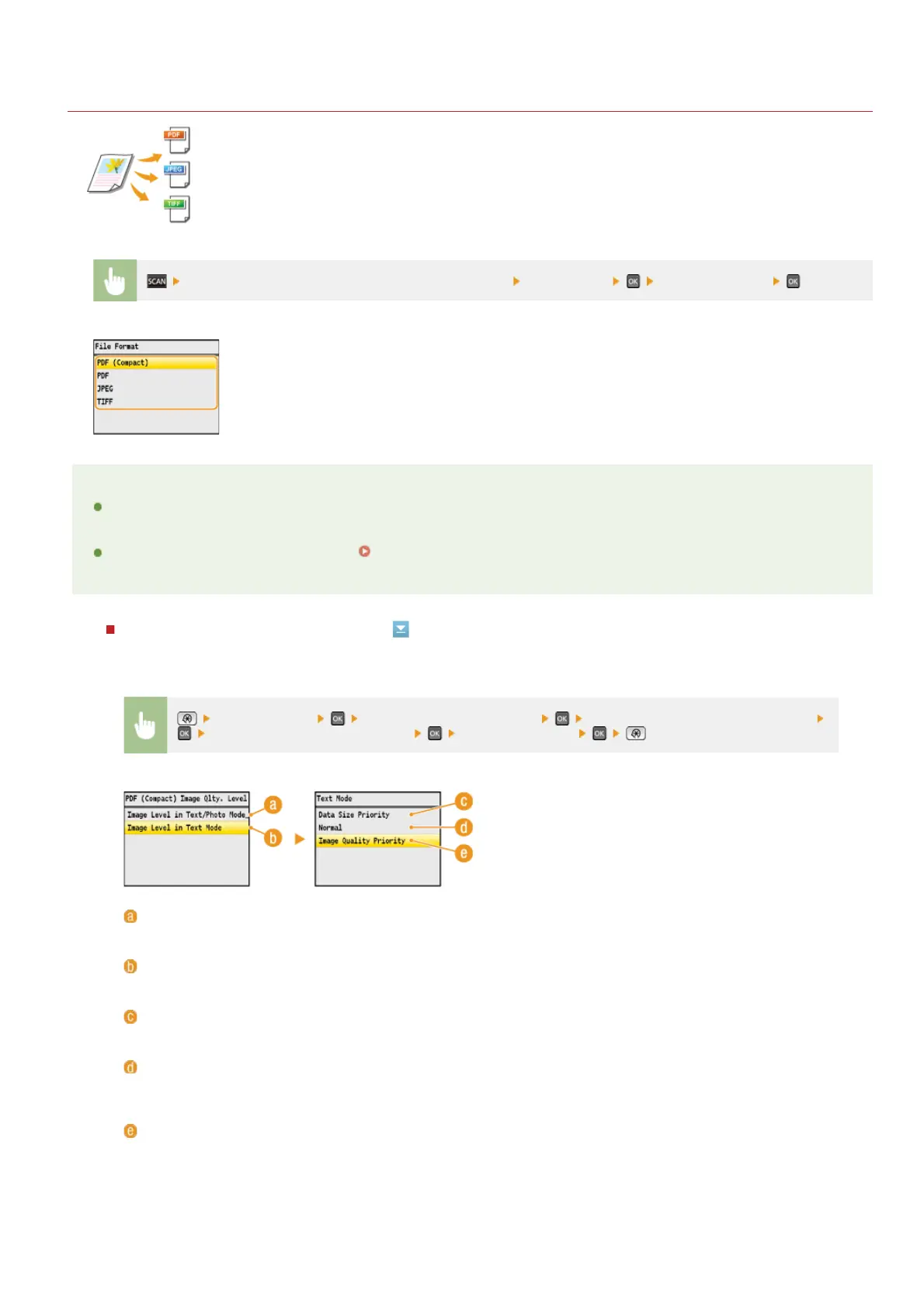
Detailed Settings for <PDF (Compact)>
**
*
<Scan Settings> <Output File Image Settings> <PDF (Compact) Image Quality Level>
Select the type of your documents Specify the settings
<Image Level in Text/Photo Mode or Photo Mode>
Select when scanning documents that contain photos.
<Image Level in Text Mode>
Select when scanning documents that only contain text.
<Data Size Priority>
The data size is highly compressed and reduced, but the image quality is low.
<Normal>
The compression ratio and the image quality are adjusted to an intermediate setting between <Data Size Priority> and
<Image Quality Priority>.
<Image Quality Priority>
The image quality improves, but the data compression ratio decreases and data size is large.
㻞㻥㻣㻌㻛㻌㻢㻣㻢











 To Next Page