0ALJ-017
Shortcut Keys
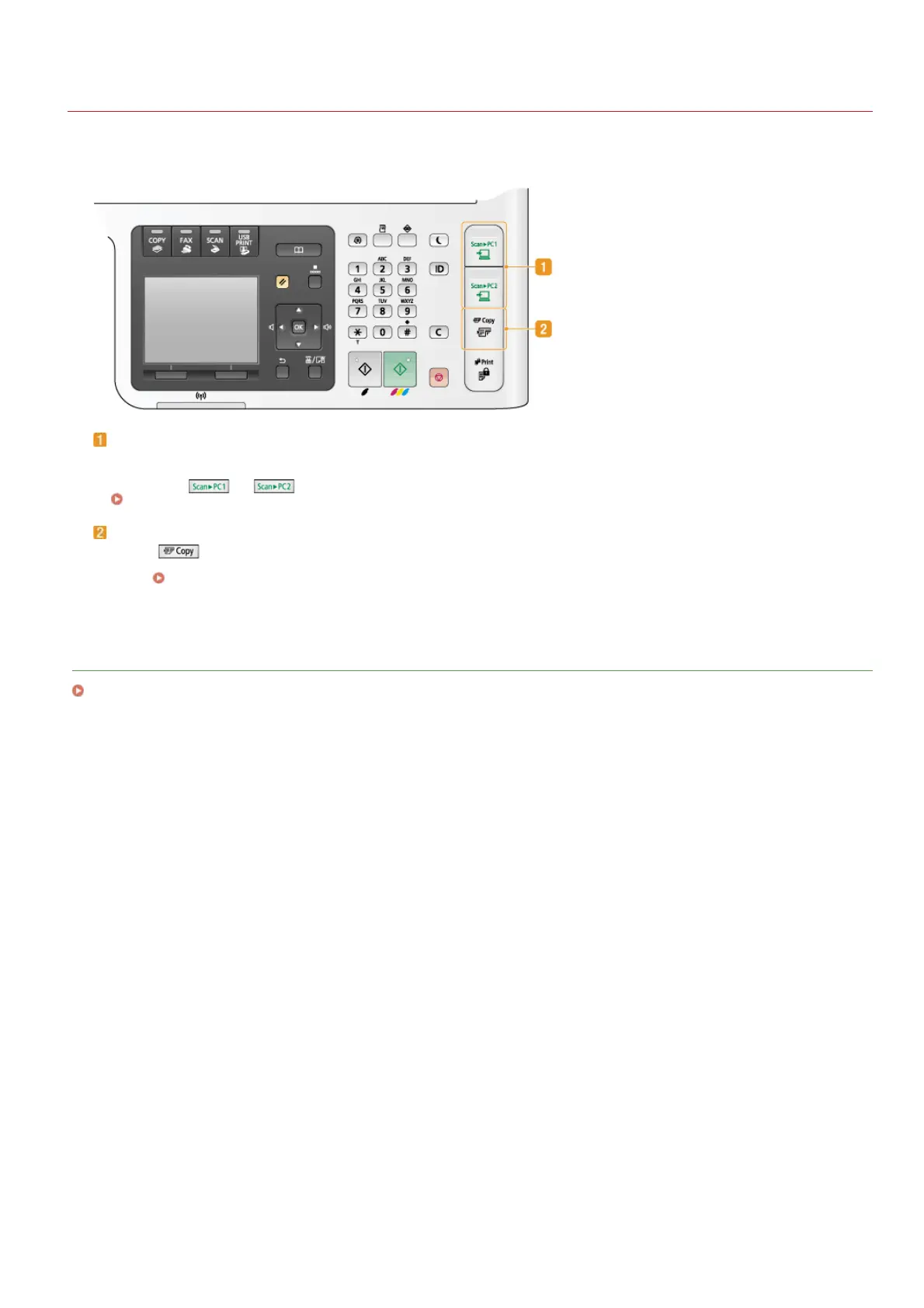
Shortcut keys located on the right side of the operation panel enable you to perform the operations with greater ease and efficiency. By
using the shortcut keys, you can save scanned images to a computer or reduce the amount of paper you consume when you make
copies.
[Scan > PC1]/[Scan > PC2] key
Using these keys is the easiest way to use the scan function. First, register settings for each key, such as the computer where you
want to save the scanned data, or whether to scan the document as a color PDF or as a JPEG. Then, place the document and
simply press
or to start scanning. The scanned document is stored in the computer in the specified file format.
Scanning Using the [Scan > PC] Key
[Paper Save Copy] key
For the
key, settings are pre-registered that enable you to save paper by copying two (or four) sheets of documents onto
one side of a page. On the MF8580Cdw / MF8550Cdn / MF8540Cdn, you can also select 2-sided copy settings to save even more
paper.
Using the [Paper Save Copy] Key
LINKS
Operation Panel
㻢㻟㻌㻛㻌㻢㻣㻢











 To Next Page