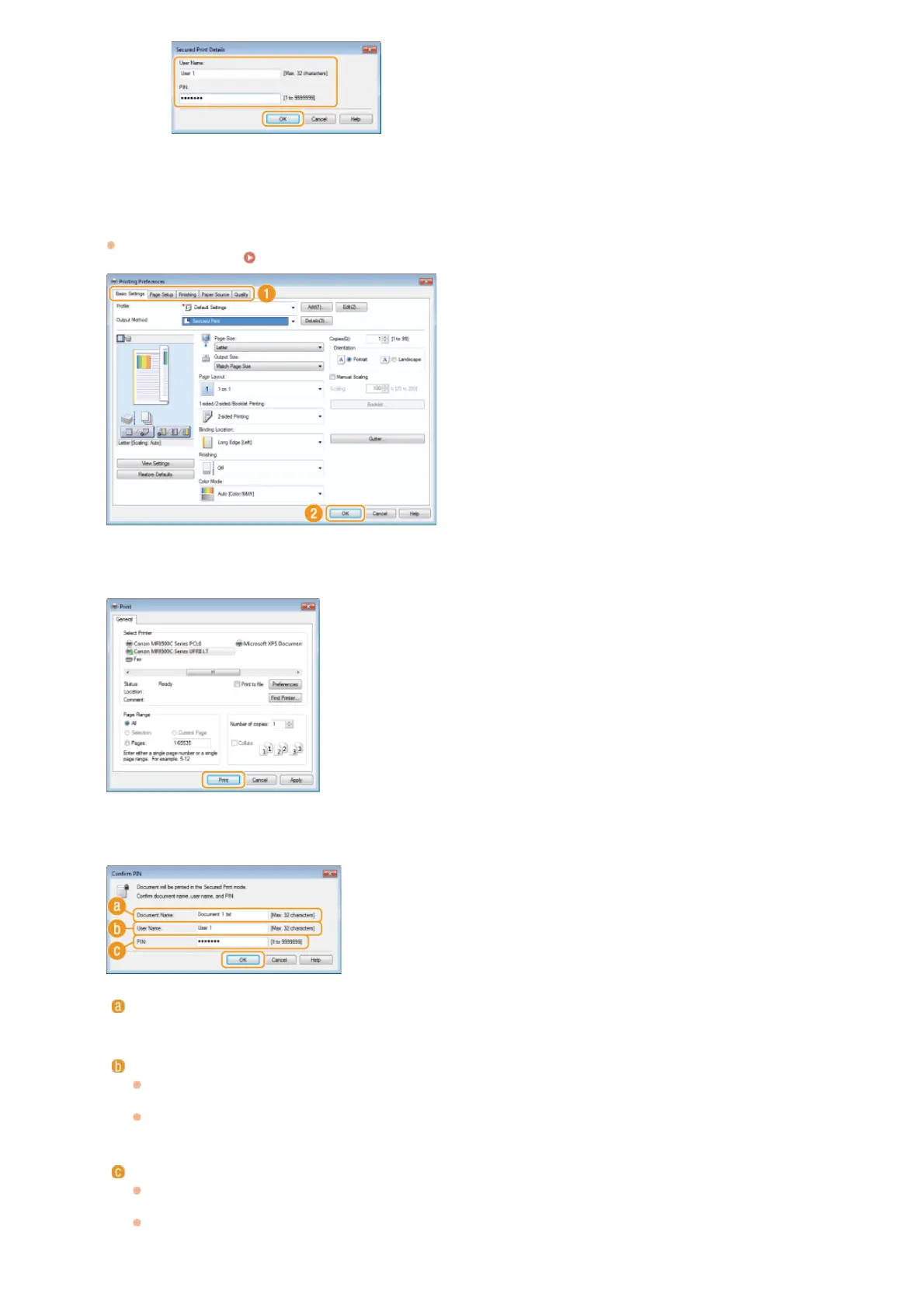
Specify the print settings, and click [OK].
Click the [Basic Settings], [Page Setup], [Finishing], [Paper Source], or [Quality] tabs to specify the print settings on each
screen as necessary.
Various Print Settings
Click [Print] (or [OK]).
Check the document name, user name, and PIN and click [OK].
[Document Name]
The document name is automatically set based on the information from the application. If you want to change the document
name, enter up to 32 alphanumeric characters for a new document name.
[User Name]
If you specified the user name in step 3
The specified user name is displayed.
If you did not specify the user name in step 3
The computer name or logon name is displayed. If you want to change the user name, enter up to 32 alphanumeric
characters for a new user name.
[PIN]
If you specified the PIN in step 3
The specified PIN is already entered. The PIN is displayed in symbols.
If you did not specify the PIN in step 3
Enter the PIN of up to seven digits. The entered PIN is displayed in symbols.
4
5
6
㻞㻞㻠㻌㻛㻌㻢㻣㻢











 To Next Page