[Document (Grayscale)
ADF]
The document is scanned as a grayscale image.
[Select Purpose]
Select a setting based on your intended use of the scanned image.
[Print (300dpi)] Select when printing the scanned image.
[Image Display (150dpi)] Select when displaying the scanned image on a computer.
[OCR (300dpi)] Select when using the scanned image with OCR (optical character recognition) software.
[Output Size]
Select the size of the scanned image when it is printed or displayed on a computer. For example, if you want to output an
image that is appropriate for printing on A4 paper, select [A4], and [Print (300dpi)] for [Select Purpose] (
).
Click
to switch between the portrait and landscape orientation. This button is not available when [Flexible] is selected.
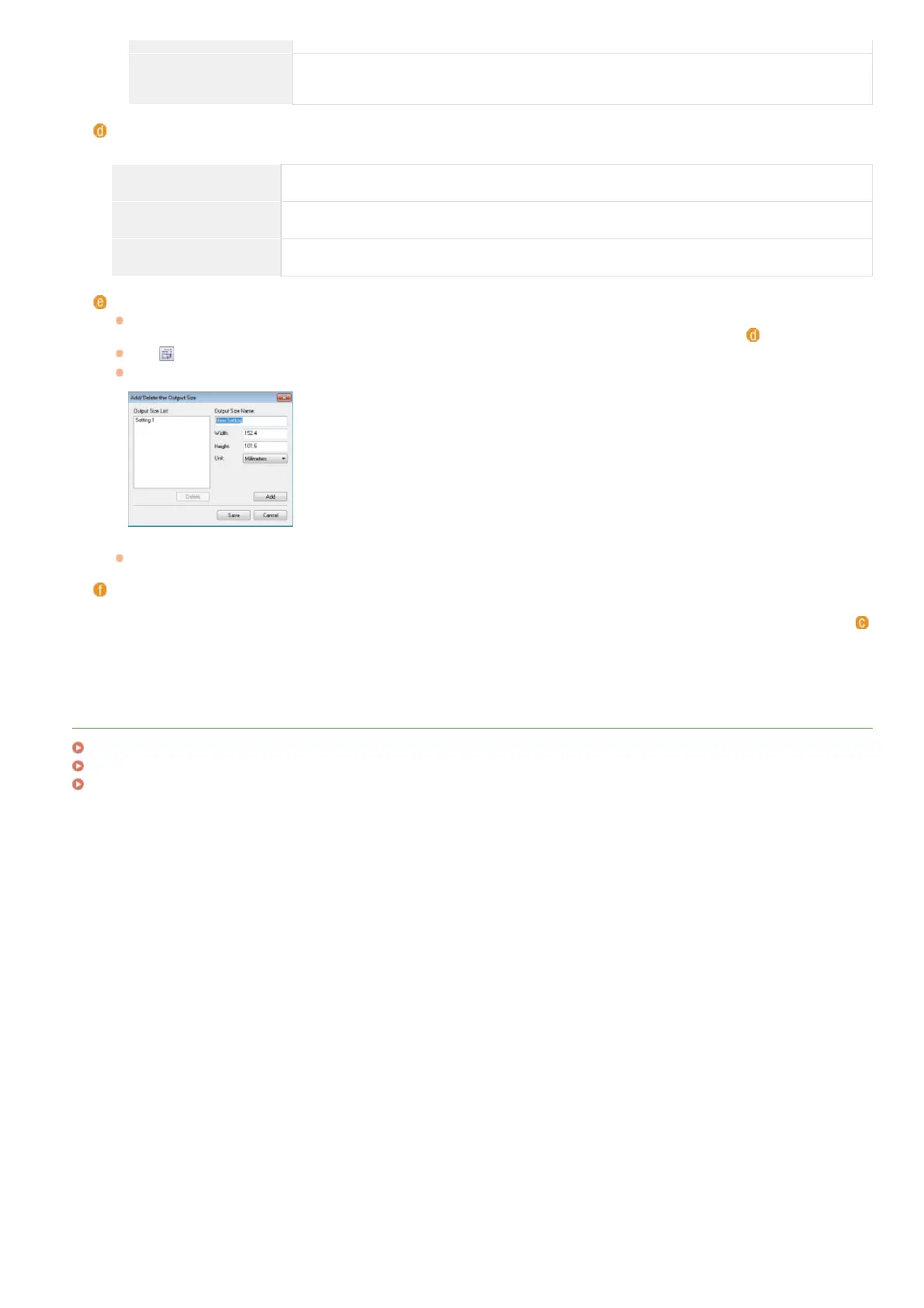
If you select [Add/Delete], you can add new output size settings and delete the added sizes.
Select [Flexible] to change the ratio of width to height. Drag the area you want to scan on the preview image.
[Image Correction]
Select the [Fading Correction] check box to correct faded colors on an old photograph or other images into vivid colors. This
setting is available when a preview image is displayed and you select [Photo (Color)] or [Magazine (Color)] for [Select Source] (
).
LINKS
Configuring Scan Settings in Advanced Mode
Scanning Using MF Toolbox
Scanning Using an Application
㻞㻣㻞㻌㻛㻌㻢㻣㻢











 To Next Page