<Resolution> or <Gradation> separately for text, graphics, and images.
Error Diffusion
Off
On
Resolution/Gradation
Text
Resolution
Gradation
Graphics
Resolution
Gradation
Image
Resolution
Gradation
RGB Source Profile
Select the source profile for color matching to print RGB data, according to the monitor you are using. If you are using an sRGB-
compatible computer display, and select <sRGB>, the tone of printouts will be close to how they appear on your computer display.
Select <Gamma 1.5>, <Gamma 1.8>, or <Gamma 2.4> to adjust the gamma value as necessary. As the value gets bigger, the
printout becomes darker. You can specify the setting separately for text, graphics, and images.
Text
sRGB
Gamma 1.5
Gamma 1.8
Gamma 2.4
Graphics
sRGB
Gamma 1.5
Gamma 1.8
Gamma 2.4
Image
sRGB
Gamma 1.5
Gamma 1.8
Gamma 2.4
NOTE
This setting is enabled only when <CMS> is selected in <CMS (Matching)/Gamma>.
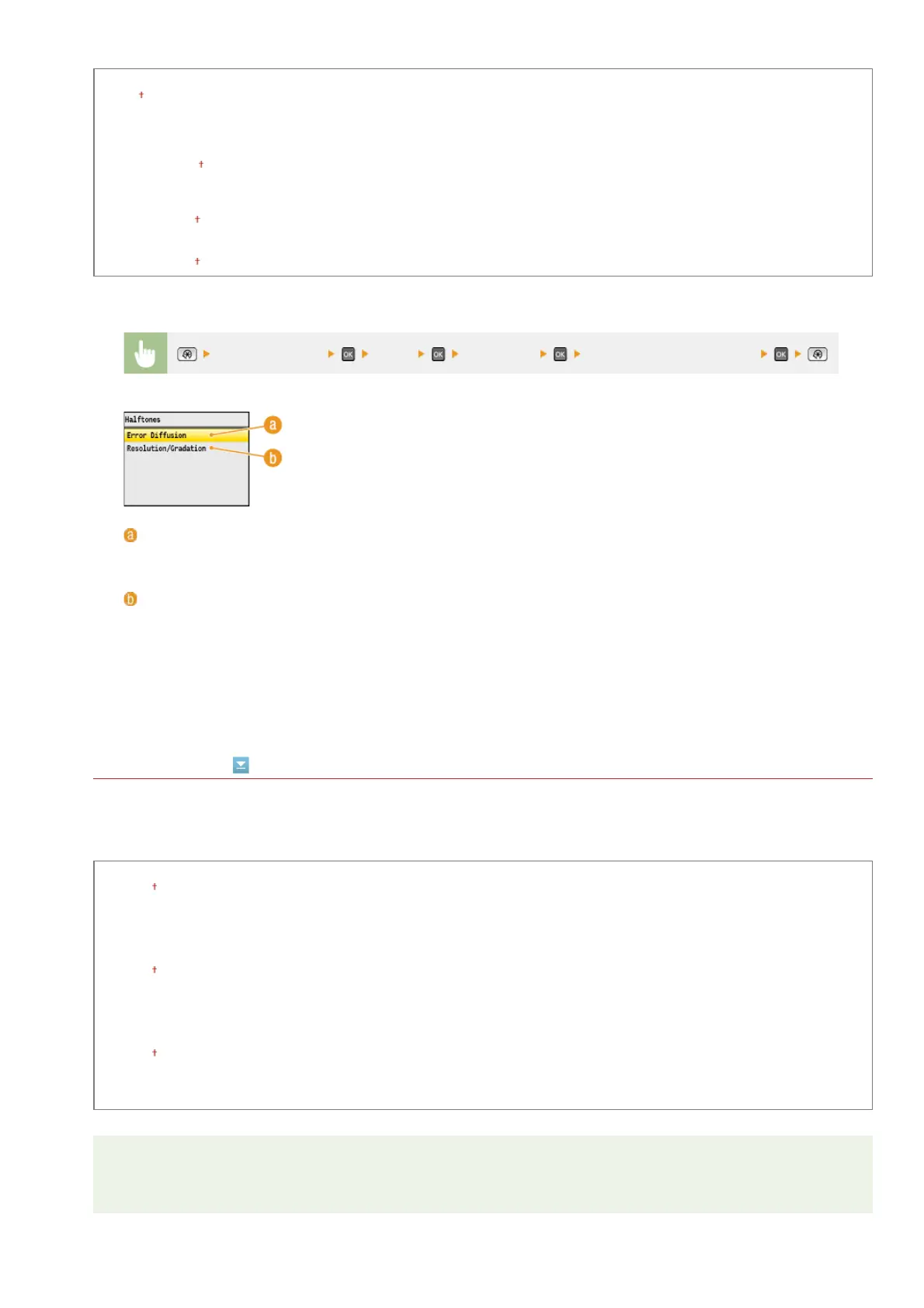
<Printer Settings> <PCL> <Halftones> Specify the halftones settings
<Error Diffusion>
Prints small text and fine lines with a clear finish. If this setting is set to <On>, <Resolution> and <Gradation>
settings that are specified for <Text>, <Graphics>, and <Image> are disabled.
<Resolution>/<Gradation>
<Resolution>
Prints text and thin lines with clear edges.
<Gradation>
Prints gradations such as those in graphics or photographic images with a smooth finish.
㻡㻞㻟㻌㻛㻌㻢㻣㻢











 To Next Page